Finding a specific email in Gmail shouldn’t feel like digging through a pile of messages. But once your inbox grows, basic search often isn’t enough. That’s where Gmail search operators come in.
These simple commands let you filter emails with precision — by sender, date, attachment, keywords, size, status, and more — so you can find exactly the message you’re looking for in seconds.
In this guide, you’ll discover 50+ Gmail search operators, with clear examples you can copy and use right away. We’ll also share a few advanced tricks to help you search faster and take control of your inbox.
What Are Gmail Search Operators?
Gmail search operators are commands you can type into the Gmail search bar to filter your emails more precisely. They work similarly to Google search operators — but instead of searching the web, you’re searching your inbox.
For example, if you type from:john, Gmail will instantly show you all the emails you’ve received from John. You can then add more operators, like has:attachment or after:2026/01/01, to narrow down your results even further.
Think of Gmail search operators as shortcuts that help you skip the clutter and go straight to the email you need. You can use them individually — or combine multiple operators to build more advanced searches in seconds.
Gmail Search Operators Cheat Sheet
Here are 50+ Gmail search operators and search patterns you can use to find any email faster. Copy and paste them into Gmail — or combine them to refine your search. Want to see how they work in real situations? Jump to detailed examples.
| Operator | What it does | Example |
|---|---|---|
from: |
Emails from a specific sender | from:john@example.com |
to: |
Emails sent to a recipient | to:me |
cc: |
Emails where someone is in CC | cc:sarah@example.com |
bcc: |
Emails where someone is in BCC | bcc:alex@example.com |
deliveredto: |
Emails delivered to a specific address | deliveredto:team@example.com |
list: |
Emails from a mailing list | list:newsletter@example.com |
subject: |
Search in subject line | subject:invoice |
" " |
Exact phrase match | "project update" |
+ |
Force exact word match | +invoice |
- |
Exclude a word | invoice -paid |
subject:- |
Exclude word from subject | subject:-promo |
OR |
Match one of multiple conditions | from:john OR from:sarah |
{ } |
Alternative OR grouping | {from:john from:sarah} |
( ) |
Group multiple terms | subject:(invoice receipt) |
AROUND |
Words close to each other | budget AROUND 5 forecast |
label: |
Emails with a specific label | label:work |
has:userlabels |
Emails with custom labels | has:userlabels |
has:nouserlabels |
Emails without custom labels | has:nouserlabels |
category: |
Emails in a category | category:promotions |
category:primary |
Primary inbox | category:primary |
category:social |
Social emails | category:social |
category:promotions |
Promotions emails | category:promotions |
category:updates |
Updates emails | category:updates |
category:forums |
Forum emails | category:forums |
category:purchases |
Purchase receipts | category:purchases |
category:reservations |
Booking confirmations | category:reservations |
in: |
Search in a specific folder | in:spam |
in:anywhere |
Search across all folders | in:anywhere invoice |
in:inbox |
Inbox only | in:inbox |
in:sent |
Sent emails | in:sent |
in:drafts |
Draft emails | in:drafts |
in:trash |
Trash folder | in:trash |
in:spam |
Spam folder | in:spam |
in:snoozed |
Snoozed emails | in:snoozed |
in:chats |
Chat messages | in:chats meeting |
is:important |
Important emails | is:important |
is:starred |
Starred emails | is:starred |
is:unread |
Unread emails | is:unread |
is:read |
Read emails | is:read |
is:snoozed |
Snoozed emails | is:snoozed |
is:chat |
Chat messages (alt syntax) | is:chat |
has:attachment |
Emails with attachments | has:attachment |
filename: |
Specific file name or type | filename:pdf |
filename:( ) |
Multiple file types | filename:(pdf OR docx) |
has:drive |
Google Drive files | has:drive |
has:document |
Google Docs files | has:document |
has:spreadsheet |
Google Sheets files | has:spreadsheet |
has:presentation |
Google Slides files | has:presentation |
has:youtube |
Emails with YouTube links | has:youtube |
after: |
Emails sent after a date | after:2026/01/01 |
before: |
Emails sent before a date | before:2026/03/01 |
older: |
Emails older than a date | older:2025/12/31 |
newer: |
Emails newer than a date | newer:2026/01/01 |
older_than: |
Emails older than a time period | older_than:6m |
newer_than: |
Emails newer than a time period | newer_than:7d |
size: |
Emails larger than a size (bytes) | size:1000000 |
larger: |
Emails larger than a size | larger:10M |
smaller: |
Emails smaller than a size | smaller:5M |
How to Use Gmail Search Operators
Using Gmail search operators is simple — you just type them directly into the search bar at the top of your inbox. Here’s how to do it.
- Open Gmail.
- Click or tap the search bar.
- Type a search operator like
from:johnorhas:attachment.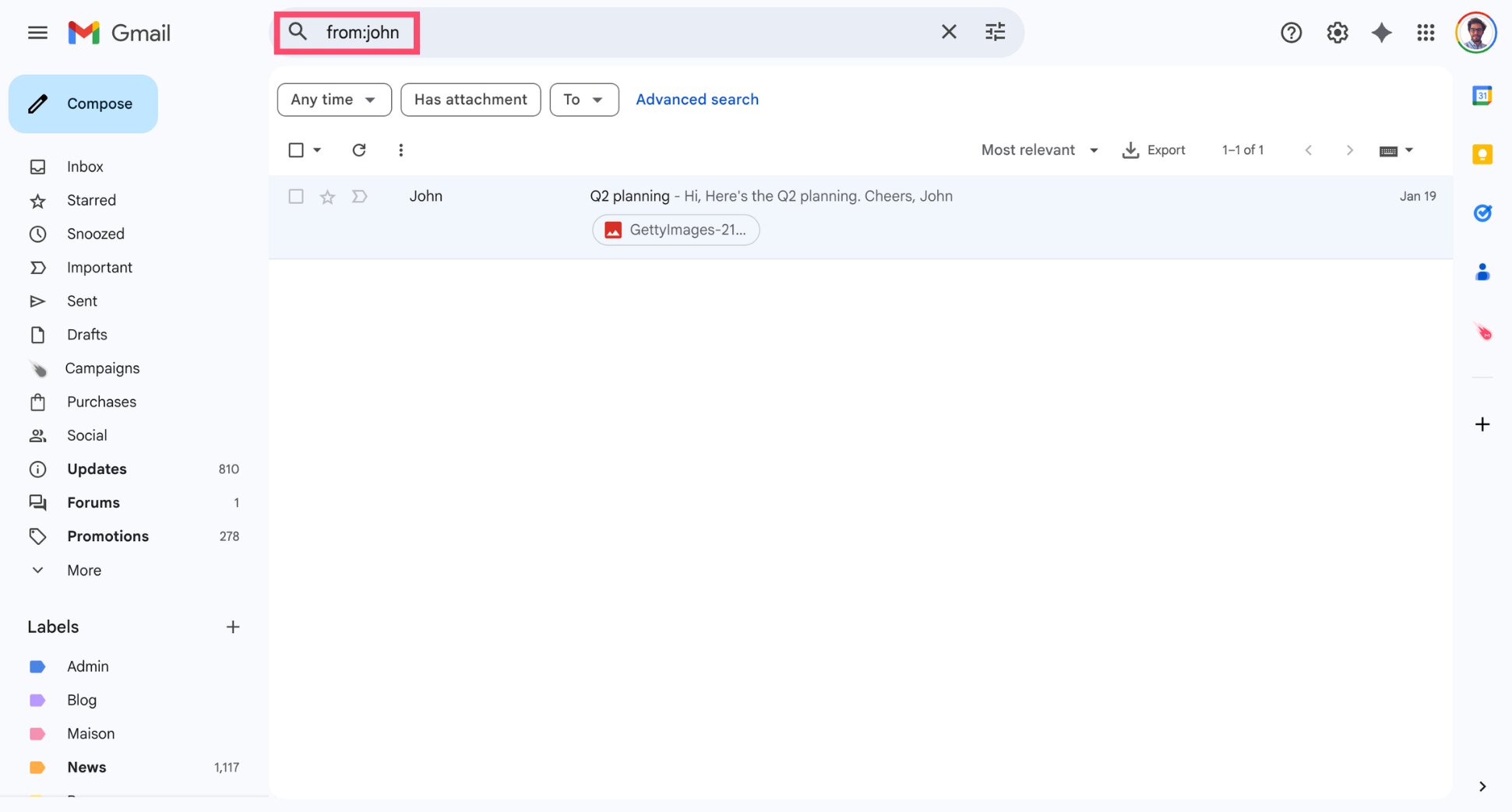
- Press Enter or click the search icon.
And voilà — Gmail instantly filters your inbox based on your query. You can also click the filter icon in the search bar to use Gmail’s visual search tool, which automatically generates the corresponding operators for you.
from:john, not from: john.
Most Useful Gmail Search Operators (With Examples)
Now that you’ve seen the full list, let’s focus on the operators you’ll actually use every day. Below are practical, real-world examples you can copy and adapt to quickly find specific emails in your inbox.
Find Emails by Sender or Recipient
Use these operators to quickly find emails from or sent to specific people.
-
Find all emails from a sender:
from:john@example.com
Shows every email you’ve received from that address. -
Find emails sent to you:
to:me
Useful to isolate emails where you’re the main recipient. -
Find conversations with someone:
from:john@example.com to:me
Helps you retrieve full exchanges with a specific contact. -
Find emails where someone is CC’d:
cc:sarah@example.com
Useful for tracking shared conversations. -
Find emails where someone is BCC’d:
bcc:alex@example.com
Lets you locate emails where a recipient was included in blind copy. -
Find emails from multiple people:
from:john OR from:sarah
Perfect for filtering messages from a team.
Search by Keywords or Subject
Use these operators to find emails based on specific words or phrases in the subject line or email content.
-
Search for a keyword anywhere in the email:
invoice
Gmail returns all emails containing that word in the subject or body. -
Search for an exact phrase:
"project update"
Only shows emails with that exact phrase in the same order. -
Search within the subject line only:
subject:invoice
Useful when you know the email title but not the content. -
Exclude a keyword from your search:
invoice -paid
Shows emails containing “invoice” but not “paid”. -
Exclude a word from the subject line:
subject:-promo
Filters out emails with “promo” in the subject. -
Force Gmail to match an exact word:
+invoice
Ensures Gmail includes that specific term in results. -
Find emails containing one keyword OR another:
invoice OR receipt
Returns emails that include either term. -
Search for multiple words in the subject:
subject:(invoice receipt)
Finds emails with either “invoice” or “receipt” in the subject line. -
Find words close to each other:
budget AROUND 5 forecast
Shows emails where “budget” and “forecast” appear within a few words of each other.
from: or after:) to narrow your results even further.
Find Emails by Date
Use these operators to filter emails based on when they were sent or received — whether you’re looking for a specific day or a time range, or want to search Gmail by date more precisely.
-
Find emails after a specific date:
after:2026/01/01
Shows emails sent after January 1, 2026. -
Find emails before a specific date:
before:2026/03/01
Useful to narrow results to emails sent before a given date. -
Find emails within a date range:
after:2026/01/01 before:2026/03/01
Displays emails sent between two dates. -
Find emails newer than a time period:
newer_than:7d
Shows emails from the last 7 days. -
Find emails older than a time period:
older_than:6m
Useful for finding older messages (e.g. emails older than 6 months).
YYYY/MM/DD. For example, use after:2026/01/01, not after:01/01/2026.
Find Emails With Attachments
Use these operators to quickly find emails that include files — whether you’re looking for a specific document, file type, or shared resource.
-
Find all emails with attachments:
has:attachment
Shows every email that includes any type of file. -
Find emails with a specific file type:
filename:pdf
Useful for locating documents like invoices, contracts, or reports. -
Search for multiple file types at once:
filename:(pdf OR docx)
Finds emails containing either PDFs or Word documents. -
Find emails with Google Drive files:
has:drive
Shows emails that include files shared via Google Drive. -
Find emails with Google Docs, Sheets, or Slides:
has:document
has:spreadsheet
has:presentation
Helps you quickly locate specific types of Google Workspace files. -
Find emails with YouTube links:
has:youtube
Useful if you’re searching for shared videos.
Filter by Status (Unread, Starred, Important)
Use these operators to filter emails based on their status — whether they’re unread, starred, or marked as important.
-
Find unread emails:
is:unread
Shows all emails you haven’t opened yet. -
Find read emails:
is:read
Useful if you want to exclude unread messages and focus on processed emails. -
Find starred emails:
is:starred
Displays emails you’ve marked as important with a star. -
Find important emails:
is:important
Shows emails Gmail has marked as important based on your activity. -
Find snoozed emails:
is:snoozed
Helps you quickly locate emails you’ve temporarily hidden.
Search by Labels, Folders, or Categories
Use these Gmail search operators to find emails stored in specific labels or categories.
-
Find emails with a specific label:
label:work
Shows all emails assigned to the “work” label. -
Find emails with custom labels only:
has:userlabels
Useful to isolate emails you’ve manually organized. -
Find emails without custom labels:
has:nouserlabels
Helps you identify emails that haven’t been sorted yet. -
Search within a specific folder:
in:inbox
in:sent
in:drafts
in:trash
in:spam
Lets you filter emails by location in Gmail. -
Search across all folders (including archive):
in:anywhere
Useful when emails aren’t in your inbox anymore. -
Find emails in a specific Gmail category:
category:primary
category:promotions
category:social
category:updates
category:forums
Helps you quickly navigate Gmail’s tabbed inbox.
Search by Size
Use these operators to find emails based on their file size — helpful when you want to sort Gmail by size or clean up storage.
-
Find emails larger than a specific size:
larger:10M
Shows emails bigger than 10 MB (including attachments). -
Find emails smaller than a specific size:
smaller:5M
Useful to exclude large files and focus on lighter emails. -
Search by exact size (in bytes):
size:1000000
Finds emails that match a specific size (in bytes).
M for megabytes (e.g. larger:10M). This is especially useful for finding emails with large attachments.
How to Build Advanced Gmail Search Queries
Once you’ve mastered individual operators, the real power comes from combining them. Instead of running multiple searches, you can build a single query that filters your inbox with precision. Think of it like stacking filters. Each operator narrows down your results until only the most relevant emails remain.
Combine Multiple Operators
You can combine several operators in one search to create highly targeted queries.
-
Find invoices from a specific sender:
from:john subject:invoice
Shows only emails from John that mention “invoice”. -
Find emails with attachments from a specific period:
has:attachment after:2026/01/01 before:2026/03/01
Useful for locating documents within a time range. -
Find unread emails from a specific person:
from:john is:unread
Helps you quickly identify messages you haven’t responded to. -
Find emails in a label with a keyword:
label:work project
Filters emails inside the “work” label containing “project”. -
Find large attachments from a specific sender:
from:john larger:10M
Useful for locating heavy files.
Use OR, AND, and Brackets
Sometimes, a single condition isn’t enough. You may want to find emails that match one option OR another, or combine multiple conditions together. That’s where Boolean operators come in.
-
Find emails from one person OR another:
from:john OR from:sarah
Shows emails from either John or Sarah. -
Search for multiple keywords:
invoice OR receipt
Returns emails containing either term. -
Use AND logic (default behavior):
from:john subject:invoice
Gmail automatically applies AND logic — this shows emails that match both conditions. -
Group conditions with parentheses:
from:(john OR sarah) subject:invoice
Finds invoice emails from either John or Sarah. -
Use curly brackets as an alternative to OR:
{from:john from:sarah}
Works like OR, but in a shorter format. -
Combine OR with other operators:
(invoice OR receipt) has:attachment
Shows emails that contain either “invoice” or “receipt” and include an attachment.
AND — it’s applied automatically between terms. Use OR for alternatives, and parentheses ( ) to control how your query is interpreted.
Exclude Words and Conditions
You can refine your searches even further by excluding specific words or conditions. This is especially useful when your results are too broad.
-
Exclude a keyword:
invoice -paid
Shows emails containing “invoice” but not “paid”. -
Exclude emails from a sender:
invoice -from:john
Removes emails from John from your results. -
Exclude a word from the subject line:
subject:invoice -subject:reminder
Finds invoice emails but excludes reminders. -
Combine exclusions with other operators:
from:john has:attachment -filename:pdf
Finds emails from John with attachments — except PDFs.
- as a NOT operator. It removes anything that matches the term or operator that follows.
Search Your Inbox With AI Instead of Operators
If you don’t want to memorize search operators, you can now search your inbox using AI. Instead of typing commands like from:john has:attachment after:2026/01/01, you can simply write a natural request like:
- “Find my latest invoice from John”
- “Show unread emails with attachments from last week”
- “Find the email about the contract I signed in January”
If you have Google Workspace or a Google AI subscription, Gemini — Google’s AI assistant — can interpret your request and surface the most relevant emails, without requiring a complex query.
How to search Gmail with AI
To find emails in Gmail with AI:
- Open Gmail.
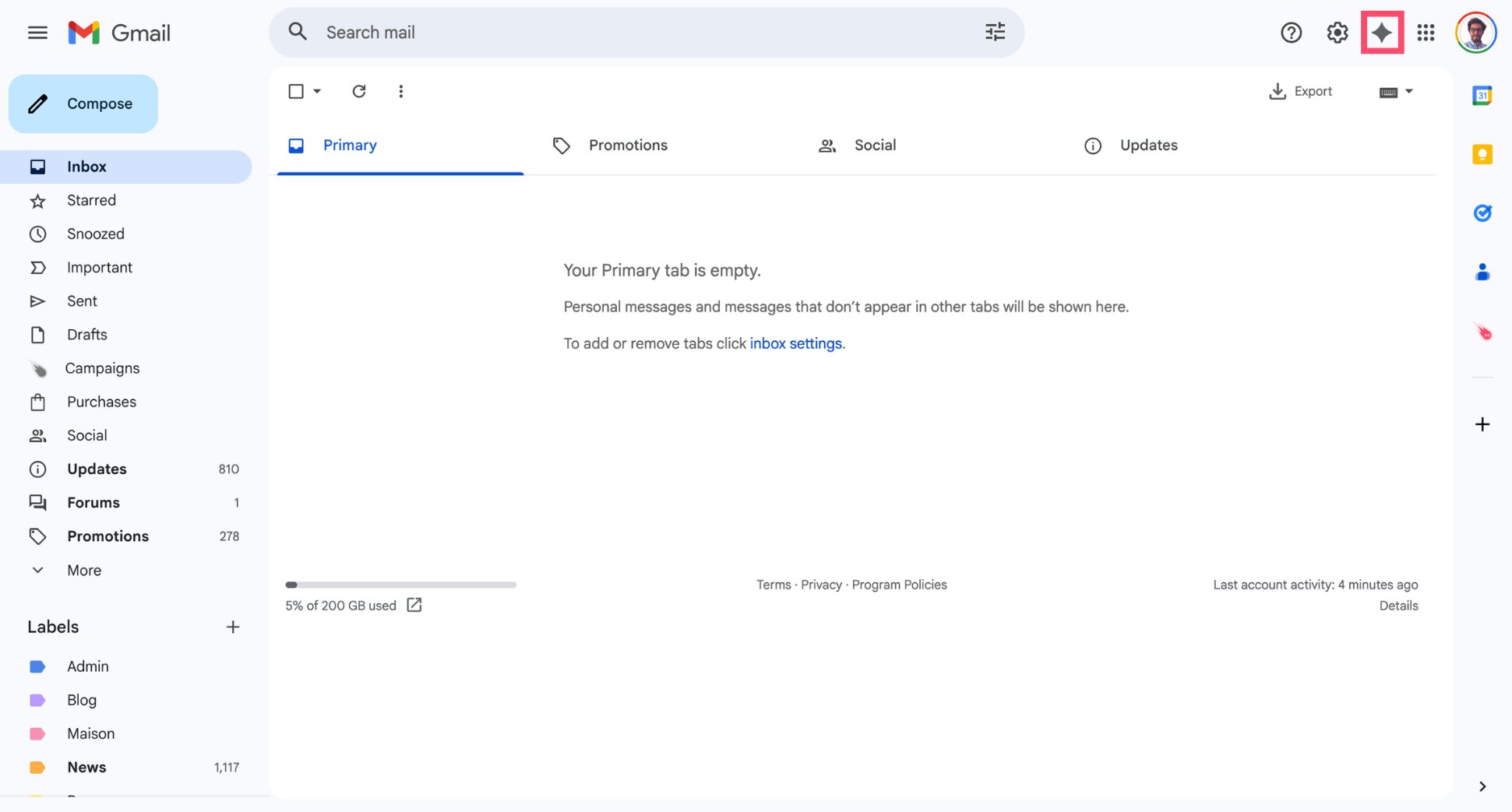
- Click the Gemini icon.
- Type your request in plain English.
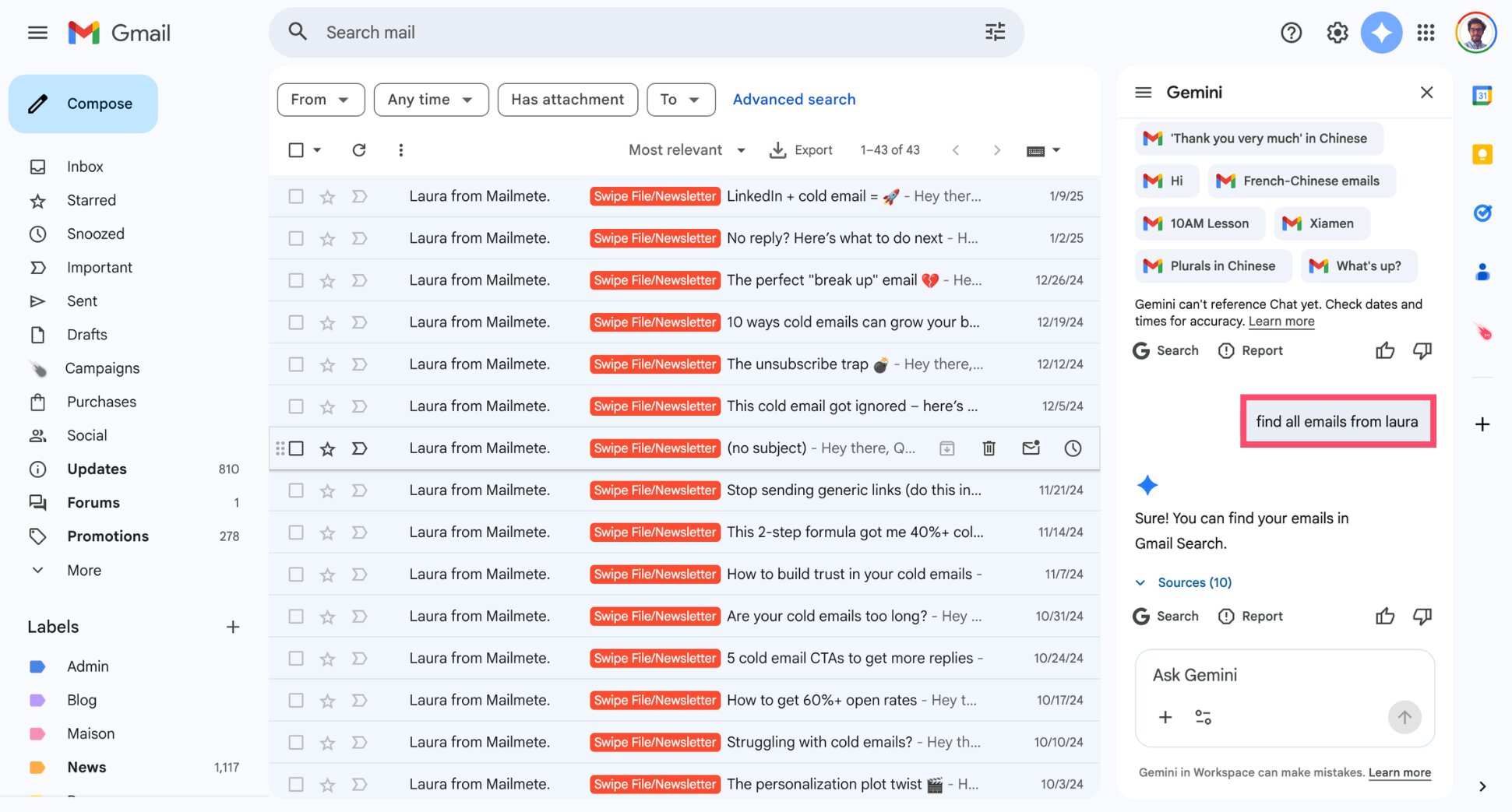
- Review the suggested emails.
When to use AI vs search operators
Use AI when:
- You don’t remember exact details
- Your search is vague or complex
- You want a quick answer without thinking about syntax
Use search operators when:
- You know exactly what you’re looking for
- You want precise control over results
- You need consistent, repeatable searches
Conclusion
Gmail search operators are one of the fastest ways to cut through inbox clutter and find what you need — without scrolling endlessly or guessing keywords. Once you understand the basics, simple commands like from:, has:attachment, or after: can save you a few minutes every day.
By combining operators, you can build powerful searches that surface the right email in seconds. That said, search operators aren’t the only option anymore. If you prefer a more intuitive approach, AI tools like Gemini let you search your inbox using plain English — no syntax required.
And if your goal goes beyond search — to organize, prioritize, and automate your inbox — you’ll need more than operators. With a Gmail AI assistant like Mailmeteor, you can turn your inbox into a true productivity tool with features like:
- AI-powered email writing to draft replies in seconds
- Smart labels & inbox triage to highlight emails that need action
- Email tracking to know when your emails are opened
- Automated follow-ups so you never miss a reply
- Mail merge campaigns to send personalized emails at scale
Try Mailmeteor’s AI assistant today (it’s free!) and see how much easier email can be.
FAQs
What are the most useful Gmail search operators?
Some of the most useful Gmail search operators include:
from:(find emails from a sender)subject:(search by subject line)has:attachment(find emails with files)before:andafter:(filter by date).
These operators can also be combined to quickly narrow down your search results.
How do I search for an exact phrase in Gmail?
To search for an exact phrase in Gmail, put quotation marks around your query. For example, "project update" will only return emails containing that exact phrase in the same order.
How do I find emails with attachments in Gmail?
Use the has:attachment operator to find all emails that include files. You can also search for specific file types using filename:pdf, filename:docx, or similar formats.
Can I combine multiple Gmail search operators?
Yes. You can combine multiple operators in a single search to refine your results. For example, from:john has:attachment before:2024/01/01 will show emails from John with attachments sent before 2024.
Why are Gmail search operators not working?
Search operators may not work if the syntax is incorrect or the format is wrong. Make sure there are no extra spaces, use the correct date format (YYYY/MM/DD), and place operators directly next to their values (e.g. from:john, not from: john).
Can I search Gmail using AI instead of operators?
Yes. Tools like Gemini let you search your inbox using natural language instead of operators. For example, you can ask “Find my last invoice from John” and get a direct answer without building a complex query.