AI is slowly transforming how Gmail works. Today, your inbox can do more than just send and receive messages — it can draft emails for you, summarize long threads, suggest replies, and automatically organize incoming messages.
But Gmail’s AI features can be confusing. Google has introduced tools like Help Me Write, AI Overviews, and Smart Reply — yet many Gmail users still don’t know where these tools live or how to use them.
In this guide, we’ll show you how to use AI in Gmail. You’ll learn which AI features Gmail offers, where to find them, how to enable them, and what to do if they’re not available in your account yet.
- Write emails with Help Me Write – Draft messages with AI directly in the Gmail compose window.
- Summarize conversations with Gemini – Use Gemini in Gmail to quickly understand long email threads.
- Reply faster with Smart Reply – Choose from AI-generated response suggestions under an email.
- Automatically categorize emails – Gmail add-ons like Mailmeteor can automatically label and organize incoming messages.
How to Use AI in Gmail
Gmail now includes several AI features that can help you write emails faster, summarize conversations, and organize your inbox. You’ll find them in different parts of the interface — from the compose window to email threads and the Gemini side panel. Here are the main ways to use AI in Gmail today.
Write Emails with AI
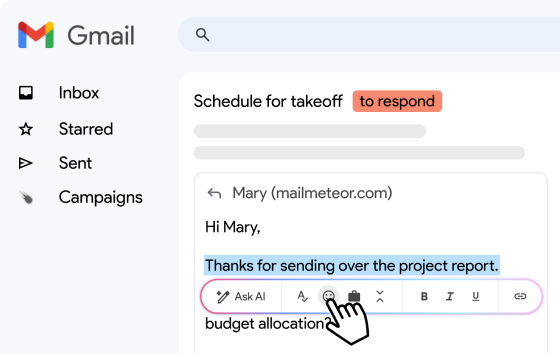
Gmail’s Help Me Write feature can generate email drafts from a simple prompt. Instead of starting from scratch, you can describe what you want to say and Gmail will produce a complete message.
To use Help Me Write:
- Open Gmail
- Click Compose.
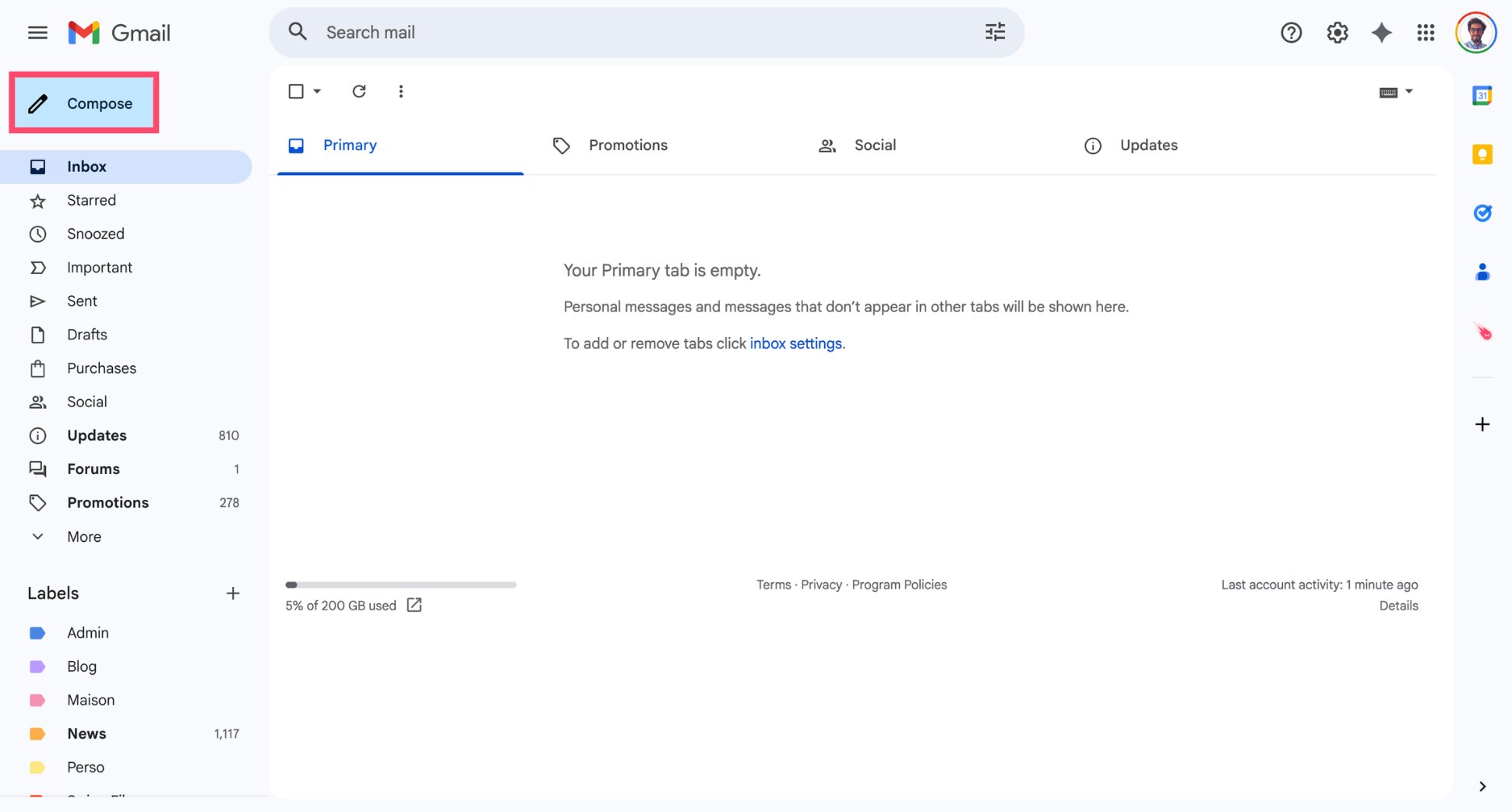
- Click Help Me Write (the pen icon).
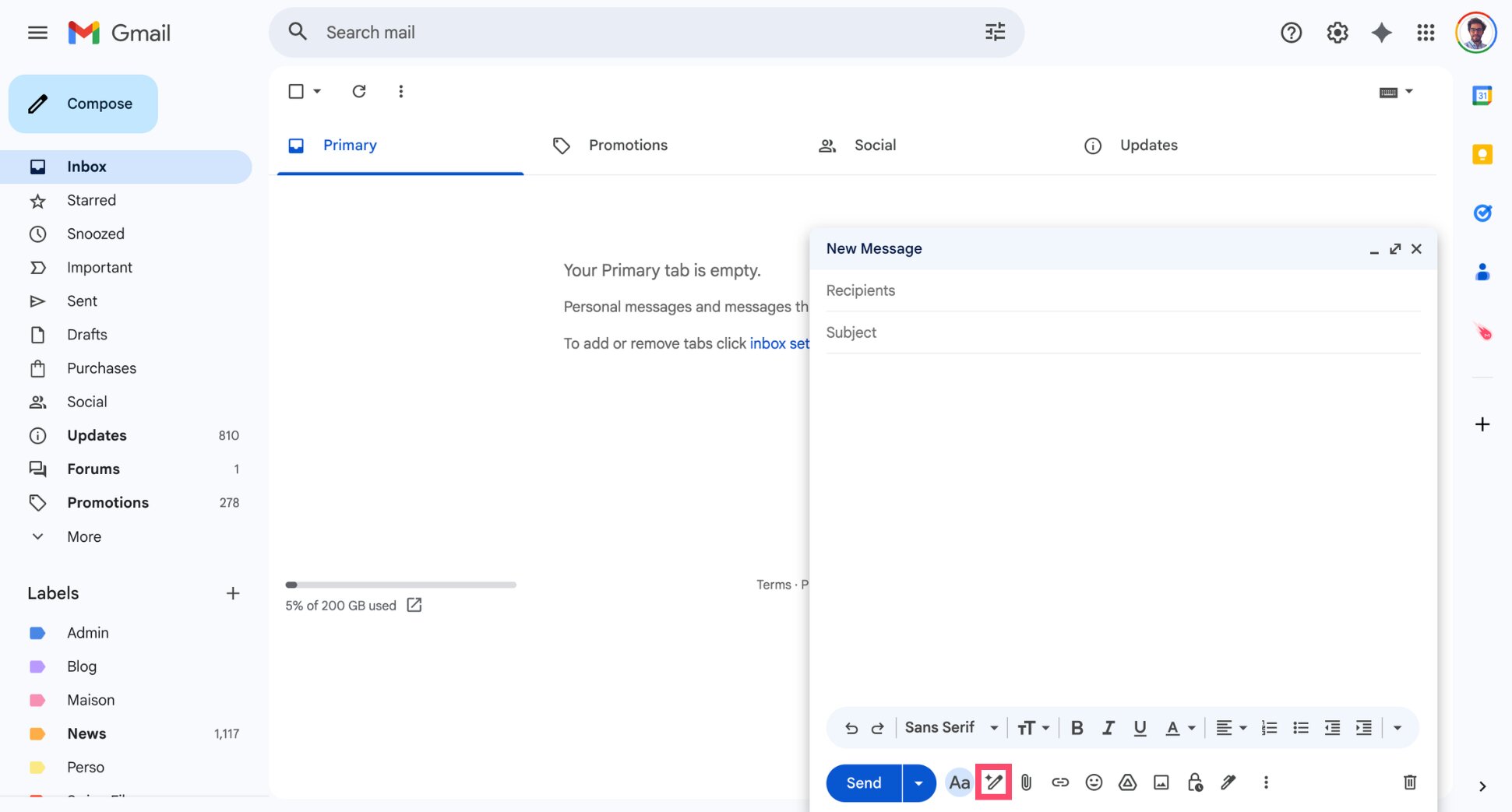
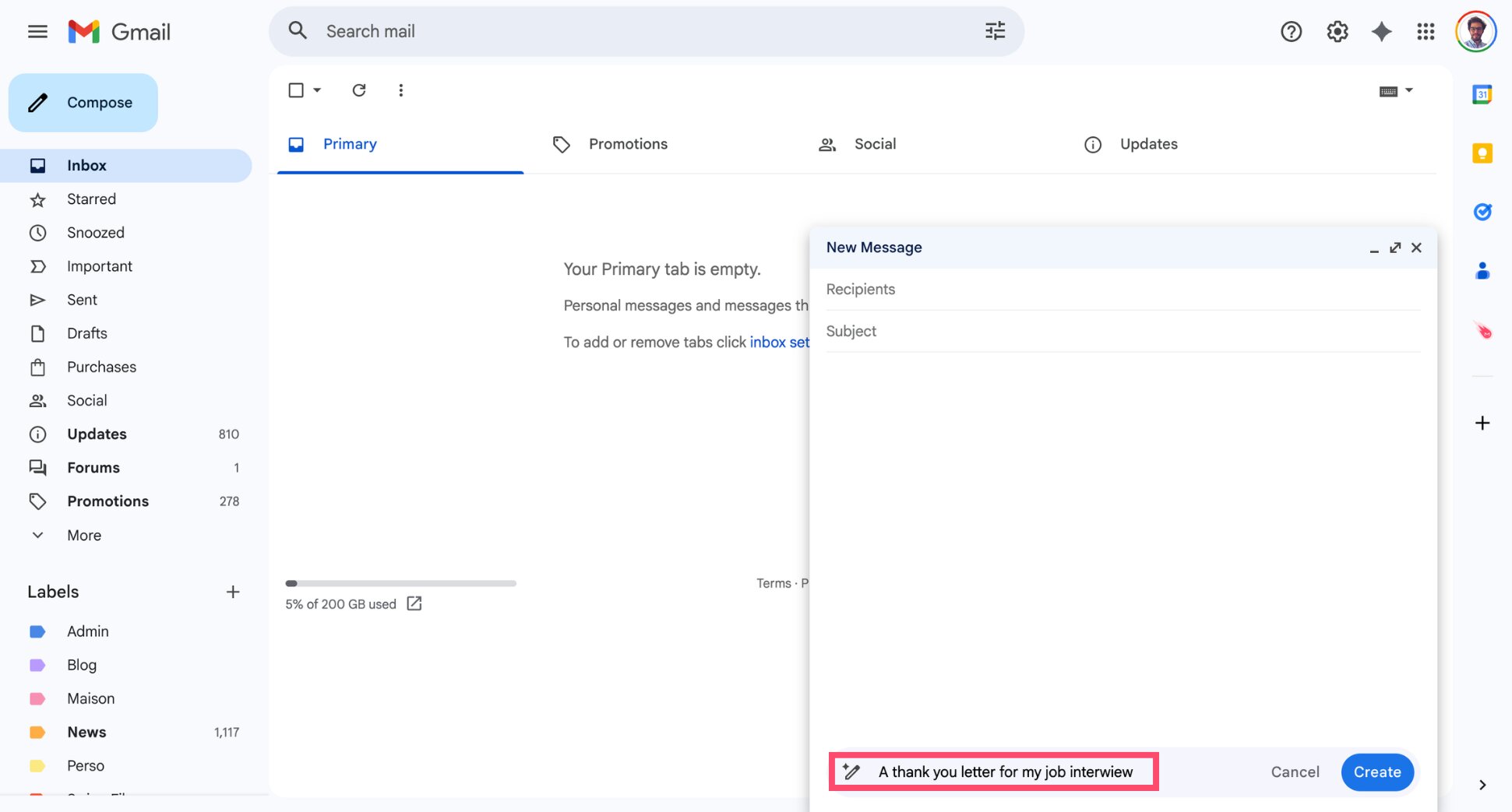
- Enter a prompt describing your email.
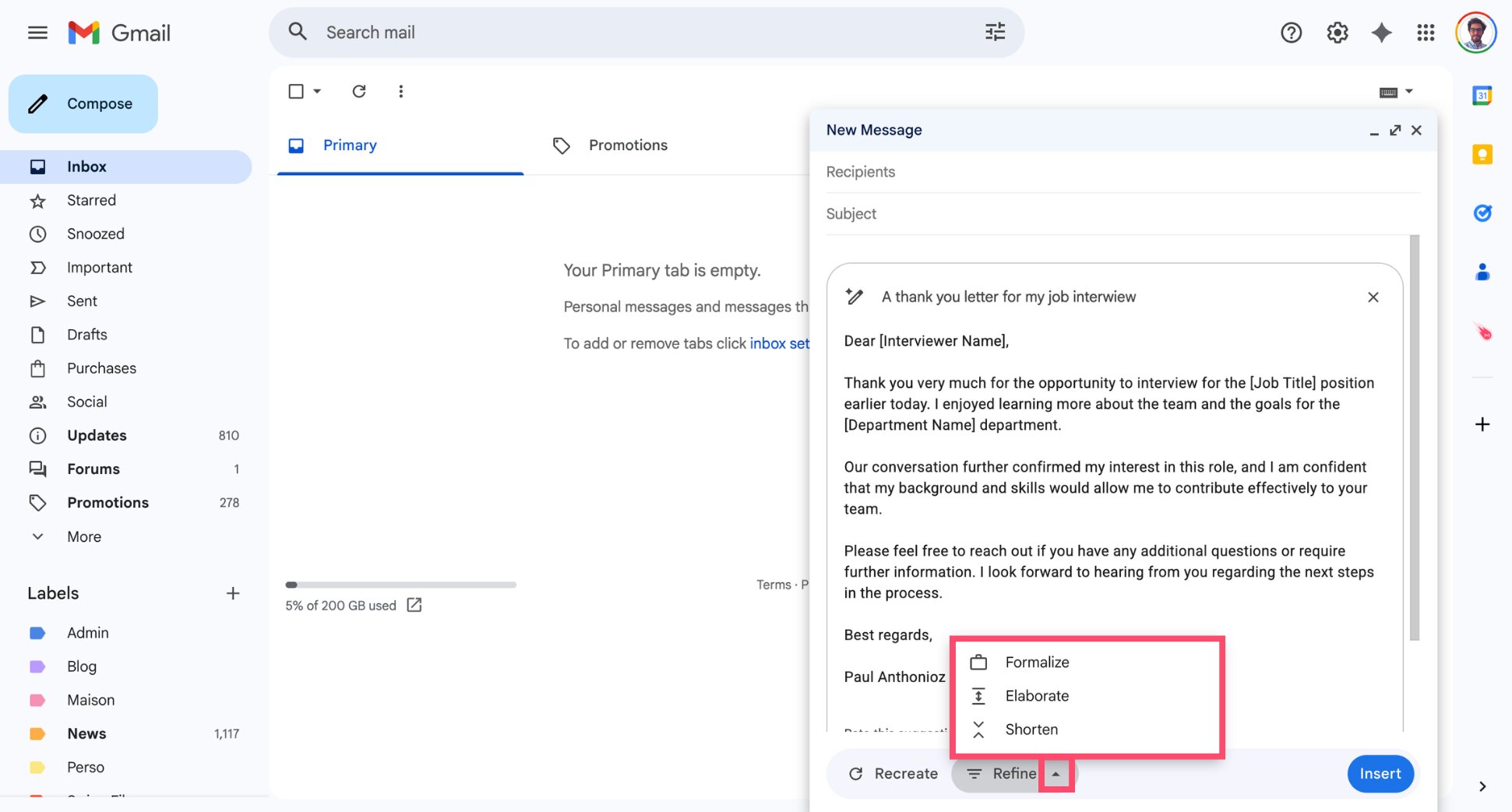
- Adjust the tone or ask the AI to shorten the draft.
- Insert it into your message.
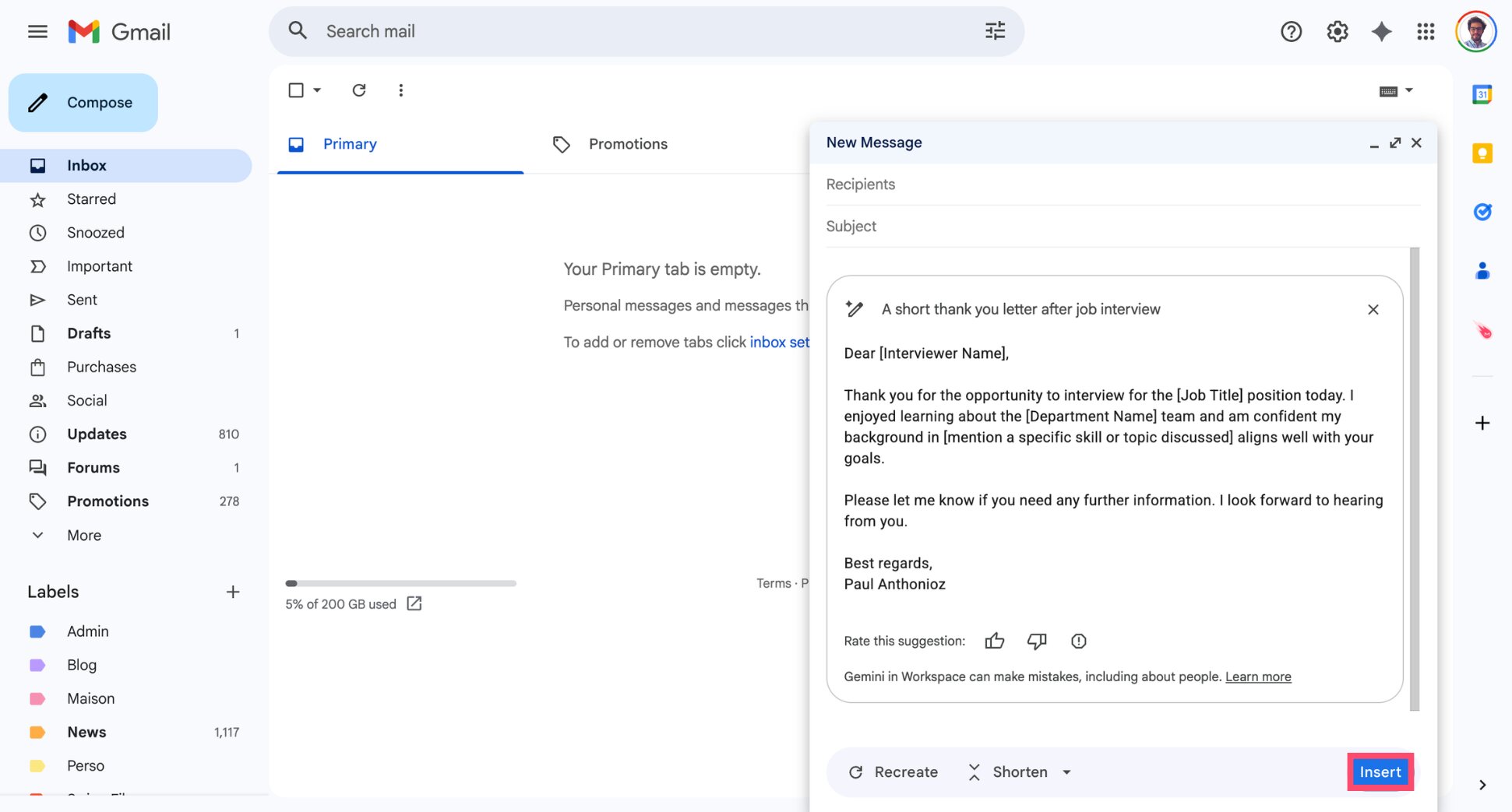
You can also use Help Me Write to rewrite an existing email, change the tone, or expand a short reply into a more detailed message. The feature is rolling out to all Gmail users and doesn’t require a specific Workspace plan.
Summarize Email Threads
Long email conversations can become hard to follow when dozens of replies pile up in the same thread. Gmail’s AI can automatically summarize the entire conversation so you can understand the key points in seconds.
To summarize an email thread with AI:
- Open an email conversation in Gmail.
- Click the Gemini icon in the top-right corner.
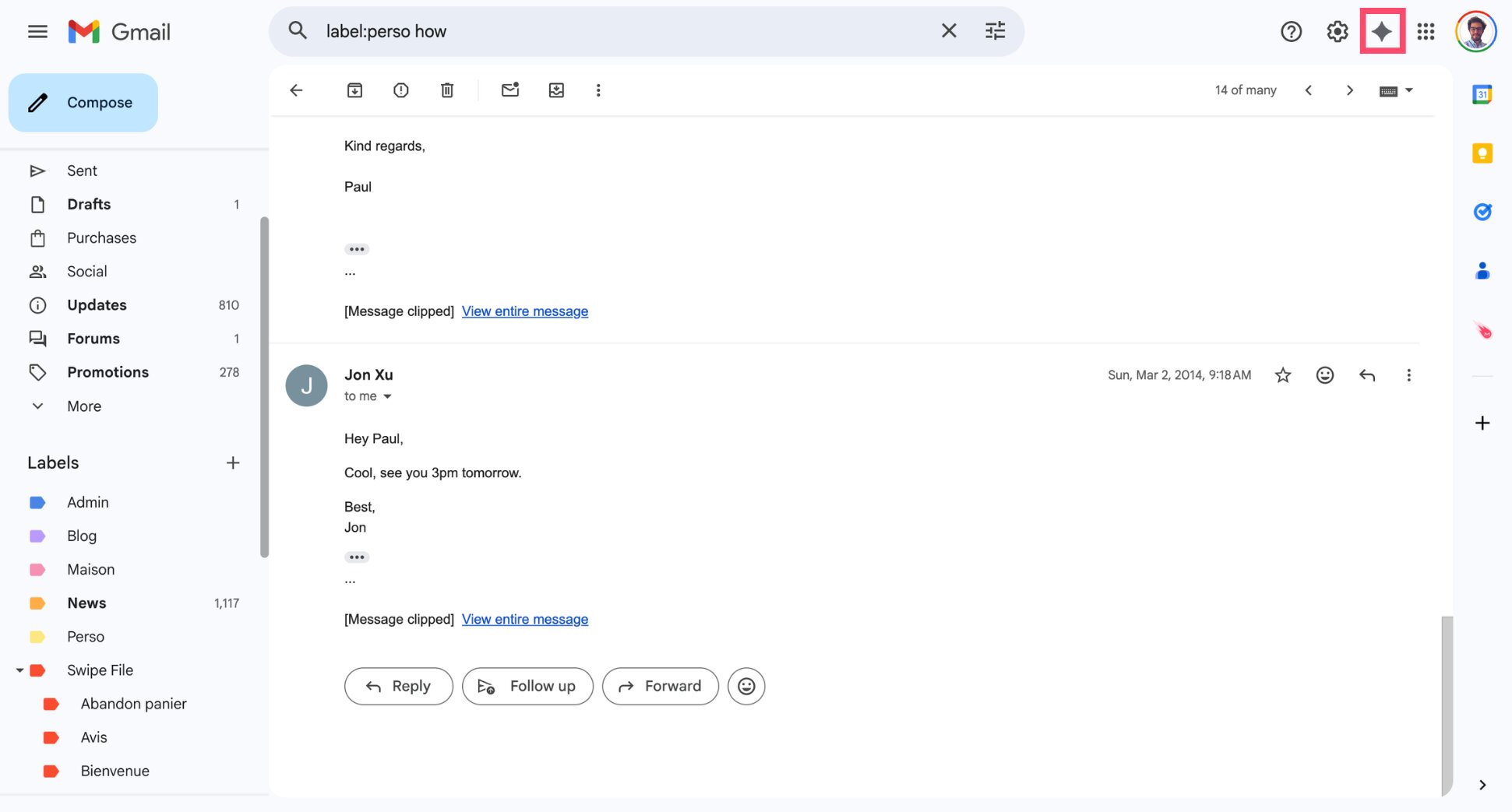
- Select Summarize this email or ask Gemini to summarize the conversation.
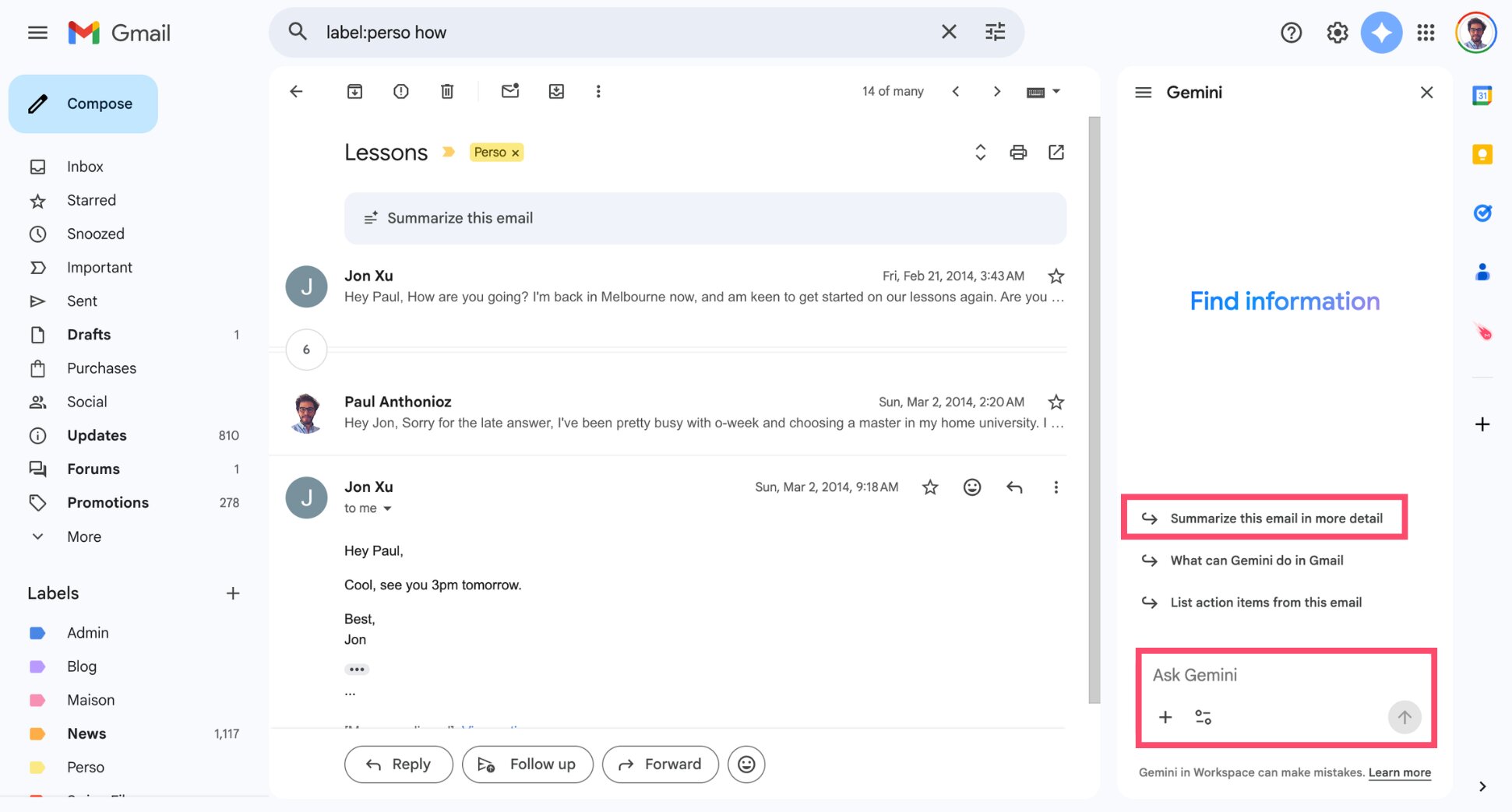
- Gmail will generate a short summary of the key points in the thread.
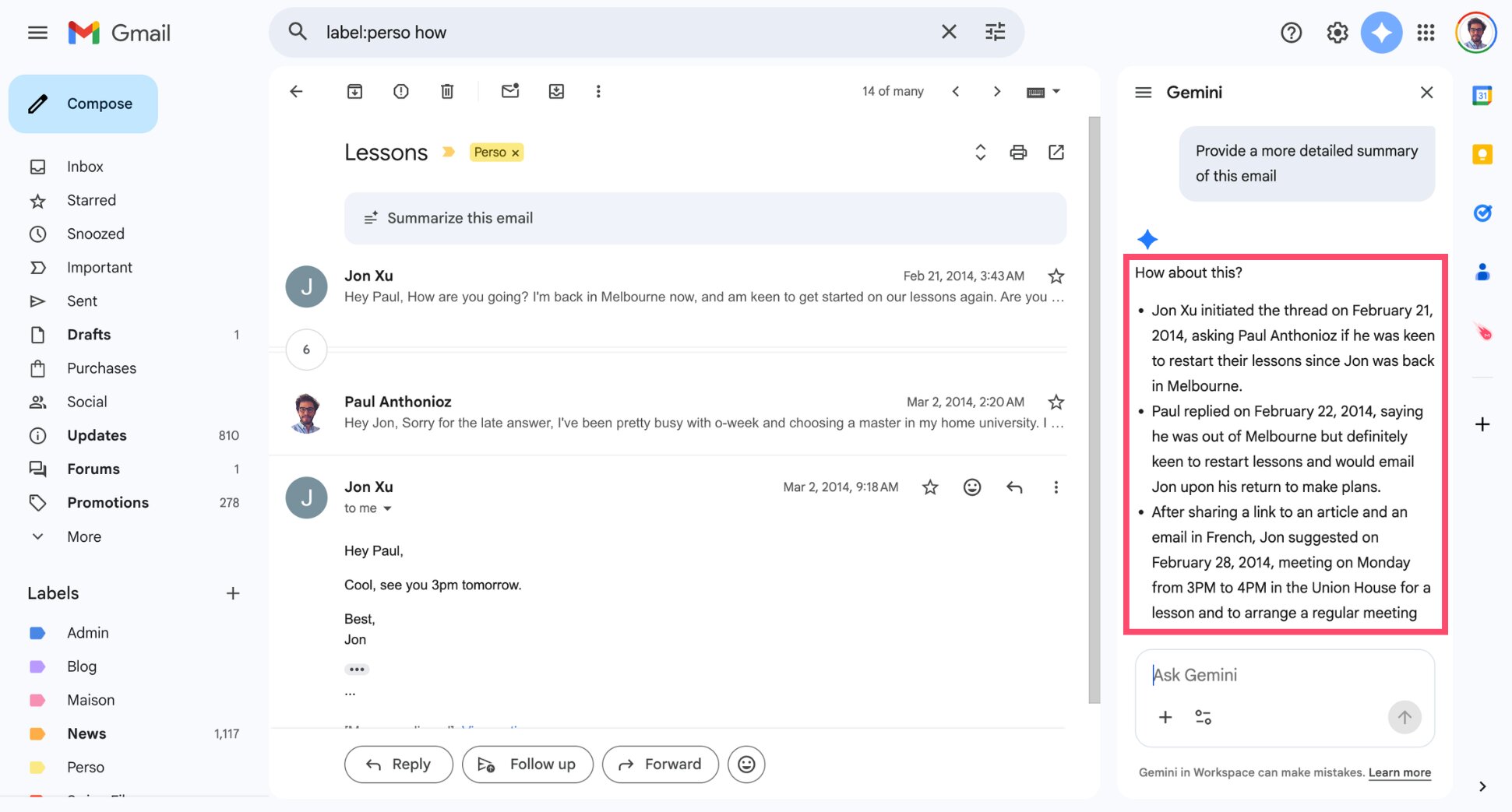
Instead of scrolling through dozens of replies, you’ll instantly see the main decisions, updates, and action items from the conversation. This feature is rolling out to Gmail users and is available at no cost.
Generate Smart Replies
You can also use AI in Gmail to generate quick responses to incoming emails. With Smart Reply, Gmail analyzes the message you received and generates short reply suggestions you can send in one click.
To use Smart Reply in Gmail:
- Open an email in Gmail.
- Scroll to the bottom of the message.
- Gmail will display suggested replies such as:
- “Sounds good to me.”
- “Thanks for the update.”
- “I’ll get back to you shortly.”
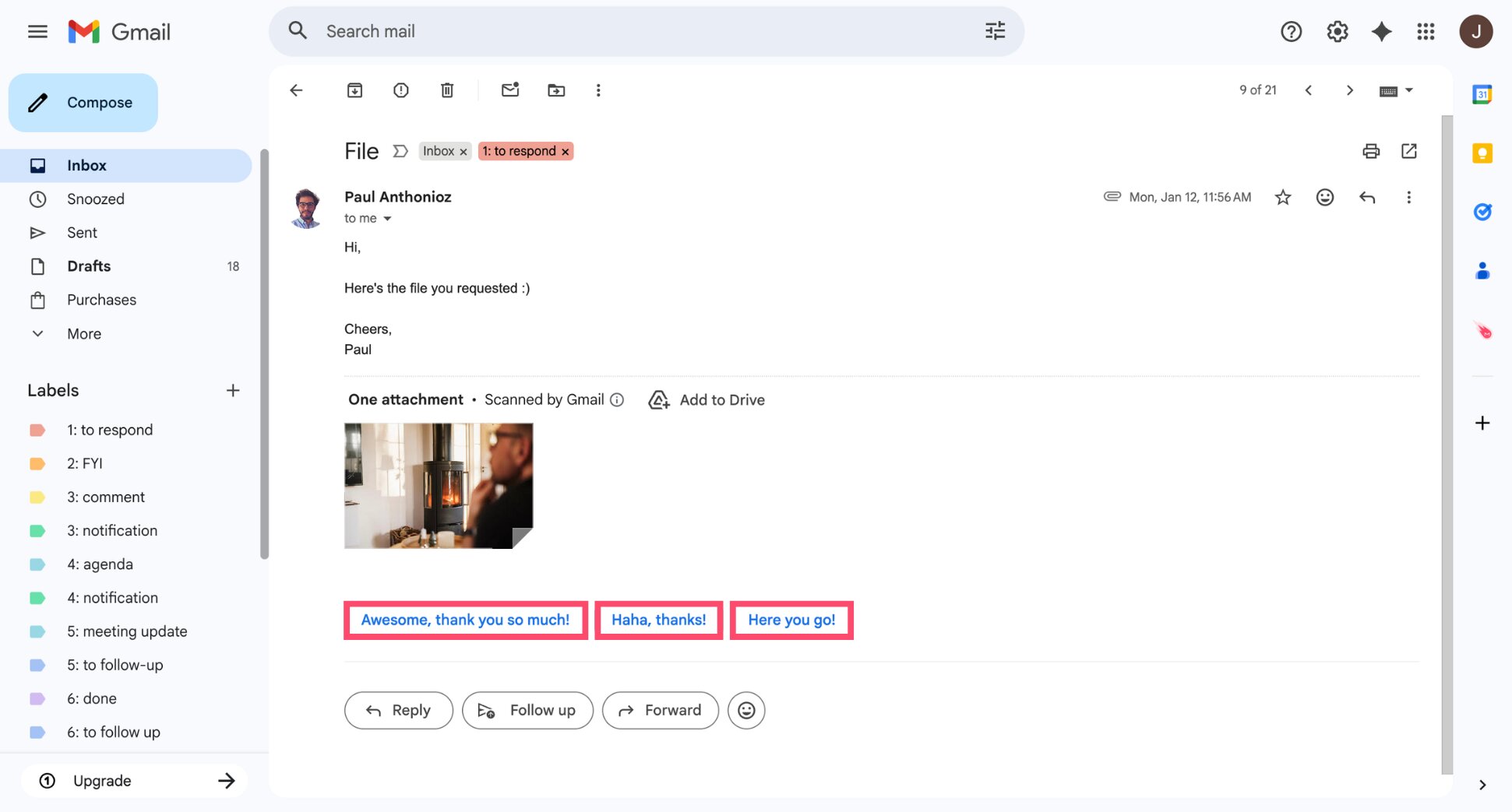
- Click one of the suggestions to insert it into your reply.
Instead of writing a reply from scratch, you can select one of Gmail’s suggested responses and send it instantly. You can also edit the message before sending. Smart Reply is available to all Gmail users, including free accounts.
Automatically Sort Emails with AI
A crowded inbox can quickly become overwhelming. Newsletters, notifications, client messages — everything arrives in the same place, making it harder to spot the emails that actually need your attention.
Gmail offers filters to organize emails automatically, but they rely on fixed rules like the sender or keywords. If an email doesn’t match those exact conditions, Gmail won’t sort it.
AI assistants take a smarter approach. Tools like Mailmeteor can automatically categorize incoming emails based on their intent, helping you keep your inbox organized without creating dozens of rules.
For example, Mailmeteor’s AI can label emails as:
- To respond – emails that require a reply
- FYI – informational emails you may want to read later
- Notification – automated alerts or updates
- Agenda – meeting invitations and calendar emails
- Marketing – newsletters and promotional messages
To automatically categorize emails with Mailmeteor:
- Install the Mailmeteor Chrome extension.
- In Gmail, go to Settings > See all settings > Add-ons.
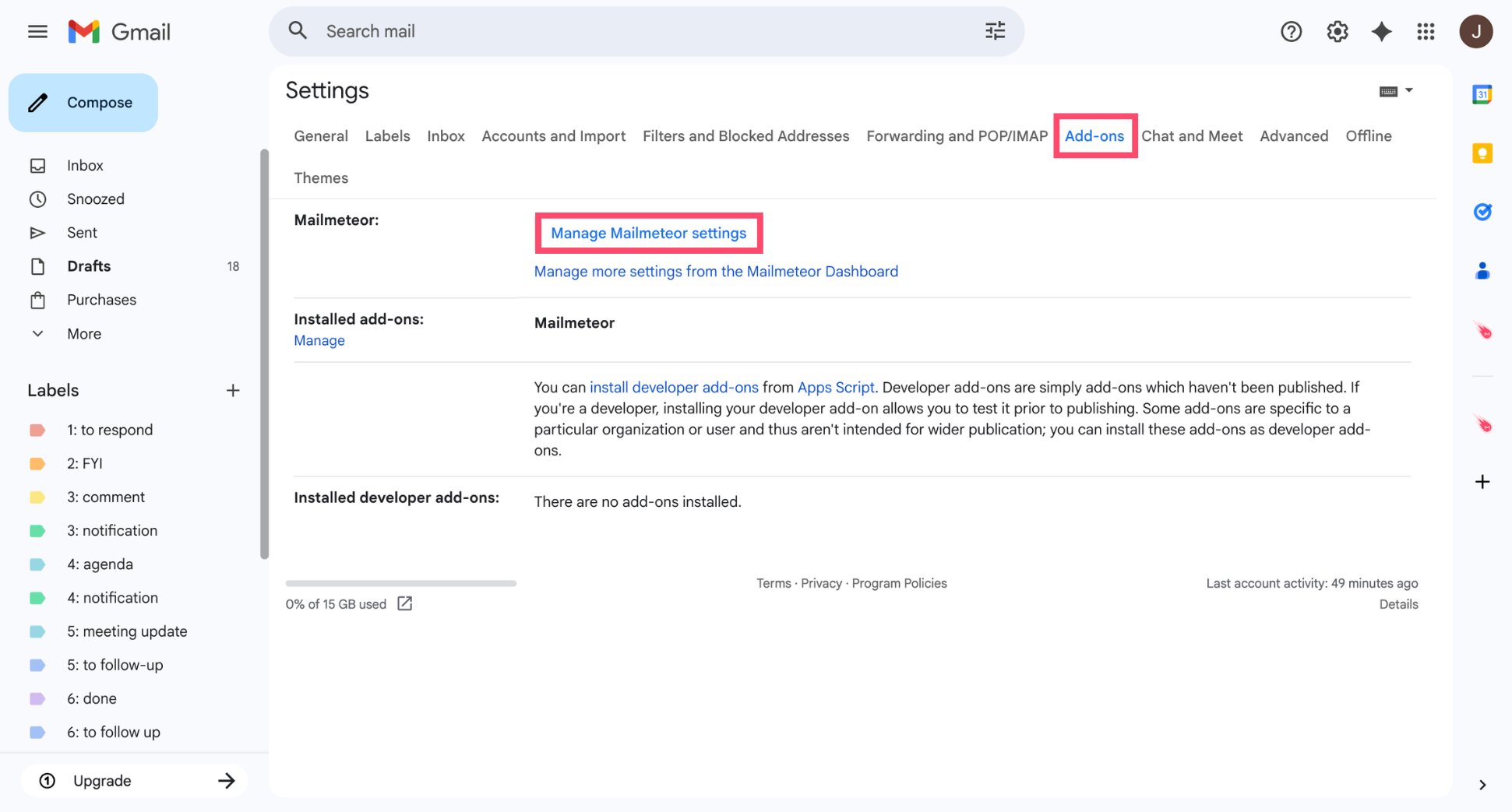
- Click Manage Mailmeteor settings.
- Enable Email categorization.

Once enabled, Mailmeteor’s AI assistant will automatically analyze incoming emails and apply the right labels — helping you reduce inbox clutter, save time and focus on the messages that matter most.
Ask Gemini Questions About Your Inbox
Gmail can also use AI to answer questions about your emails. With Gemini in Gmail, you can search your inbox using natural language instead of digging through messages manually.
For example, you can ask questions like:
- “What are the key points in this conversation?”
- “When is the meeting mentioned in this thread?”
- “Who sent the last quote for the website renovation?”
To ask Gemini questions in Gmail:
- Open Gmail.
- Click the Gemini icon in the top-right corner.
- Type your question about your inbox.
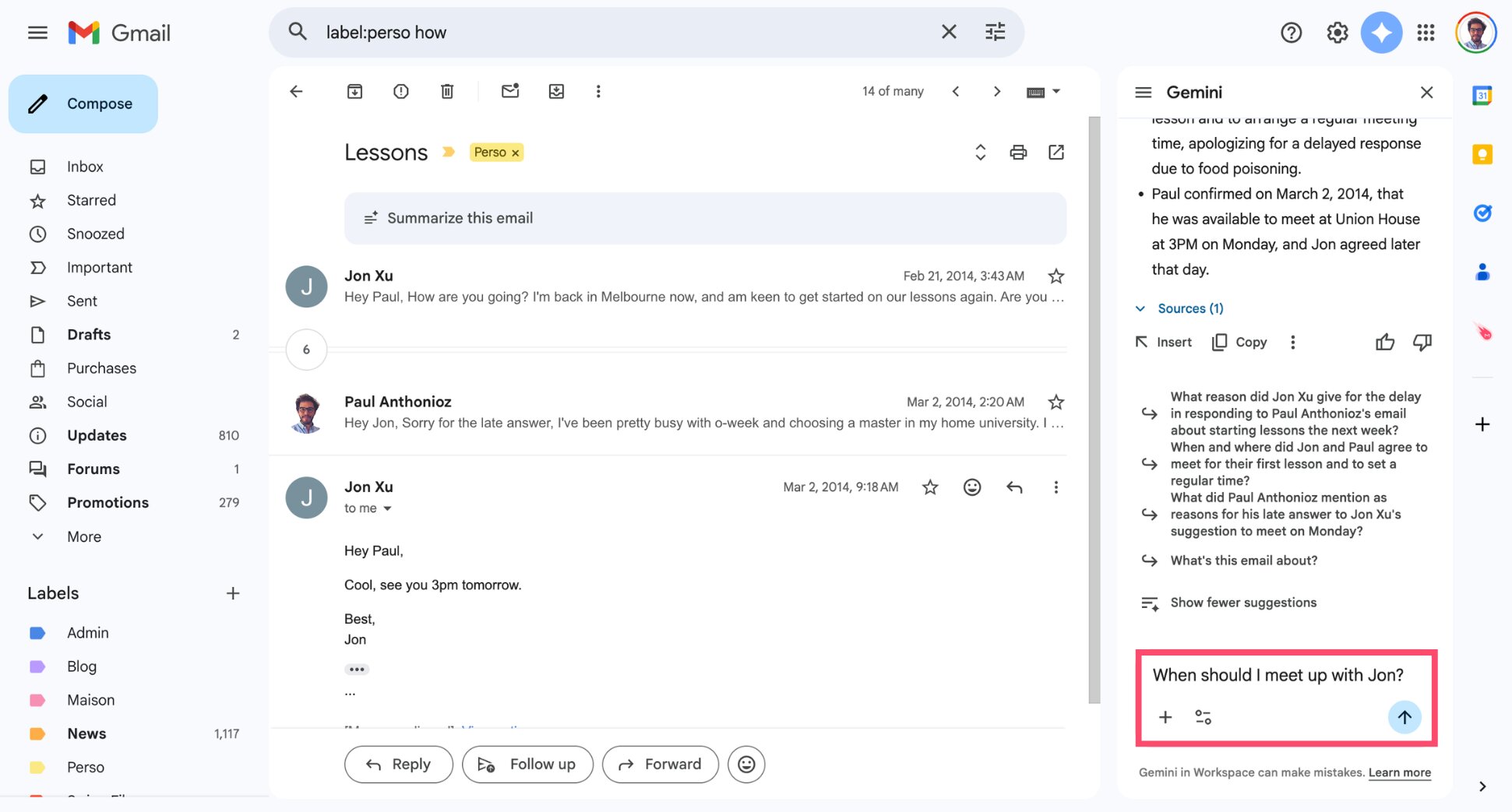
- Gemini will generate an AI answer based on your emails.
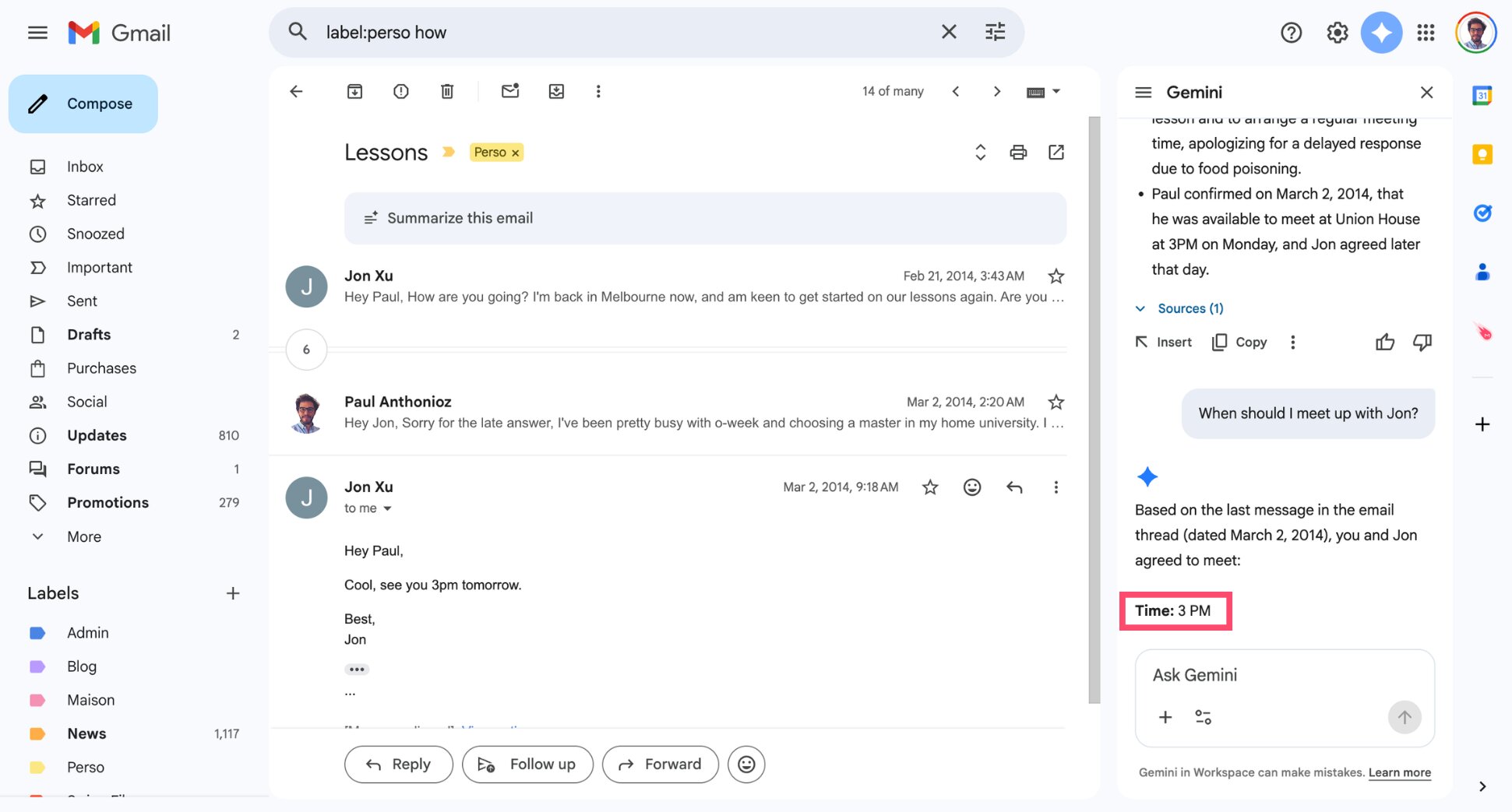
Instead of searching through dozens of messages, you can quickly extract key information from your inbox with a simple question. This feature requires a Google AI Plus, Pro, or Ultra plan, or an eligible Google Workspace account.
Get Follow-Up Reminders with Nudges
Gmail can also use AI to remind you about emails that may need a reply. The Nudges feature analyzes your conversations and brings messages back to the top of your inbox if it thinks you forgot to respond or follow up.
To use Nudges in Gmail:
- Open Gmail.
- Go to Settings > See all settings.
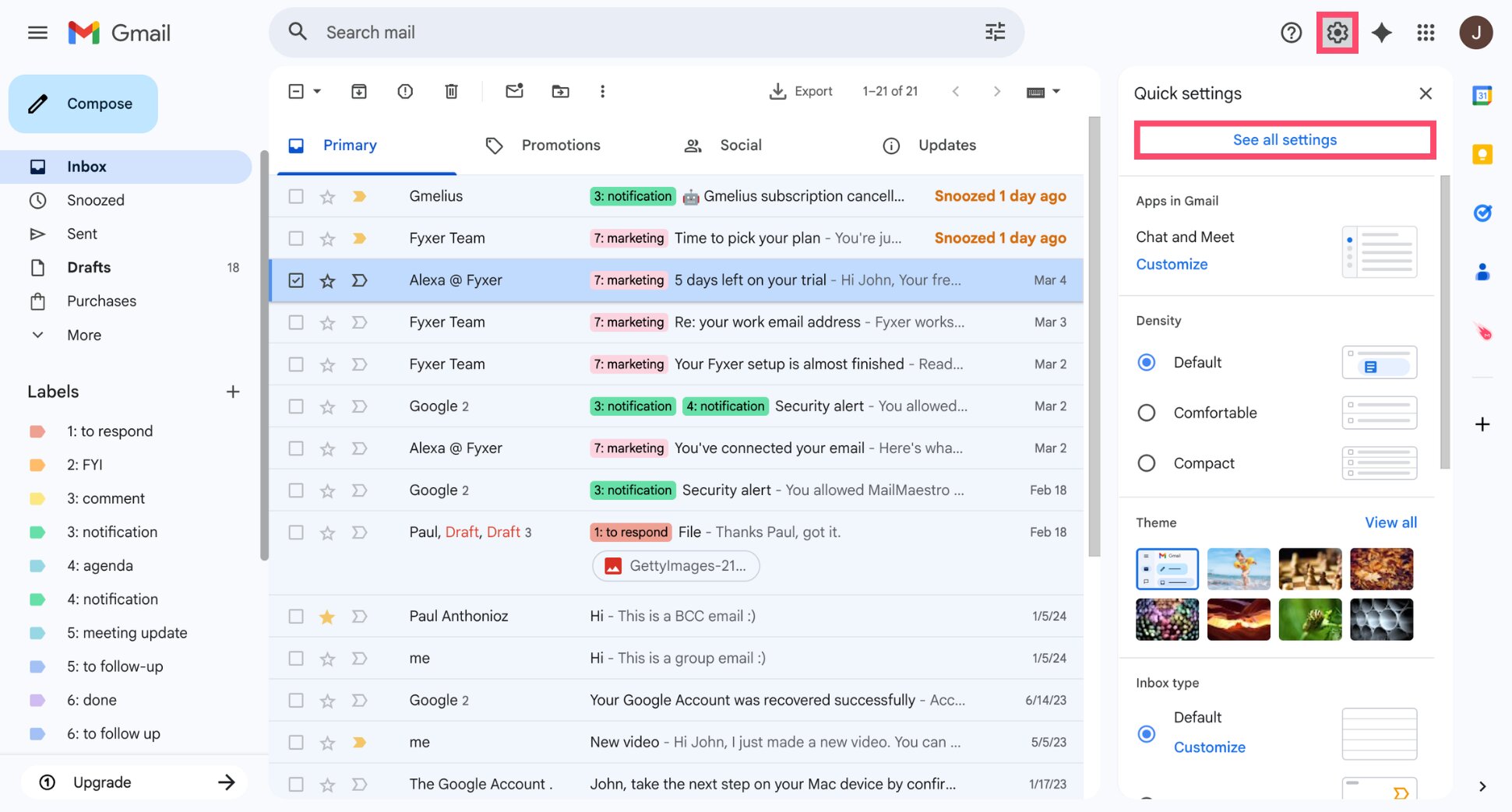
- Under the General tab, scroll to Nudges.
- Enable the options:
- Suggest emails to reply to
- Suggest emails to follow up on
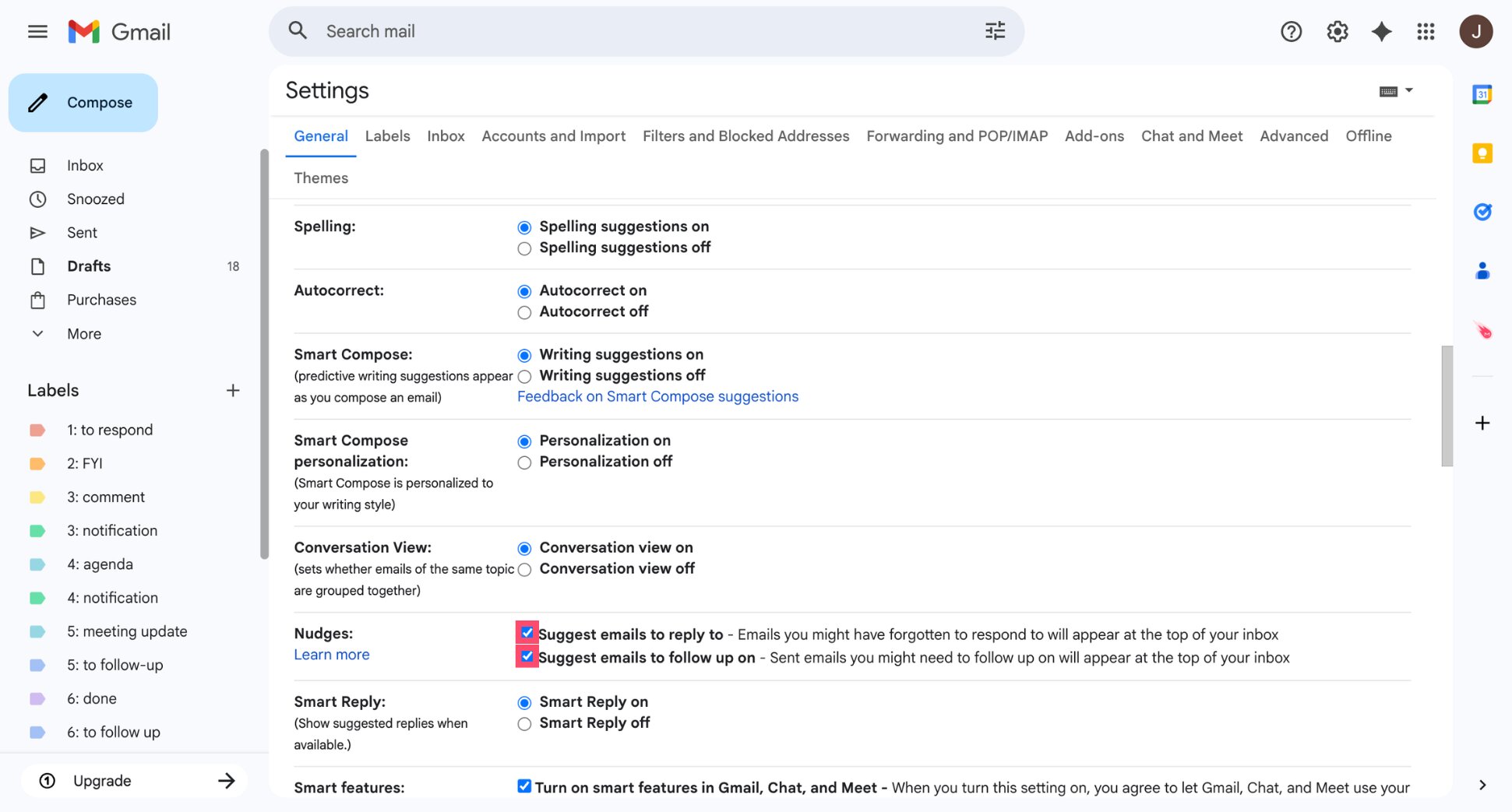
- Click Save Changes.
And voilà. From now on, instead of letting important emails get buried, Gmail will automatically highlight them with a reminder like Reply to this email? or Follow up?. Nudges are available to all Gmail users, including free accounts.
Proofread Emails with AI
Gmail can also use AI to proofread your email drafts. With the Proofread feature powered by Gemini, Gmail analyzes your message and highlights potential grammar, tone, or clarity issues before you send it.
To proofread an email with AI in Gmail:
- Open Gmail.
- Click Compose to start a new email.
- Write your email as usual.
- Look for underlined words or phrases in the draft.
- Click the highlighted text to review the AI suggestion.
- Click the suggestion to apply it, or select Ignore to dismiss it.
These suggestions can improve grammar, wording, tone, and clarity, helping you send more polished emails.
The Proofread feature is available with Google AI Plus, Pro, or Ultra plans. For personal Gmail accounts, it currently works only in the U.S. and in English. With Google Workspace, it’s available worldwide, but still limited to English.
Schedule Meetings with AI
Gmail can also use AI to help you schedule meetings faster. When you write an email about a meeting, Gmail may suggest adding available time slots from Google Calendar directly into your message.
To schedule a meeting with AI in Gmail:
- Open Gmail.
- Click Compose to start a new email.
- Click Help me schedule
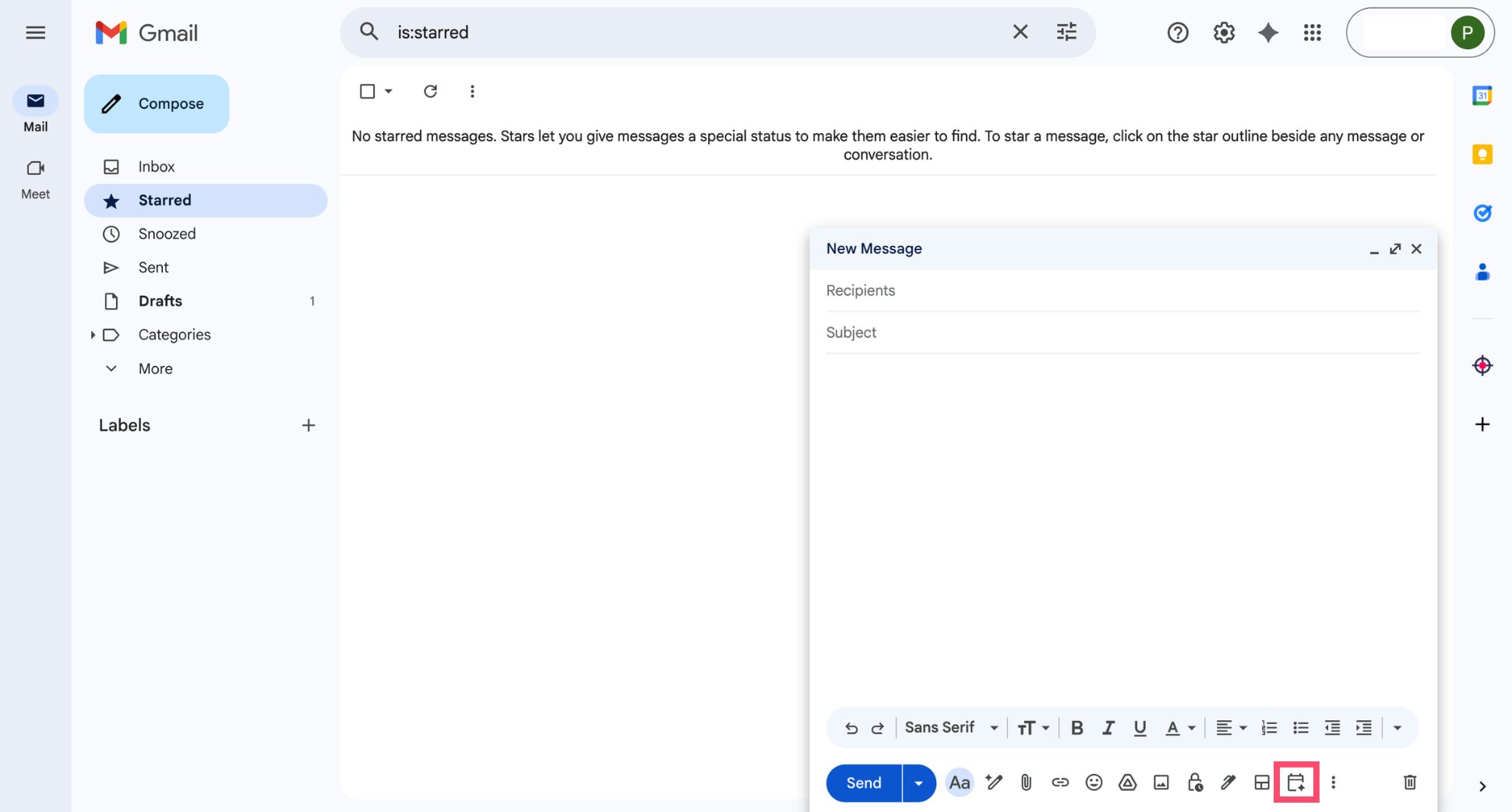
- Gmail inserts available time slots from Google Calendar.
This makes it easier to coordinate meetings without switching between Gmail and Google Calendar. This AI feature is available for users with a Google Workspace subscription.
How to Enable AI in Gmail
Most Gmail AI features are enabled automatically once they become available in your account. However, some tools depend on Gmail’s Smart features settings, which may need to be turned on.
To enable AI features in Gmail:
- Open Gmail.
- Click the Settings gear icon in the top-right corner.
- Select See all settings.
- Under the General tab, enable Smart Compose, Smart Reply, and Smart features.
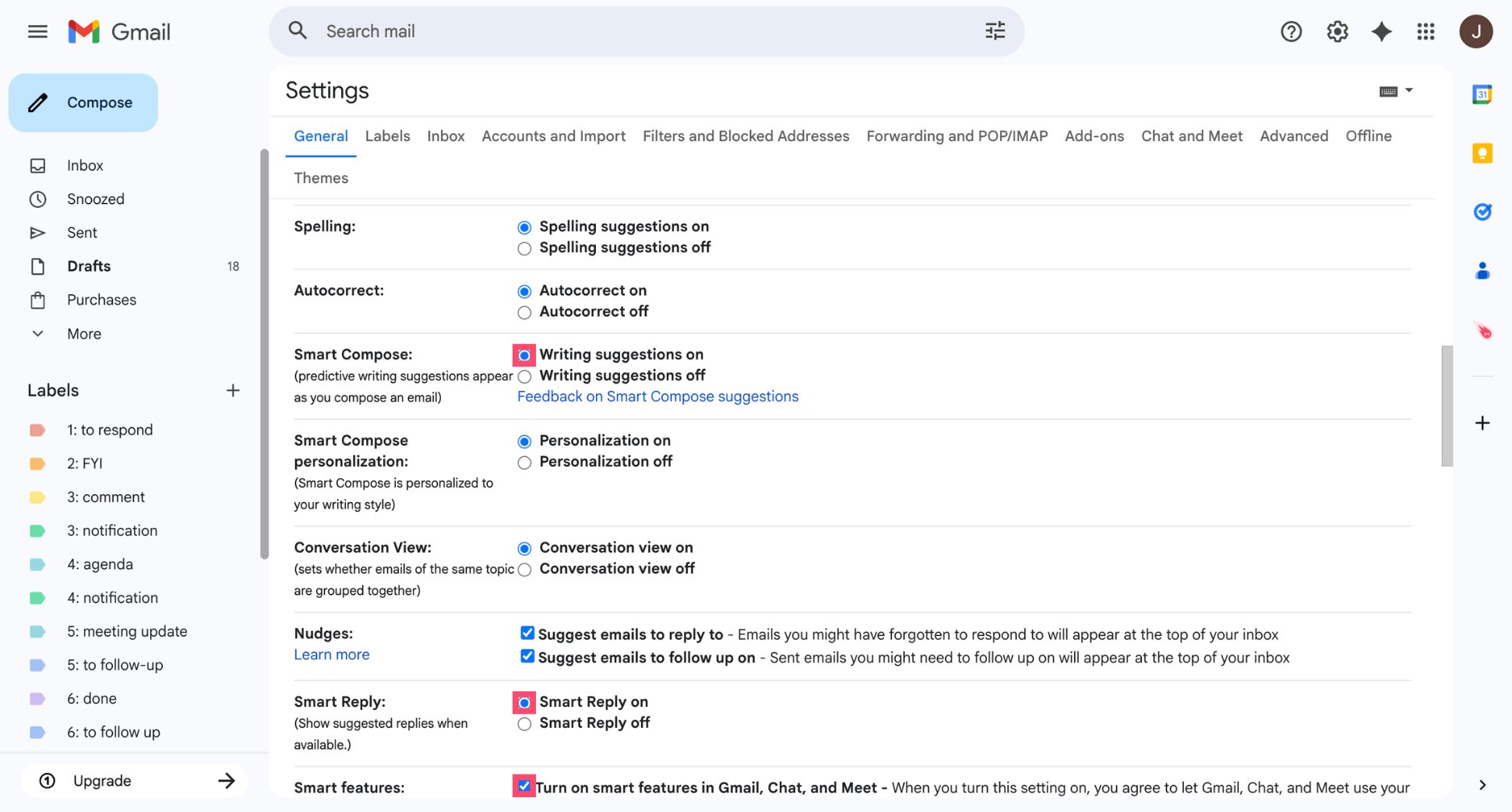
- Click Save Changes.
Once these settings are enabled, Gmail can activate AI tools like Smart Compose, Smart Reply, and Nudges. To activate other tools, like Proofread, you’ll need a Workspace or Google AI plan.
Why You Might Not See AI Features in Gmail Yet
If you don’t see AI tools like Help Me Write, AI Overviews, or Suggested Replies in Gmail, you’re not alone.
Many of Gmail’s AI features are still rolling out gradually, which means they may not appear in every account at the same time.
And that’s not all. The availability of Gmail’s AI tools also depends on your account type, your region and your language.
Here’s a quick overview of which plans currently include Gmail’s main AI features:
| AI Feature | Free Gmail | Google AI Plus | Google AI Pro / Ultra | Mailmeteor |
|---|---|---|---|---|
| Smart Reply | ✅ | ✅ | ✅ | ✅ |
| Smart Compose | ✅ | ✅ | ✅ | ✅ |
| Nudges | ✅ | ✅ | ✅ | ❌ |
| Help Me Write | Rolling out | ✅ | ✅ | ✅ |
| AI email summaries | Rolling out | ✅ | ✅ | ❌ |
| Ask questions about your inbox | ❌ | Limited | ✅ | ❌ |
| Proofread emails with AI | ❌ | ✅ | ✅ | ❌ |
| Automatic email labeling with AI | ❌ | ❌ | ❌ | ✅ |
| AI reply drafts when receiving an email | ❌ | ❌ | ❌ | ✅ |
| Automated follow-ups | ❌ | ❌ | ❌ | ✅ |
| Mail merge with AI personalization | ❌ | ❌ | ❌ | ✅ |
Lastly, if you use Gmail through a work or school account, some AI tools may be disabled by your Workspace administrator.
What If You Don’t Have Gmail AI?
Gmail’s AI features are improving quickly, but many of them are still rolling out gradually or require a Google AI subscription.
Even when they’re available, Gmail’s built-in AI tools are mostly limited to basic tasks like drafting emails — and the results can sometimes feel generic or impersonal.
That’s why many Gmail users rely on third-party AI email assistants like Mailmeteor. These tools offer advanced AI capabilities inside Gmail.
With Mailmeteor, you can:
- Write better emails with AI – Generate complete drafts or improve existing messages in seconds
- Match your writing style – Adjust tone instantly or train the AI on your past emails with tools that help AI write in your style.
- Organize your inbox automatically – Use AI to categorize incoming messages with smart labels.
- Never forget to follow up – Automatically send follow-up emails until you get a reply with Gmail follow-up automation.
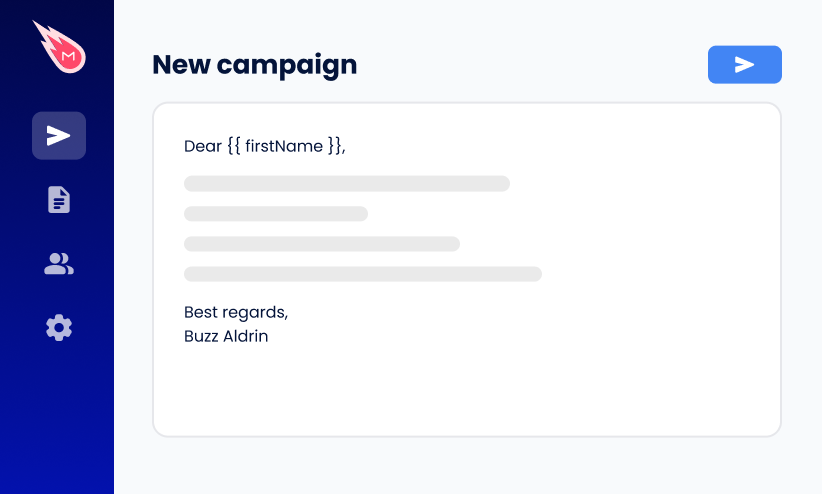
- Send personalized emails at scale – Use mail merge in Gmail to send customized emails to hundreds of recipients.
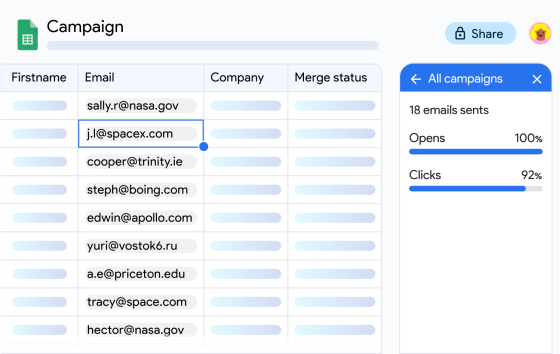
- Track engagement – See when your emails are opened or clicked with Gmail email tracking.
And the best part? Mailmeteor works directly inside Gmail. So you can write, organize, and manage emails with AI without leaving your inbox. Ready to experience a truly AI-powered Gmail workflow? Try Mailmeteor for free.
FAQs
Where is the Gemini button in Gmail?
If Gemini is available in your account, you’ll see the Gemini icon in the top-right corner of Gmail. Click it to open the Gemini side panel, where you can summarize emails or ask questions about your inbox.
Can AI write emails in Gmail?
Yes. Gmail includes an AI tool called Help Me Write that can draft emails from a short prompt. You can also use it to rewrite messages, change the tone, or expand a short reply.
Can Gmail AI summarize emails?
Yes. Gemini in Gmail can generate summaries of long email threads. It analyzes the conversation and highlights the key points so you can quickly understand what was discussed.
Is Gmail AI free to use?
Some Gmail AI features are free. Tools like Help Me Write and Suggested Replies are rolling out to all users. More advanced features, such as asking your inbox questions with Gemini, may require a Google AI Pro or Ultra plan.
Does Gmail AI read your emails?
Gmail’s AI features analyze email content to generate summaries, replies, and suggestions. According to Google, this processing happens automatically and follows Gmail’s existing privacy protections.
What AI features are available in Gmail?
Gmail AI features include Help Me Write, Gemini summaries, Suggested Replies, Smart Compose, and Proofread. New tools like AI Overviews can also answer questions about your inbox.
What’s the best AI tool for Gmail?
Gmail includes built-in AI tools, but many users also rely on AI email assistants. Tools like Mailmeteor add features such as AI email writing, automated follow-ups, email tracking, and mail merge directly inside Gmail.