Missed an important email? Or just want to clear out old messages you never opened? Here’s the fastest way: type is:unread into the Gmail search bar and press Enter. Gmail will pull up every unread message in your inbox and labels — add in:anywhere if you also want to check Spam and Trash.
That one operator solves most cases. But if you want unread messages to always sit at the top of your inbox, or collected in their own folder, there’s more than one way to do it.
- Search operator – type
is:unreadin the Gmail search bar for an instant list - Unread first – change your inbox settings so unread messages always sit at the top
- Unread label – create a filter that collects every unread message in one place
Here’s what we’ll cover:
- The fastest way to find unread emails (search operator)
- How to show unread emails first in your inbox
- How to create an “Unread” folder in Gmail
- Why your unread count doesn’t match what you see
- Finding unread emails in the Gmail app (Android & iPhone)
Sounds good? Then let’s dive in.
How to find unread emails in Gmail
There are three ways to do this. Pick the one that fits how you use your inbox.
1. Use the “is:unread” search operator
This is the quickest method. No settings to change, no filters to build.
Step 1: Open Gmail.
Step 2: Click the search bar and type is:unread.
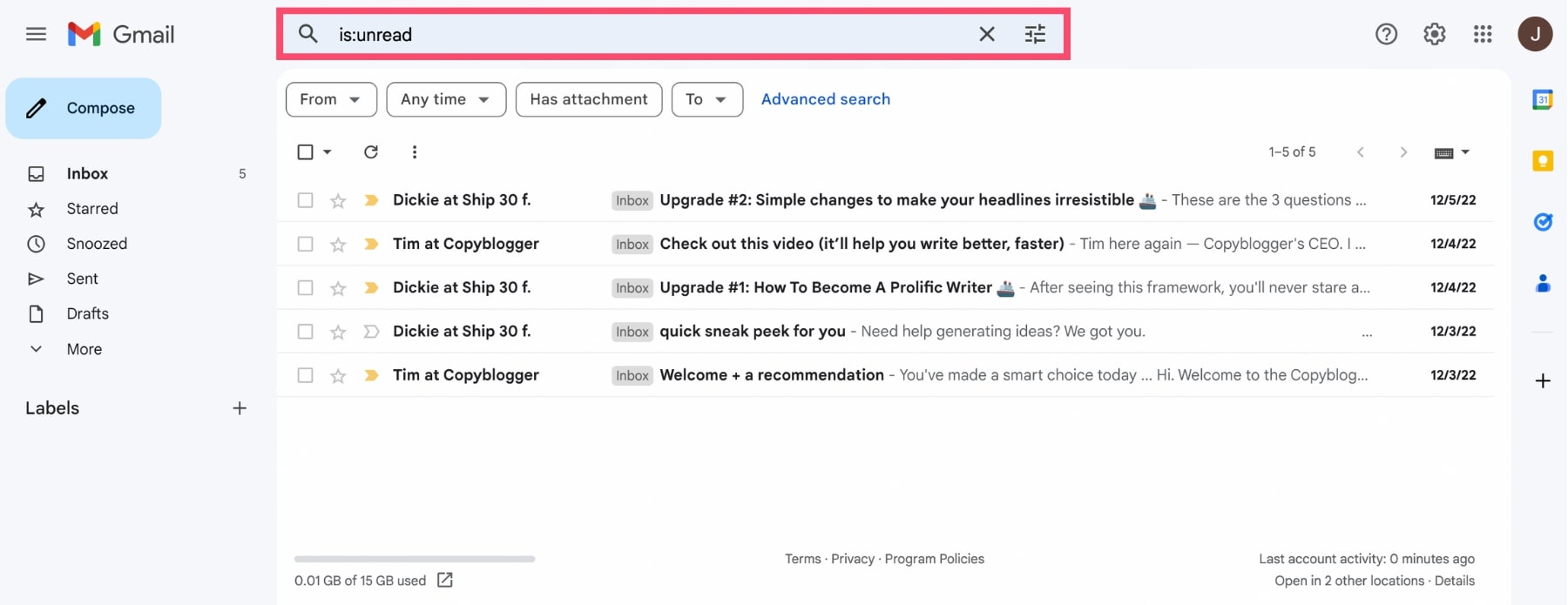
Step 3: Press Enter. Gmail shows every message you haven’t opened yet.
And that’s it. Combine it with other Gmail search operators to narrow things down further ⤵️
| Query | What it shows |
|---|---|
is:unread in:inbox |
Unread messages in your inbox only (skips Spam, Trash, and other labels) |
is:unread in:anywhere |
Unread messages anywhere in your account, including Spam and Trash |
is:unread category:primary |
Unread messages in your Primary tab only |
is:unread from:name@email.com |
Unread messages from a specific sender |
is:unread has:attachment |
Unread messages that include an attachment |
is:unread label:name |
Unread messages under a specific label you created |
is:unread older_than:30d |
Unread messages older than a set number of days (swap in m for months or y for years) |
2. Show unread emails first in your inbox
Prefer to see unread messages every time you open Gmail, without typing anything? Change your inbox type instead.
Step 1: Open Gmail.
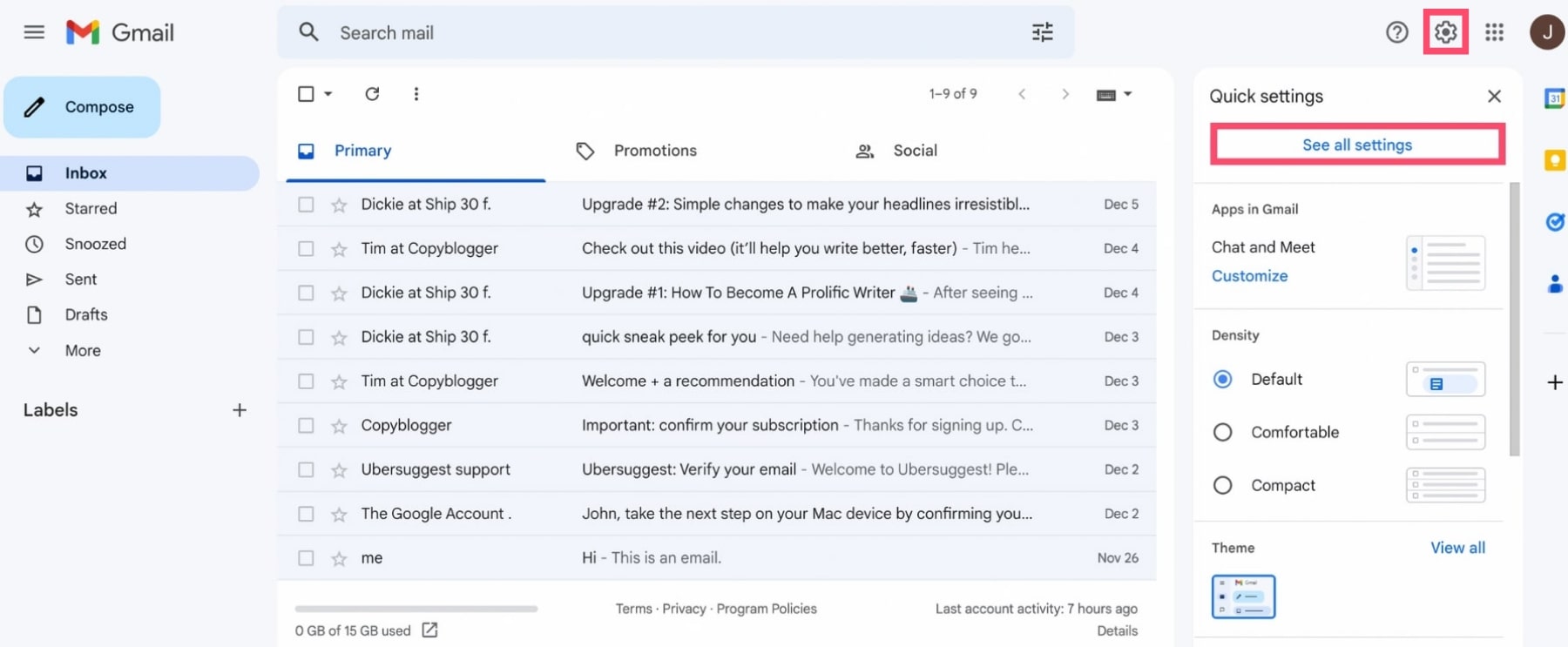
Step 2: Click Settings, then See all settings.
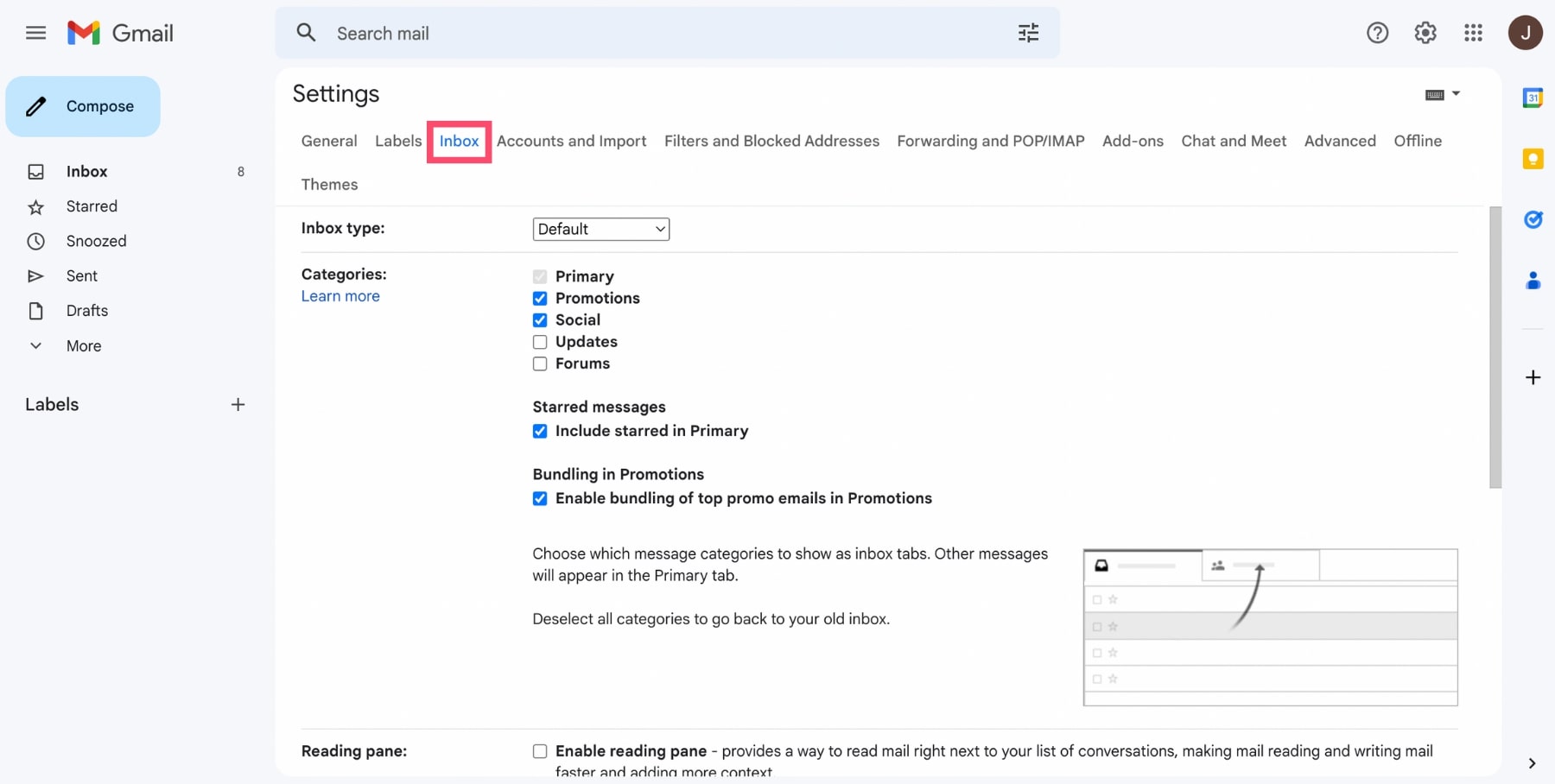
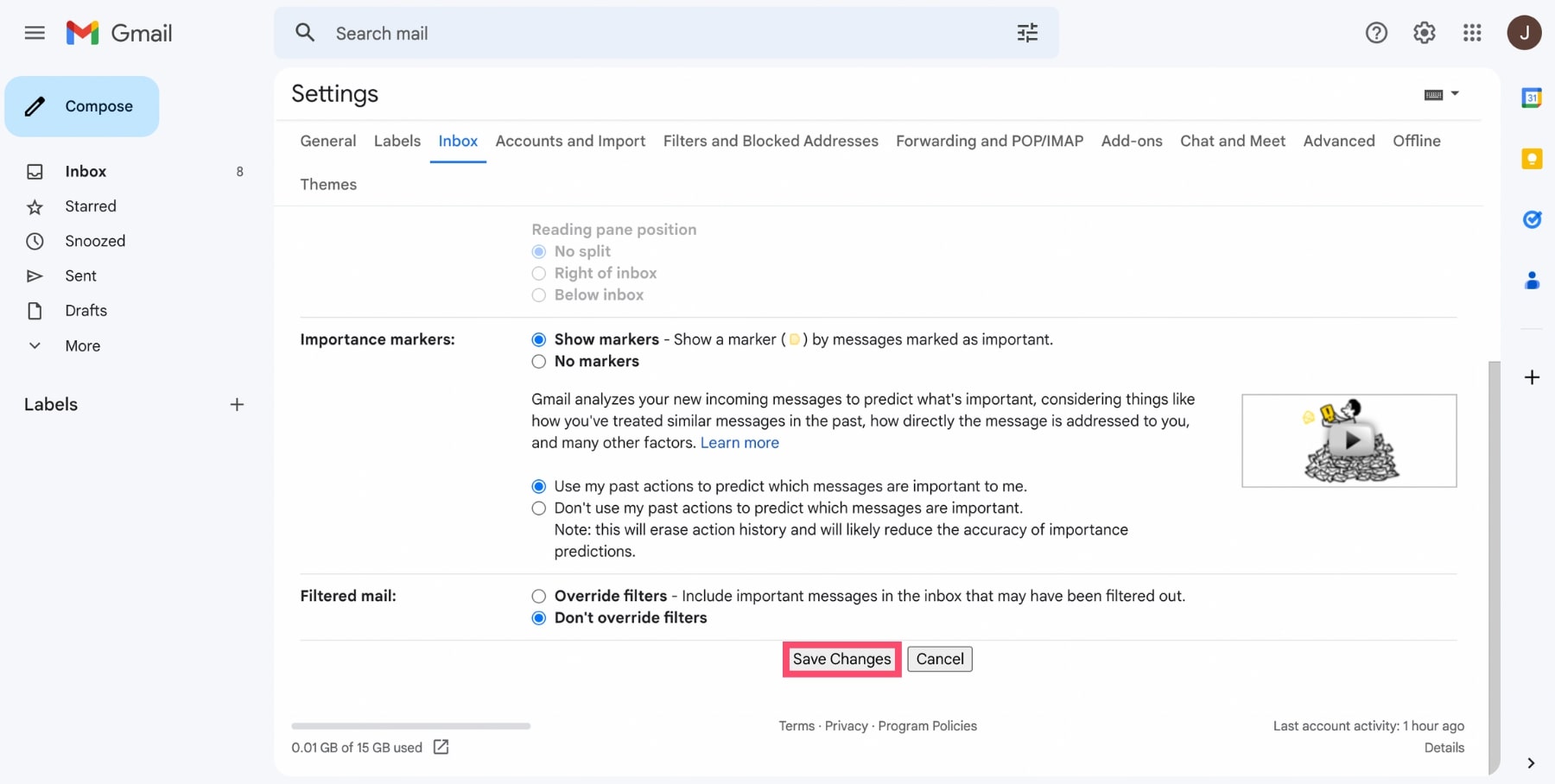
Step 3: Go to the Inbox tab.
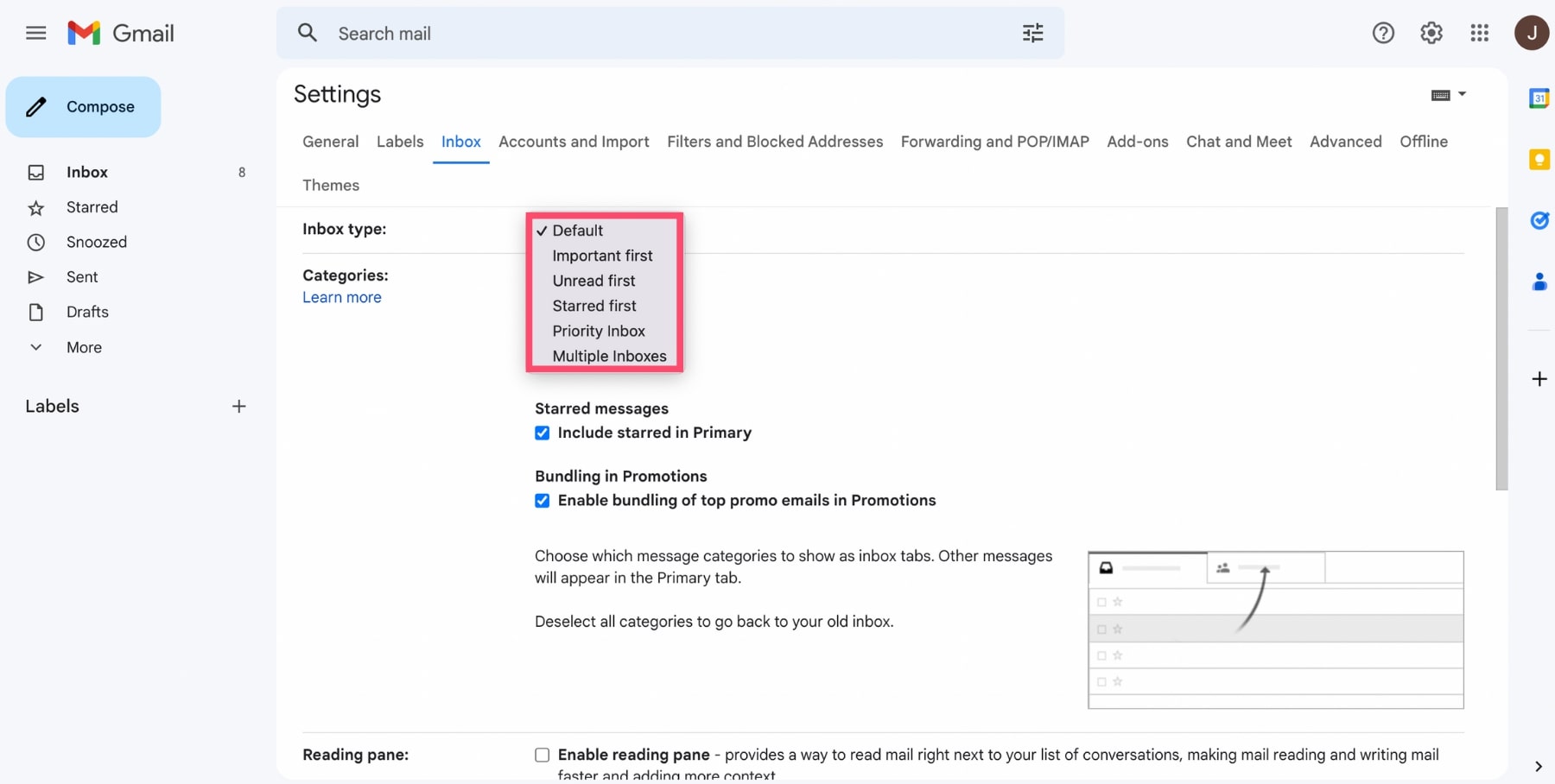
Step 4: Under Inbox type, select Unread first.
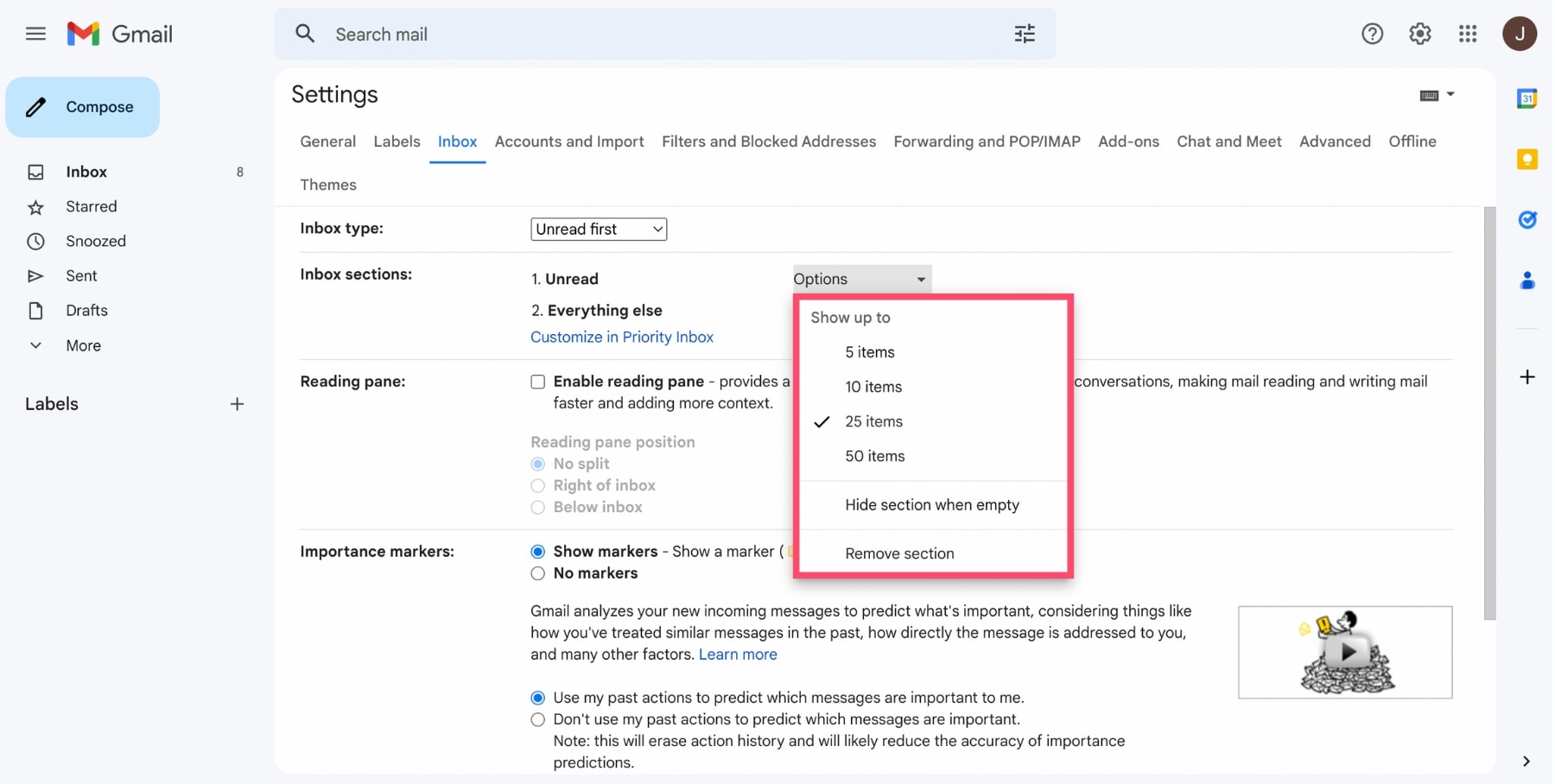
Step 5: Choose how many unread emails to show at the top — 5, 10, 25, or 50. Gmail defaults to 25.
You can also tell Gmail to hide the Unread section entirely once you have no unread messages left.
Step 6: Scroll down and click Save Changes.
And voilà. Your inbox now splits into two sections: Unread, for messages you haven’t opened, and Everything else.
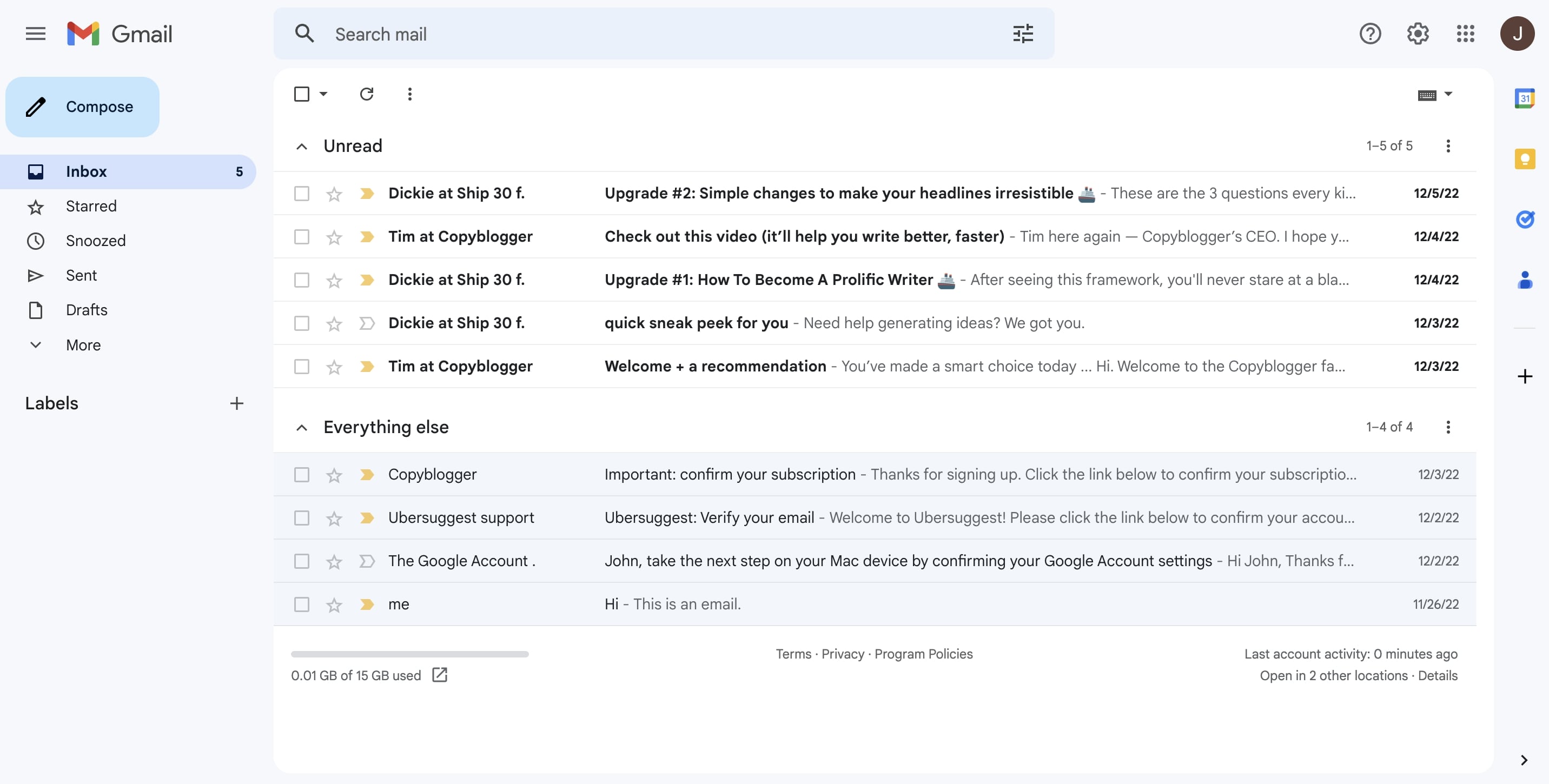
One limit to know: this view only shows up to 50 unread emails, and only the most recent ones. For older unread messages, use the search operator above or the folder method below.
3. Create an “Unread” folder in Gmail
Want every unread message collected in one label you can check anytime? Set up a filter.
Step 1: Open Gmail.
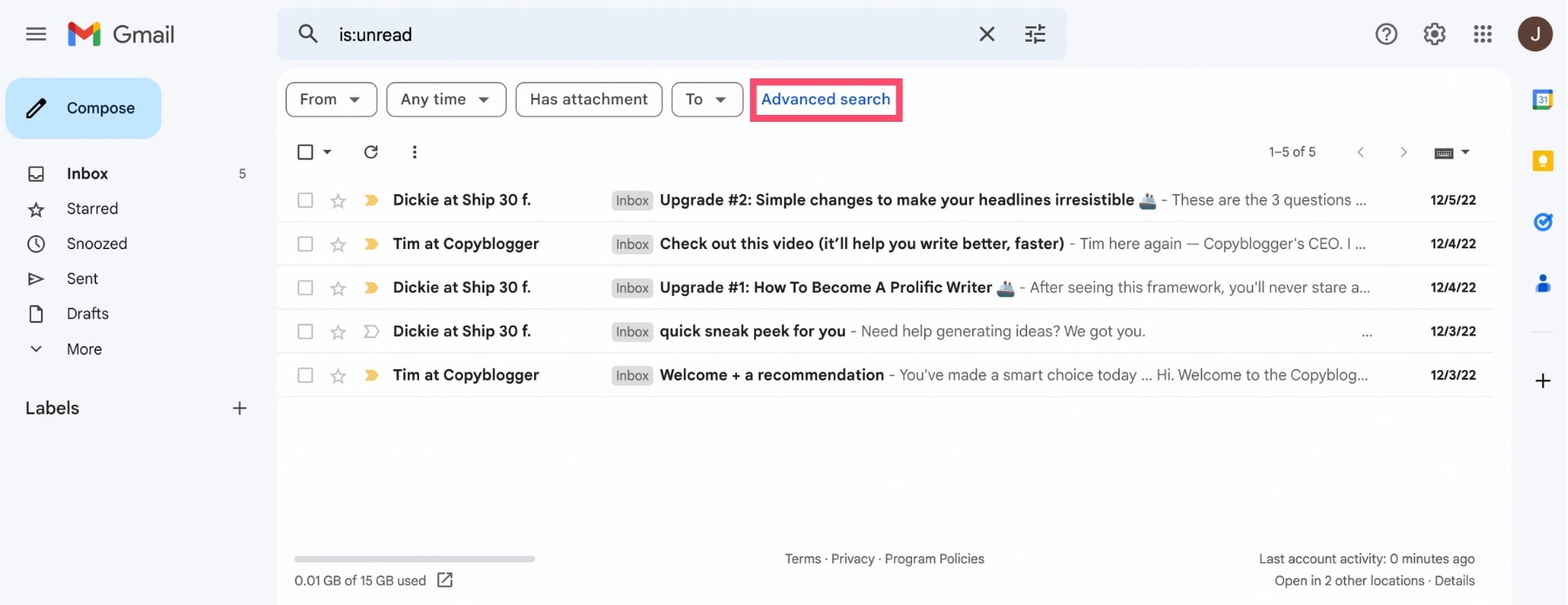
Step 2: In the search bar, type is:unread.
Step 3: Click Advanced search.
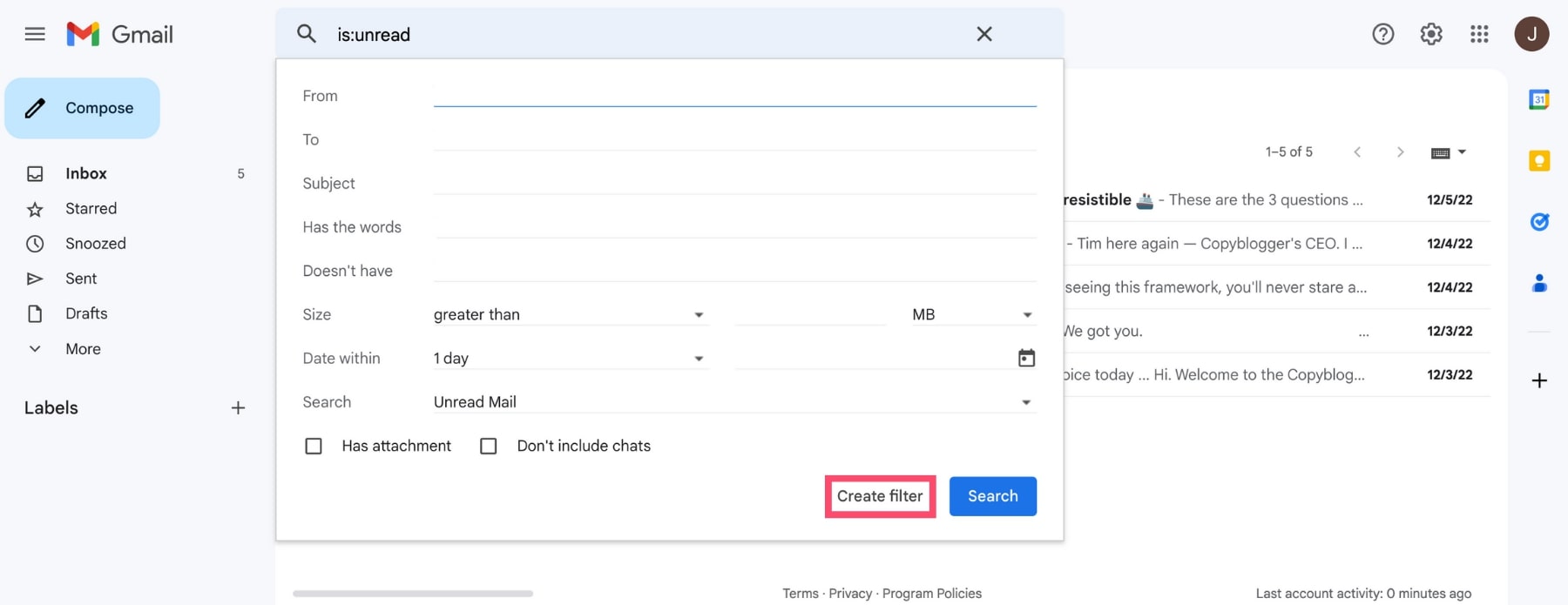
Step 4: Select Create filter, then click OK.
Step 5: Check Apply the label, then choose New label.
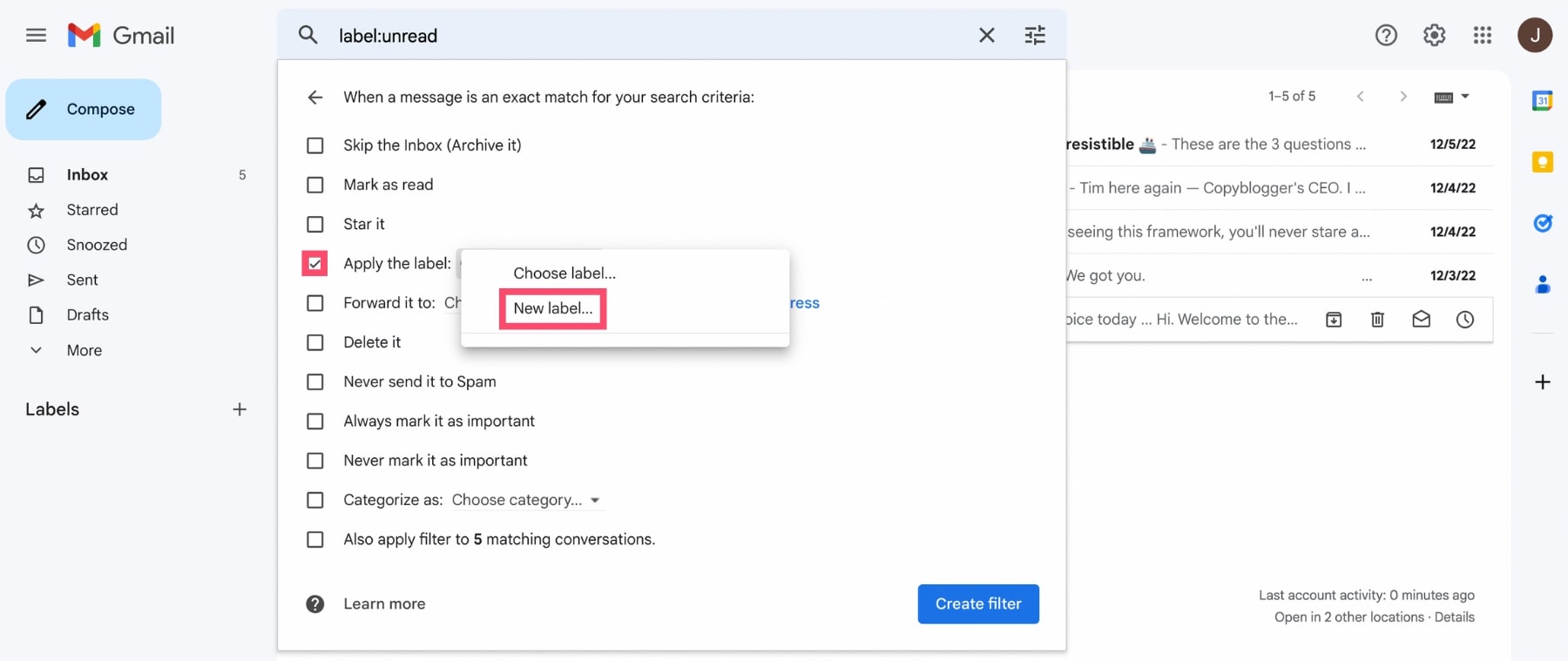
Step 6: Name the label — for example, Unread Emails — and click Create.
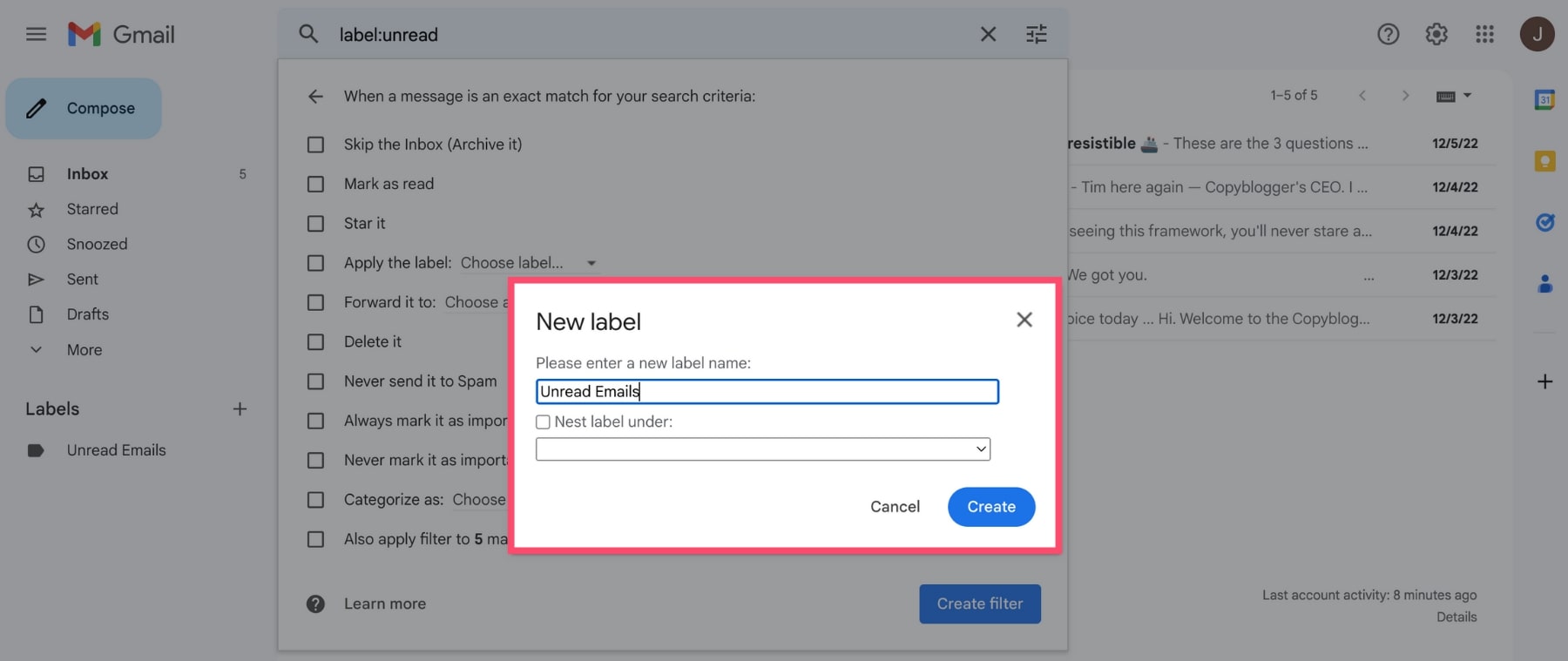
Step 7: Check Also apply to matching conversations, then click Create filter.
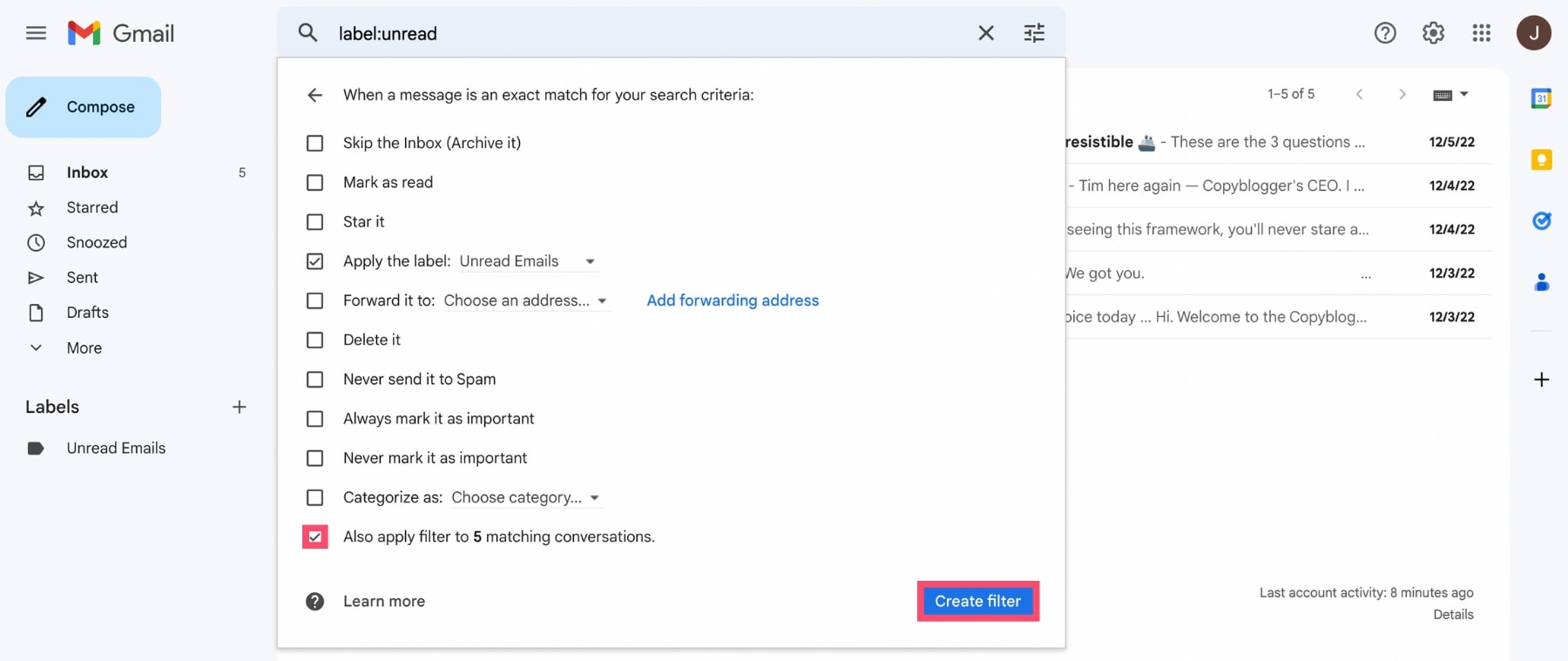
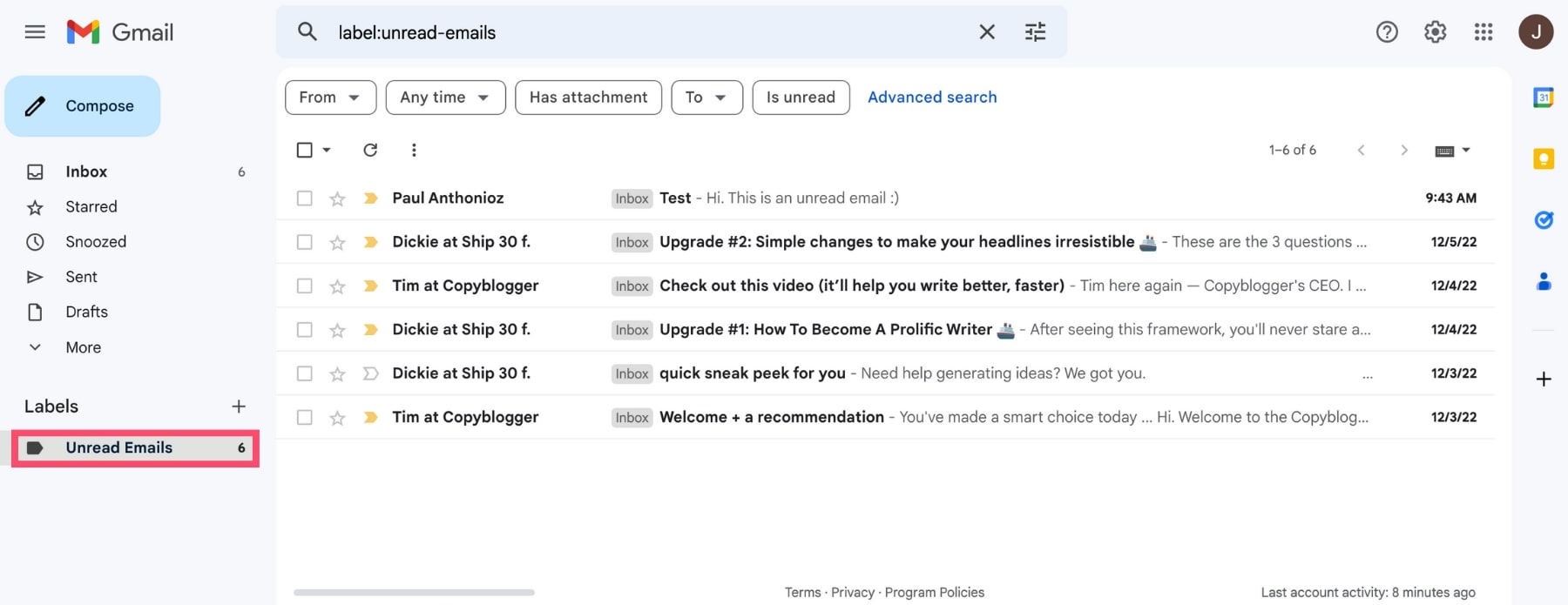
All done. Under Labels, you’ll see your new folder with every unread message inside.
Why your unread count doesn’t match what you see
Sometimes Gmail tells you there are unread messages waiting, but scrolling through your inbox turns up nothing in bold. A few things usually explain the gap:
- Archived messages still count. Archiving removes a message from your inbox view, but it doesn’t mark it read. It’s still sitting, unread, in All Mail.
- It’s parked in Spam, Trash, or a category tab. Promotions, Social, and Updates each track their own unread count separately from Primary.
- A short indexing or sync delay. A message that just arrived can trigger the unread badge a moment before it’s fully indexed and searchable, especially if you have multiple tabs or devices open at once.
To rule all of this out at once, search is:unread in:anywhere. It surfaces unread messages across your entire account, including Spam and Trash, so nothing stays hidden.
How to find unread emails in the Gmail app
The same logic applies on mobile, though the steps look a little different.
On Android
Step 1: Open the Gmail app.
Step 2: Tap the search bar and type is:unread.
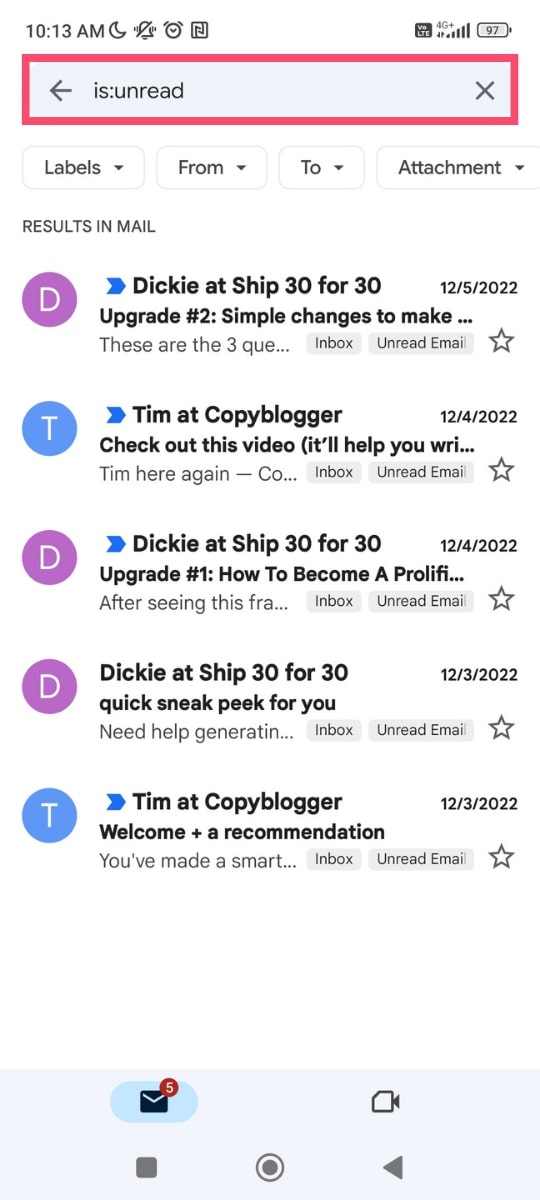
Step 3: Tap search. Gmail shows every message you haven’t opened yet.
On iPhone
The Gmail app search bar works the same way as on Android — type is:unread and search.
If you’re using Apple’s built-in Mail app instead of the Gmail app, unread filtering works a bit differently:
Step 1: Open the Mail app and tap Mailboxes.
Step 2: Tap Edit in the top-right corner.
Step 3: Check the box next to Unread.
Step 4: Tap Done.
And that’s it. A new Unread mailbox now appears, showing every unread message across your accounts.
The Bottom Line
Gmail gives you three solid ways to find unread messages: search is:unread for something instant, switch your inbox to Unread first for a passive view, or build a label so unread mail always lives in one place. Use whichever fits how you work, or combine all three.
But Gmail can only take you so far on its own. If your inbox still feels like it’s running you instead of the other way around, pairing it with an add-on like Mailmeteor closes the gap. Trusted by over 7 million users, Mailmeteor works right inside Gmail:
✍️ Write better emails in seconds with AI-powered drafting
🔁 Automatic follow-ups so important emails don’t get forgotten
📊 Email tracking to see when your messages are opened
📂 Automatic email categorization to keep your inbox organized
📬 Mail merge to send personalized emails at scale
Try Mailmeteor for Gmail today (it’s free!) and take back control of your inbox.
Happy sending!
FAQs
How do I find unread emails in Gmail’s primary tab only?
Gmail splits incoming mail across three tabs: Primary for personal emails, Social for social media notifications, and Promotions for marketing and sales emails. To search only the Primary tab, type is:unread category:primary in the search bar and press Enter.
Where is the Unread folder in Gmail?
Gmail doesn’t create an Unread folder by default. You’ll need to build one yourself using a filter: search is:unread, click Advanced search, then Create filter and apply a new label. See the folder method above for the full walkthrough.
How do I display all my unread emails at once?
Type is:unread in the Gmail search bar and press Enter. This pulls up every unread message across your inbox, labels, and folders in one list, regardless of which tab they landed in.
How do I find and delete unread emails in bulk?
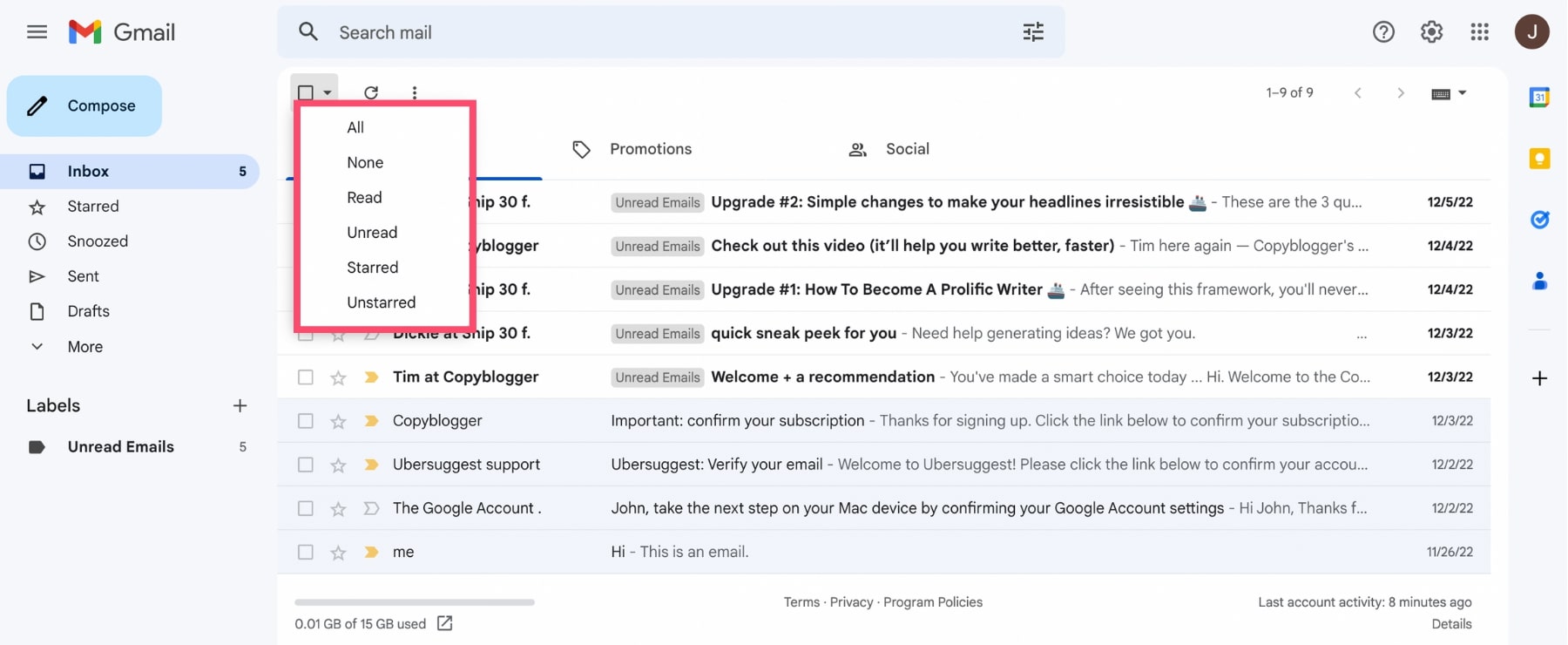
Click the arrow next to the checkbox just below the search bar, then choose Unread. Gmail selects every unread message currently on the page, up to 50 at a time. To go beyond that, run a search like is:unread, then click Select all conversations that match this search once it appears above your results. Click the trash icon to delete everything in one go.
How do I mark multiple emails as read at once?
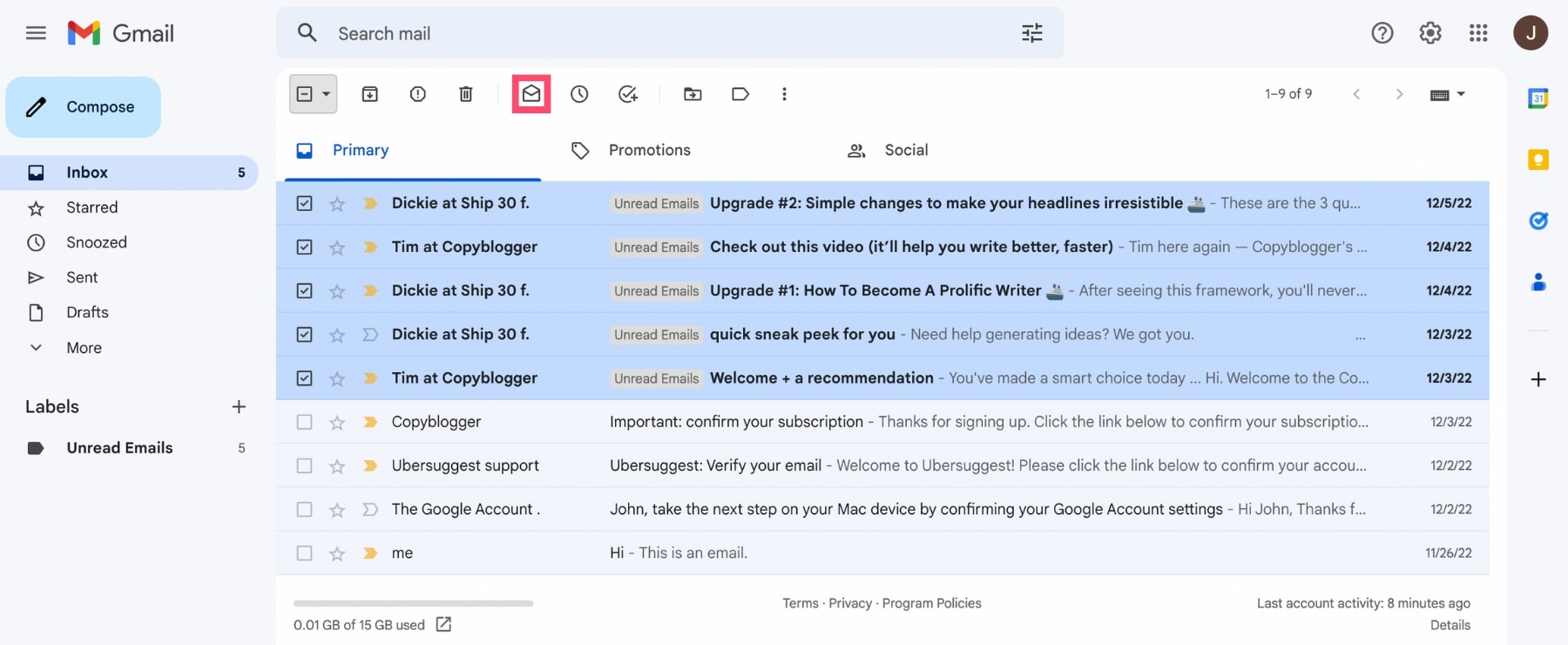
Click the arrow next to the checkbox below the search bar, choose Unread, then click Mark as read. For a larger batch, search is:unread, click Select all conversations that match this search, then mark them as read the same way. To clear a single conversation without opening it, enable keyboard shortcuts under Settings > See all settings > General, select it, then press Shift + I. For a full walkthrough, see our guide on how to mark all your Gmail messages as read.
Why can’t I see unread emails on my iPhone?
This is almost always a syncing or app mix-up rather than a missing feature. Check whether you’re using the Gmail app or Apple’s Mail app, since the unread count works differently in each. If the count still looks wrong, confirm the account is set to fetch or push new mail under Settings > Mail > Accounts.
Why does Gmail still show a message as unread after I’ve opened it?
This usually happens when Gmail is open on more than one device or tab at once, and the read status hasn’t synced yet. Refresh the page or app and the count should update. If it persists, check whether offline sync is enabled somewhere with an outdated cache.