What is an inbox?
An inbox typically refers to a digital or electronic mailbox used to receive messages, emails, or other forms of digital communication. It is a central location where incoming messages are stored until the recipient accesses and reads them.
What is an Inbox?
Inboxes can be found in various digital platforms such as email clients, messaging apps, and social media platforms. In the case of email, an inbox is typically where new messages are received and stored, and the term can also refer to the user interface of an email client where the user can view, organize, and manage their messages. Any email that is sent to your email address will arrive in your inbox, and any email you send to a contact will end up in their inbox.
What is the Most Common Type of Inbox?
The most common type of inbox is an email inbox.
All popular email platforms, like Gmail, Outlook, and Yahoo, provide you with an inbox folder inside their email client for sending, receiving, and organizing your emails.
To access your email inbox, you simply log into your email account.
Most email providers allow access from any device connected to the internet, and platforms like Gmail and Outlook also offer mobile apps.
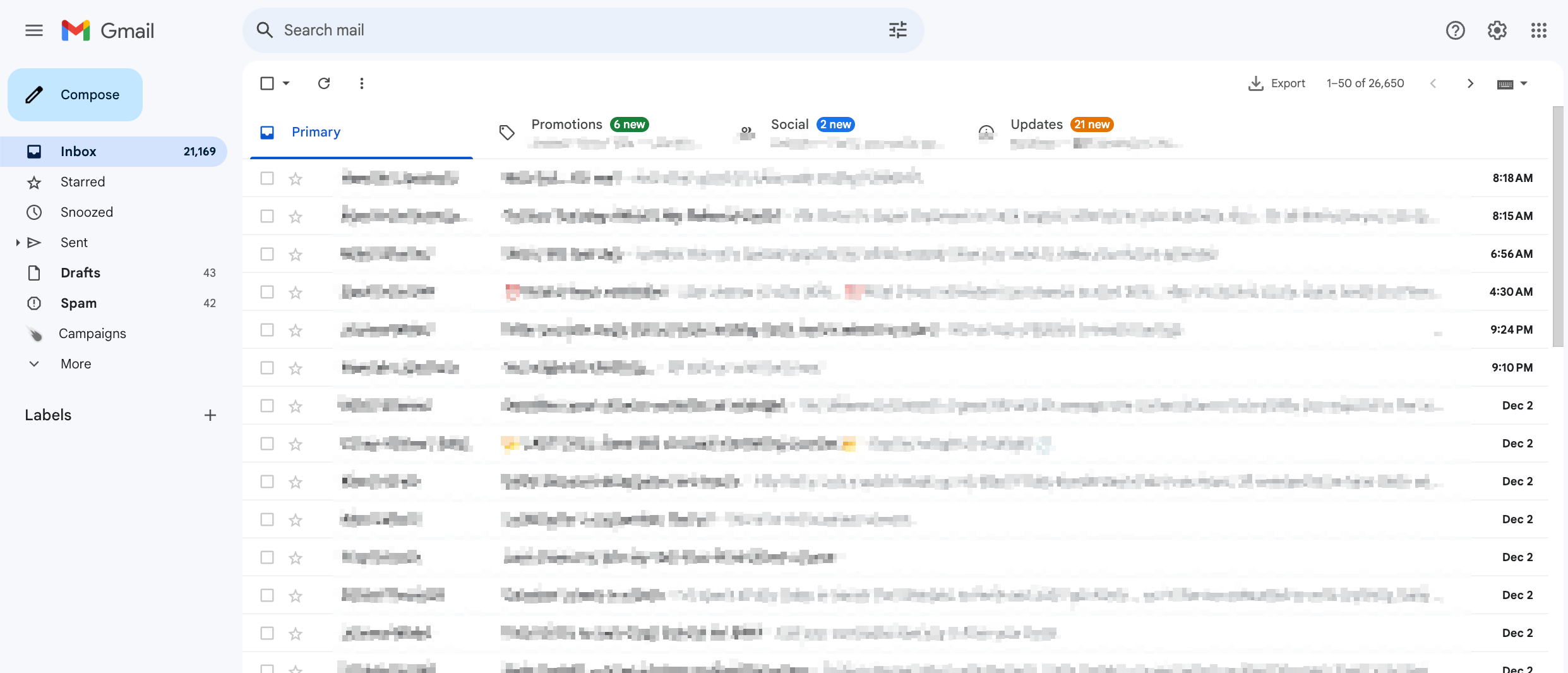
Inside your email dashboard, you’ll see a sidebar with folders like ‘Sent Mail,’ ‘Drafts,’ and ‘Spam.’ Your inbox is the main folder where new messages arrive and is typically the first thing you see when you log in.
Here’s what an inbox looks like in Gmail:
Can You Customize Your Inbox?
Yes, most email platforms allow you to customize your inbox look, feel and functionality. If that’s what you’re looking for, we’ve created a guide on how to change your Gmail background.
Here are some things you can do:
- Adjust Inbox Appearance: Change font sizes or apply a color palette (e.g. dark mode) to make your inbox easier on the eyes.
- Set Up Filters and Rules: Automatically sort incoming emails into folders based on criteria like the sender or subject. For example, you can send all marketing emails containing the word “unsubscribe” to a separate folder.
- Add Extensions: If you’re using Gmail, you can extensions like Mailmeteor (loved by 7 million users) from the Google Workspace marketplace to save time with features like email open tracking, scheduling, stored templates, and more.
How to Manage Your Inbox to Stay Organized
It’s easy for your inbox to get out of control, but with a few habits, you can keep it tidy and stress-free:
- Delete Unneeded Emails
Regularly clean out emails you no longer need. - Use Filters and Folders
Create rules to automatically filter emails into folders so that your inbox only displays the most important messages. - Unsubscribe from Marketing Emails
If you’re no longer interested in a mailing list, scroll to the bottom of the email and click “Unsubscribe.” - Schedule Inbox Time
Check your inbox at specific times during the day instead of keeping it open all day, which can disrupt your focus. You can also monitor your inbox time with an add-on like Mailmeteor.
Wrapping Up
Your inbox is the central place for receiving and managing all your emails. Keeping it organized not only saves you time but also reduces stress.
Here’s a quick recap to help you stay on top of your inbox:
- Regularly delete emails you don’t need.
- Use filters to keep your main inbox focused on important messages.
- Check your inbox at set times to avoid distractions.
- Take advantage of tools like Mailmeteor to automate tasks and save time.
By following these tips, you can turn your inbox into a productive space that works for you instead of against you.
FAQs
What happens when my inbox reaches its storage limit?
If your inbox is full, you won’t be able to receive new emails until you free up space. You have a few options:
- Upgrade Your Storage Plan: Most email providers, like Gmail, let you upgrade your storage. For example, Gmail users can purchase additional storage through their Google account settings.
- Delete Emails in Bulk: If you want to clear space without losing important emails, consider exporting them before deleting. Tools like Mailmeteor’s free Gmail extension make it easy to export emails to a file so you can save them locally before clearing out your inbox.
Can I create automatic replies for my inbox?
Yes, you can set up automatic replies, which is great if you’re on vacation, out of the office, or just need to let people know you’ll get back to them later.
For Gmail users, check out this step-by-step guide to setting up automatic replies so you can set a custom message and schedule when it should start and stop.
Can I access my inbox offline?
Yes, some email platforms allow you to use your inbox without an internet connection. You can read, organize, and even compose emails offline, and any changes you make will sync once you’re back online.
To set this up, search for “[your email client] offline settings” for specific instructions. For Gmail, you can follow this Google guide to enable offline mode and start working without Wi-Fi.
Is it possible to block or filter unwanted messages in my inbox?
You can set up filters or rules in most email platforms to automatically send messages to folders or spam. For a detailed explanation, refer to the “Managing Your Inbox” section above.