Email drafts
This feature is currently in beta. We welcome your feedback to help improve the accuracy of our drafting model.
Mailmeteor can automatically prepare draft replies for you, written in your tone and style. These drafts appear directly in Gmail and are meant to help you respond faster without starting from an empty message.
This article explains what automatic drafts are, how Mailmeteor decides when to generate them, where you can find them, and how to customize the feature.
Before you begin, make sure to install our Chrome extension. The extension includes free tiers so you can try everything at no cost.
How automatic drafts work
When a new email arrives in your inbox, Mailmeteor analyzes the message to understand:
- what the sender is asking,
- whether the email requires a response, and
- what type of reply would be helpful.
As part of this process, Mailmeteor also applies a smart label to the conversation. If the message is labeled to respond (meaning you likely need to reply) or to follow-up (meaning you may need to follow-up sometime soon), Mailmeteor prepares a draft for you.
The goal is simple: give you a ready-to-edit response as soon as you open the email.
What Mailmeteor considers when drafting a reply
To generate a useful and natural draft, Mailmeteor may take into account:
- The content of the latest message
- The full conversation history
- The tone and structure of your past emails
- Clues in the message (questions, deadlines, scheduling requests, etc.)
- Context from your calendar (for example, availability when scheduling is mentioned)
The resulting draft is written to sound like you and to help you take the next step in the conversation.
What you’ll see in Gmail
When a draft is created:
- A new Draft appears in the same thread as the incoming email.
- A small banner explains that the message was generated by Mailmeteor.
- The draft is saved just like any other Gmail draft—you stay fully in control of what is sent.
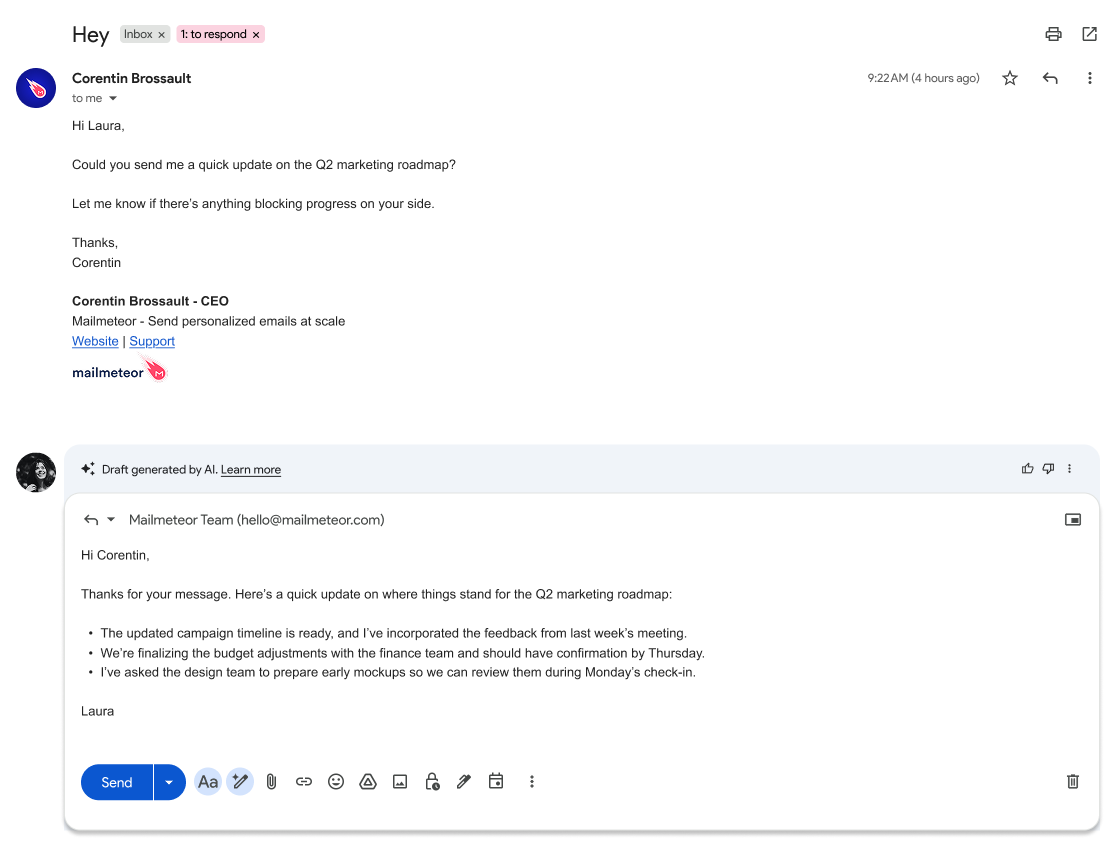
Example of an automatically generated draft in response to a message
Mailmeteor never sends emails automatically. Drafts are only suggestions.
When Mailmeteor decides to generate a draft
Mailmeteor generates a draft only when it detects that a reply is expected or helpful. Examples include:
- Someone asks you a direct question
- A colleague requests information or an update
- A customer expects a reply about a task or deadline
- A message invites you to a meeting or asks to schedule a call
- A conversation is ongoing and requires a follow-up from you
If none of these signals appear, Mailmeteor will not generate a draft.
This keeps your inbox from becoming cluttered with unnecessary suggestions.
Where to find your drafts
You can find automatically generated drafts in several familiar places:
1. Inside the email thread
If you use Gmail’s Conversation View (enabled by default), the draft appears directly in the conversation, just above the reply area.
2. In your Gmail “Drafts” folder
Because Mailmeteor saves drafts as standard Gmail drafts, they also appear in your Drafts folder, alongside drafts you create manually.
3. Under smart labels such as to respond
If you navigate to the to respond or to follow-up label, you will see conversations that have a generated draft attached.
This makes it easy to review all pending replies in one place.
Reviewing and editing generated drafts
- Open the email thread in Gmail.
- Look for the automatically created Draft message.
- Click it to open the Gmail composer.
- Review or edit the text—feel free to adjust tone, add details, or rewrite sections.
- Click Send when the message looks right to you.
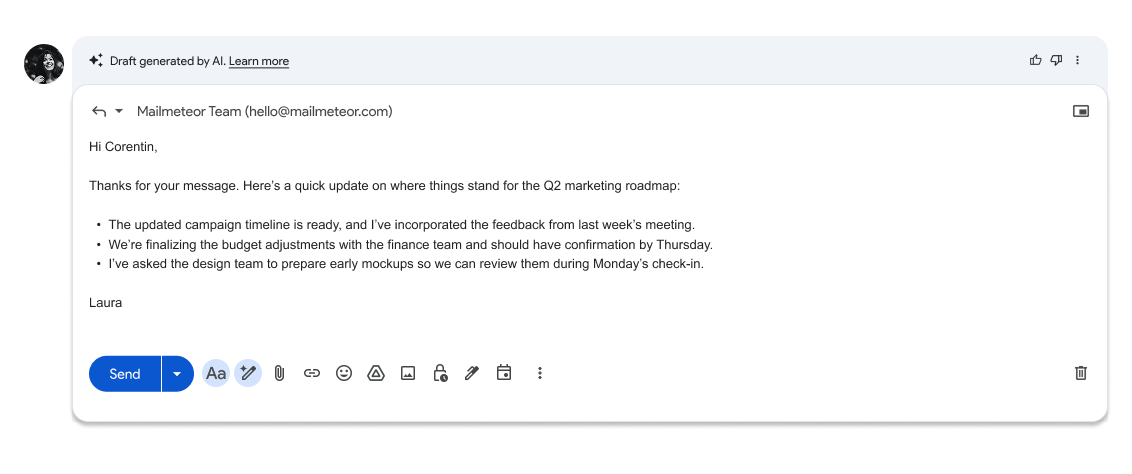
Automatically generated draft in your inbox
You always have the final say. Drafts are never sent without your explicit action.
Customizing draft generation
Mailmeteor lets you adjust how drafts are created so the feature fits your workflow.
To customize settings:
- Open Gmail and go to Settings → Add-ons → Open Mailmeteor settings.
- Select Drafts from the sidebar.
- Choose the options that match your preferences:
- Enable smart replies – prepare drafts for incoming emails requiring a response
- Enable smart follow-ups – generate reminders or follow-up drafts for emails you’ve sent
- Writing style preferences – choose whether drafts should sound professional, friendly, concise, etc.
- Save your settings to apply the changes.
These controls help you decide when drafts appear and how closely they match your personal writing style.
Managing generated drafts
Once drafts begin appearing in your inbox, you can interact with them like any other Gmail draft:
- Edit the draft to make minor changes.
- Delete the draft if you don’t want to send it.
- Regenerate a new version using the email writer (Gmail web only).
- Provide feedback via the tooltip to help the system learn over time.
Your actions—sending, editing, dismissing, or ignoring drafts—help Mailmeteor improve future suggestions.
Important notes
- Drafts only generate after you enable the feature.
- Drafts are saved locally in Gmail and are never sent automatically.
- You can adjust or disable the feature at any time in the settings.