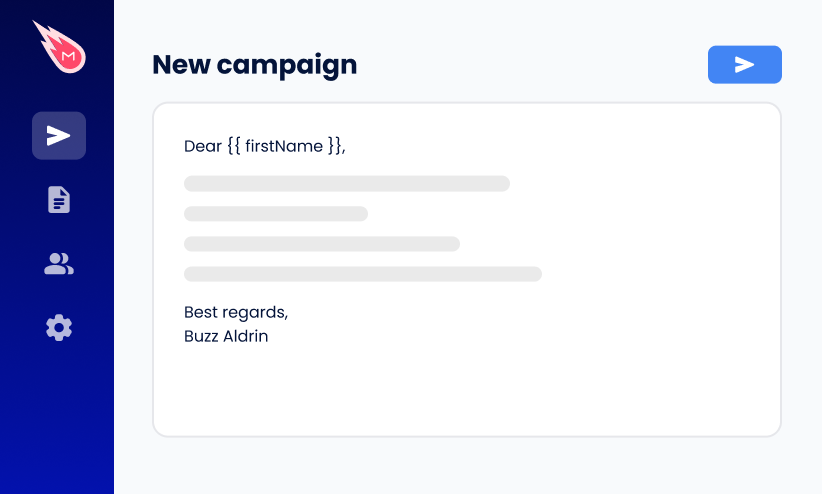
Sending event invitations to a big guest list usually means picking between two bad options: a generic mass email that feels impersonal, or hours spent customizing and sending messages one by one. And once the invitations are out, you’re stuck copying RSVP replies into a spreadsheet by hand.
Fortunately, there’s a faster way. With the right setup, you can personalize every invitation, send them all at once, and watch RSVPs come in — automatically, in the same place you built your guest list. You don’t need a separate event platform to do it. Just a simple mail merge tool.
- Build your guest list – set up columns for name, email, event details, and RSVP status.
- Personalize your invitations – use merge fields so each guest gets their name and event details.
- Ask for RSVPs – have guests reply directly or click through to a linked Google form.
- Track engagement automatically – see who opened, clicked, and replied in real time.
- Set up automatic follow-ups – schedule a conditional follow-up that triggers only if a guest hasn't responded.
In this guide, you’ll learn:
- Why personalized invitations get more RSVPs
- How to send personalized event invitations
- How to ask for RSVPs
- How to track RSVPs and engagement automatically
- How to follow up with guests who haven’t responded
- Event invitation templates by occasion
Sounds good? Then let’s dive in.
Why Personalized Invitations Get More RSVPs
Guests don’t ignore invitations because they’re busy. They ignore them because most invitations aren’t for them — they’re for everyone. A blast that says “You’re invited!” and nothing else reads like spam, even when it isn’t.
The invitations that get answered do one thing differently. They feel like they were written for one person, not two hundred. They use the guest’s name. And share event details that actually apply to them.
The effect shows up in the numbers. A 2025 analysis of 5.5 million outreach emails found reply rates jumped from 3% to 7% when subject lines were personalized. And open rates lifted from 35% to 46%.
Personalization is easy when you’re inviting 10 guests. At 50, it starts to become a challenge. At 200, hand-writing each email simply isn’t realistic. So the personal touch gets dropped, and your RSVP rate takes a hit.
How to Send Personalized Event Invitations
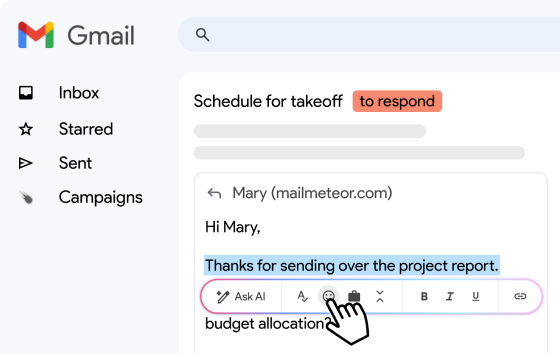
You can send personalized invitations straight from a Google Sheet, Gmail, or a Google Doc — Mailmeteor handles the personalization and tracking either way. Pick whichever fits how you already work.
From Google Sheets
Send from Google Sheet if your guest list already lives there.
The steps are (very) simple ⤵️
- Set up your guest list in a Google Sheet, with columns for name, email, event details, and RSVP status.
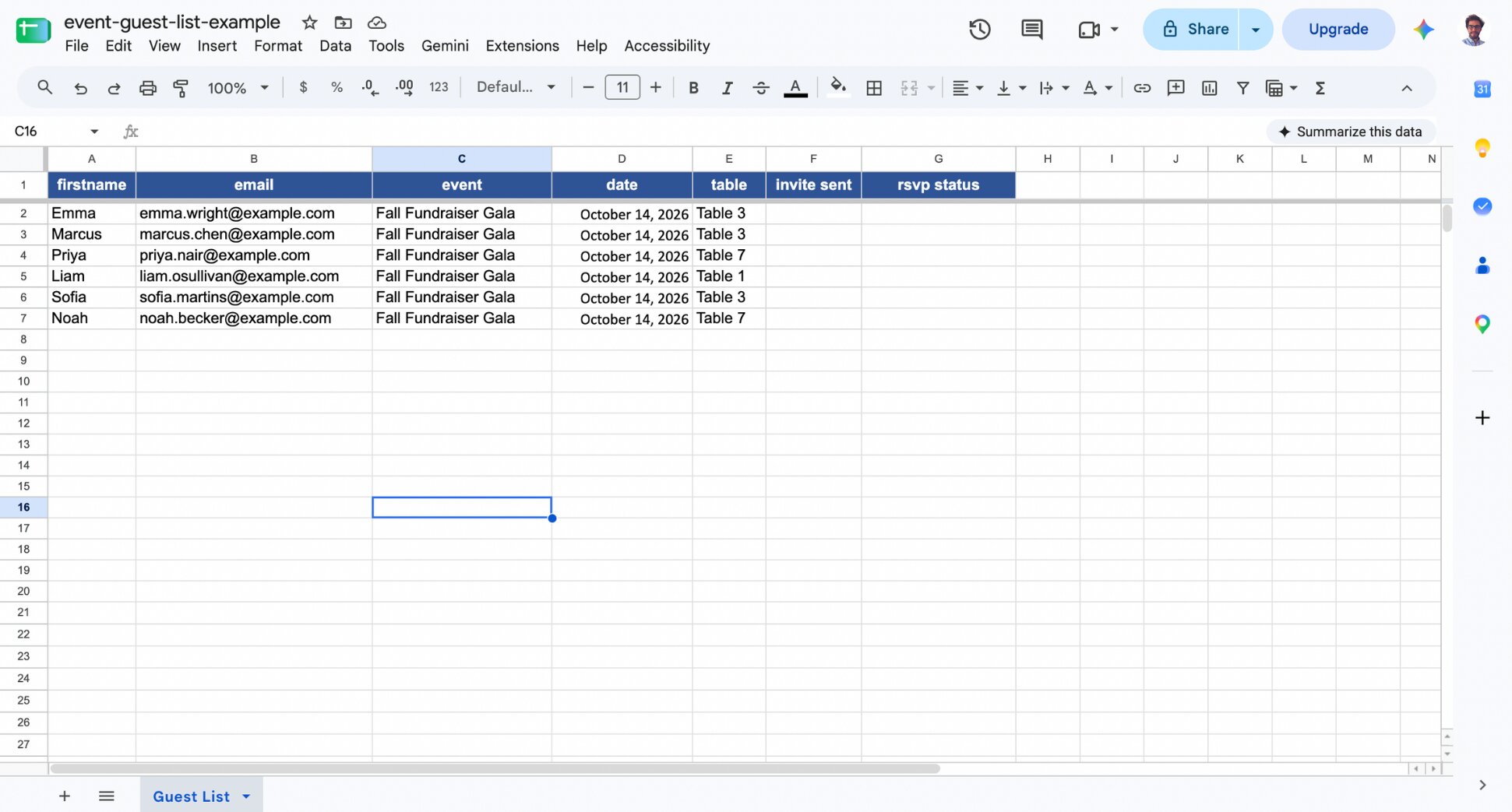
- Install Mailmeteor for Google Sheets and go to Extensions > Mailmeteor > New campaign**.
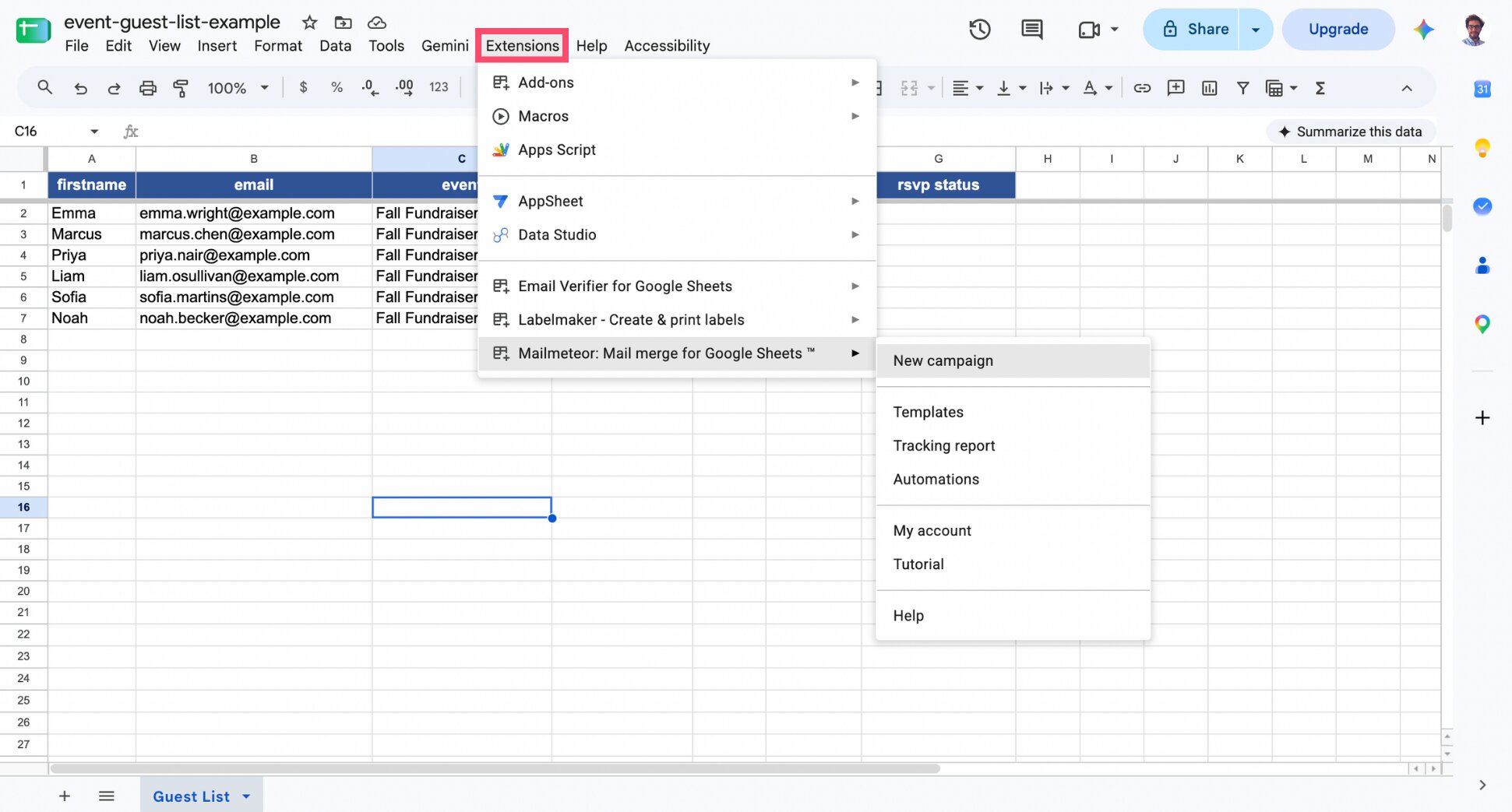
- Write your invitation template. Then add merge fields pulling from your columns (like guest name or event date).
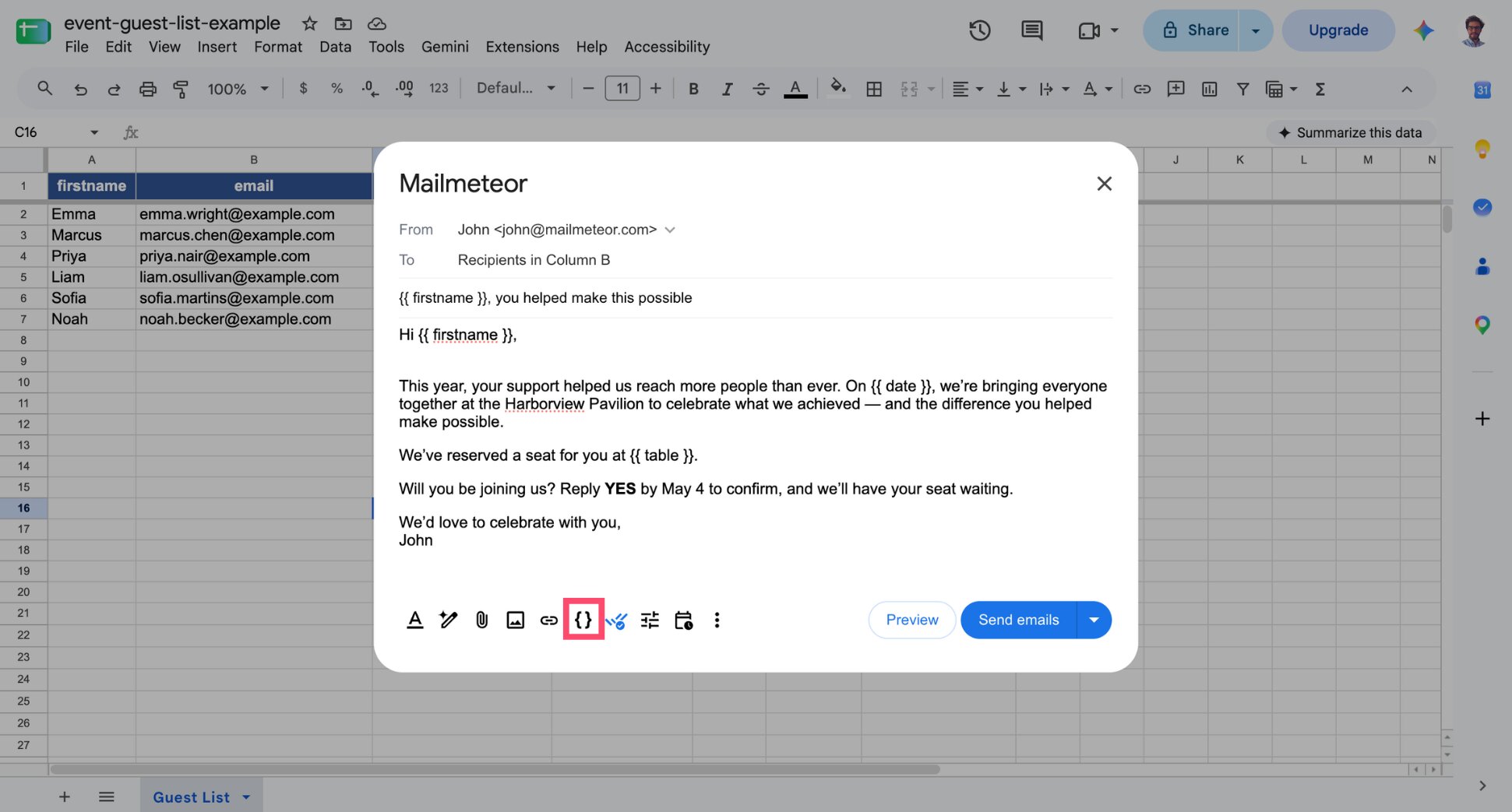
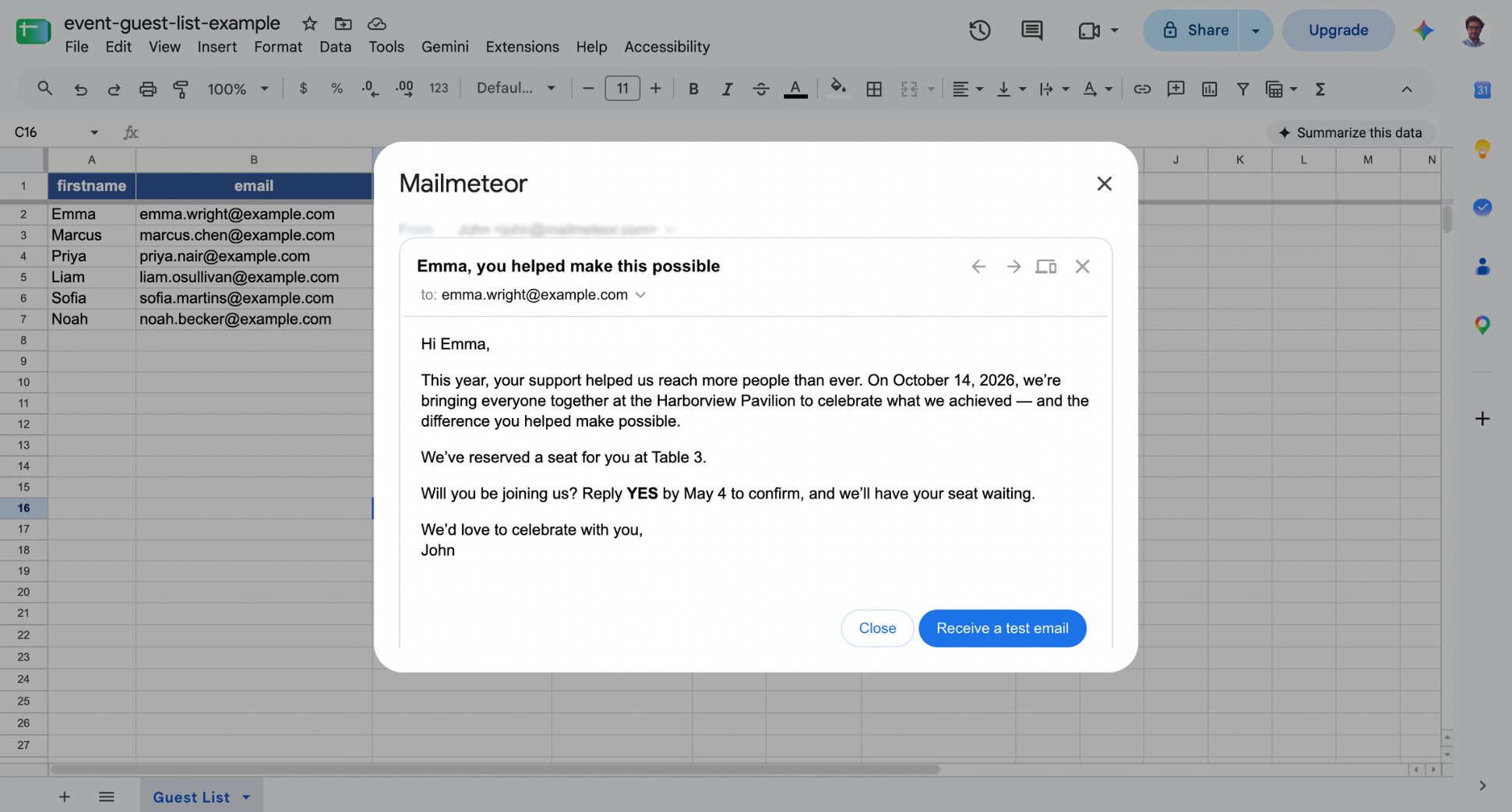
- Once your mail merge is ready, click Preview to check that each guest’s details appear correctly.
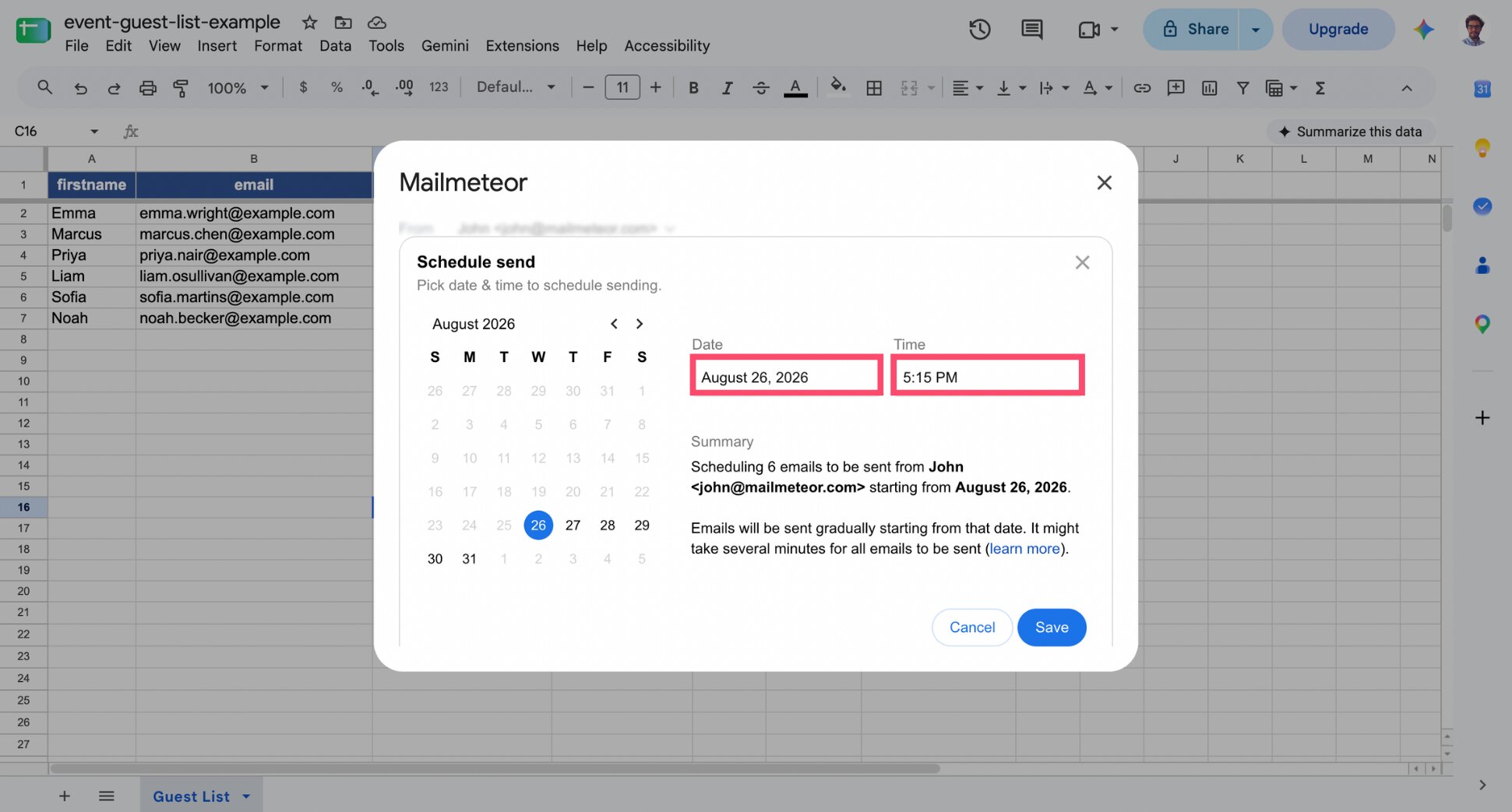
- Send your campaign or schedule it.
And voilà. Your invitations are personalized, sent, and your guest list still lives in the same Google sheet you started with.
From Gmail
Compose in Gmail if you’d rather stay in your inbox.
Here’s the complete workflow ⤵️
- Install Mailmeteor for Gmail from the Chrome Web Store.
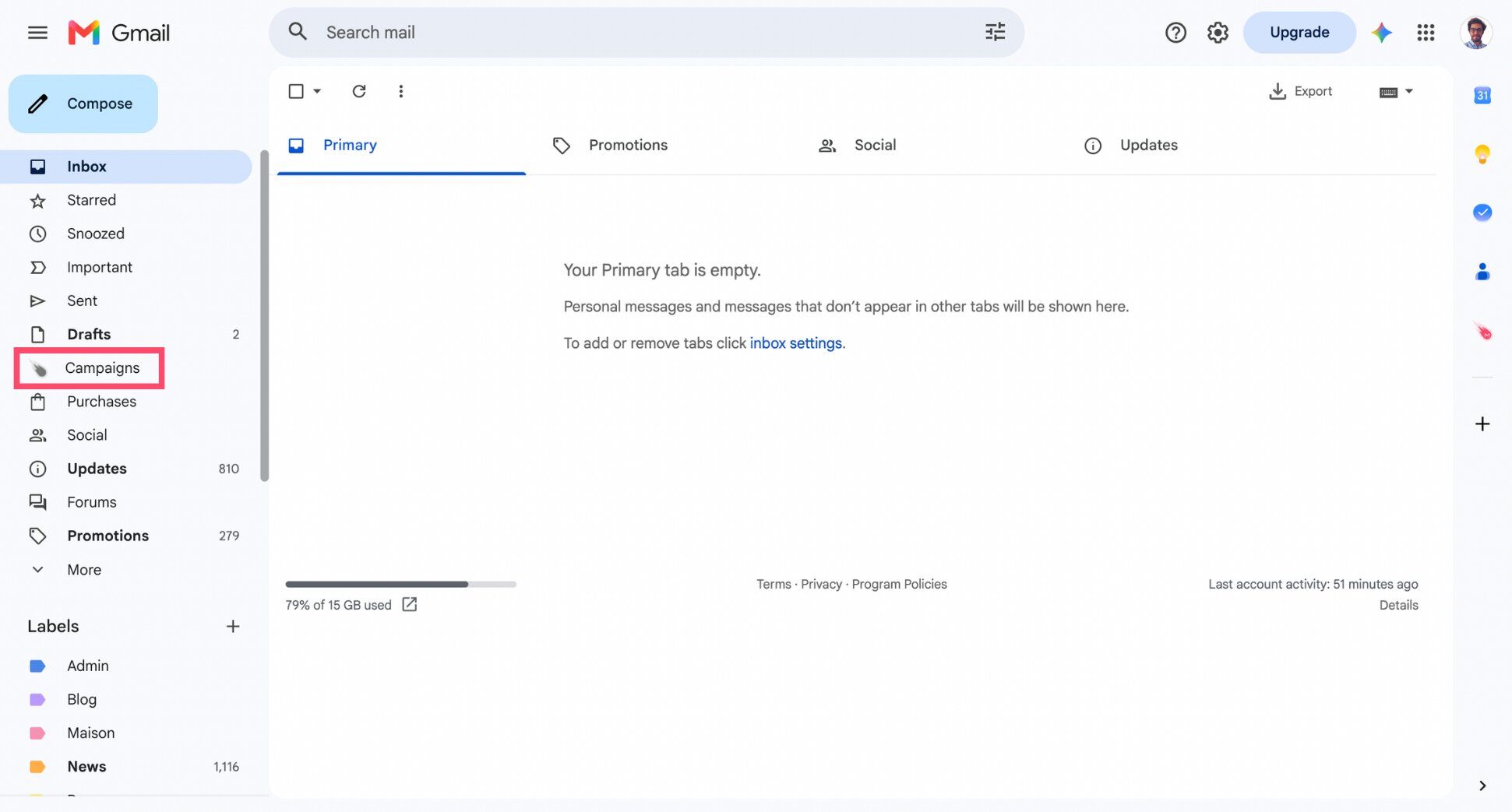
- Open Gmail click More in the left sidebar and select Campaigns.
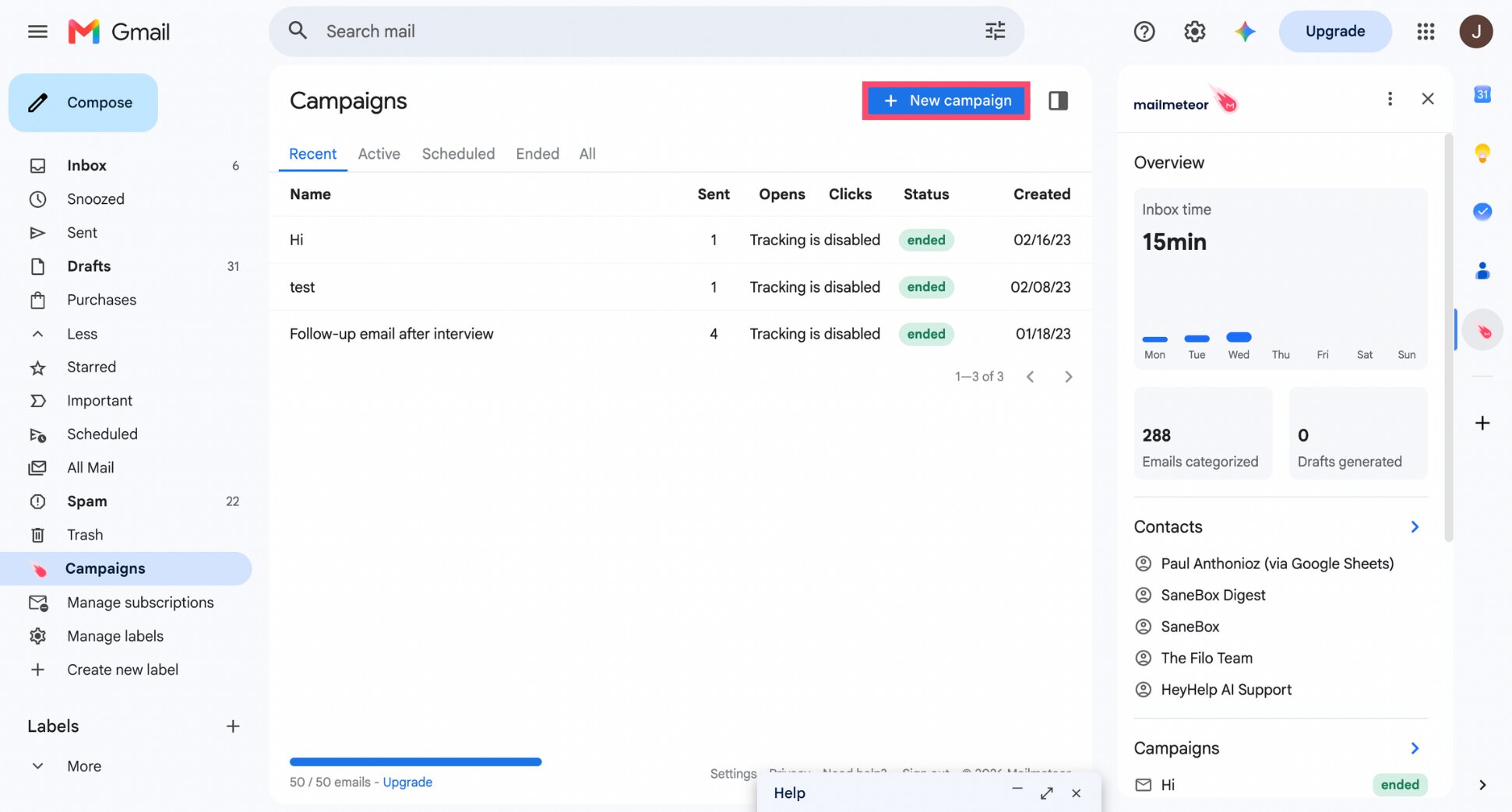
- Click New campaign.
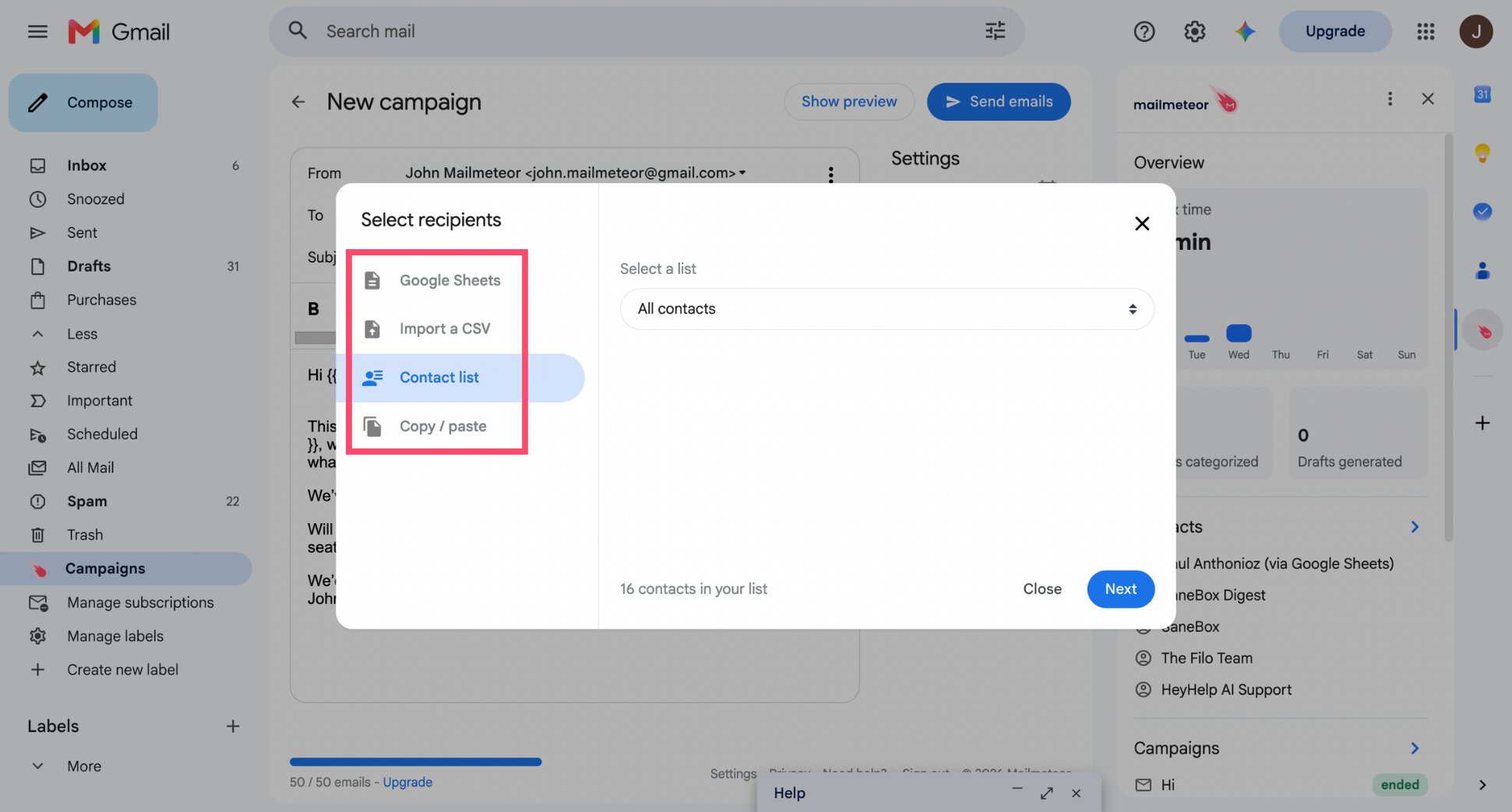
- Click Select recipients. From there, you can import contacts from a Google Sheet, a CSV file, or a contact list.
- Write your invitation and click Insert variable to add merge fields (like
and).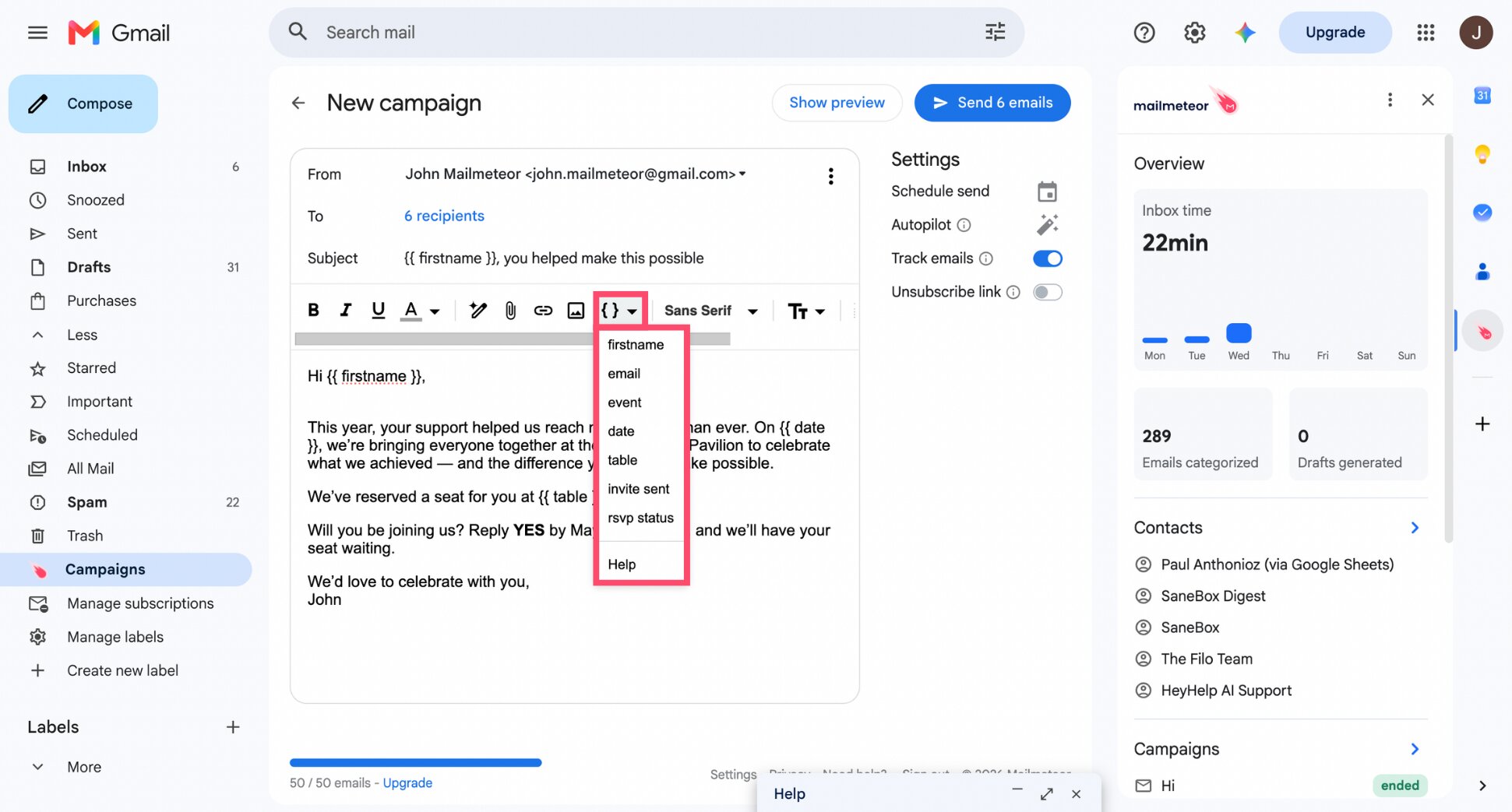
- Preview your campaign.
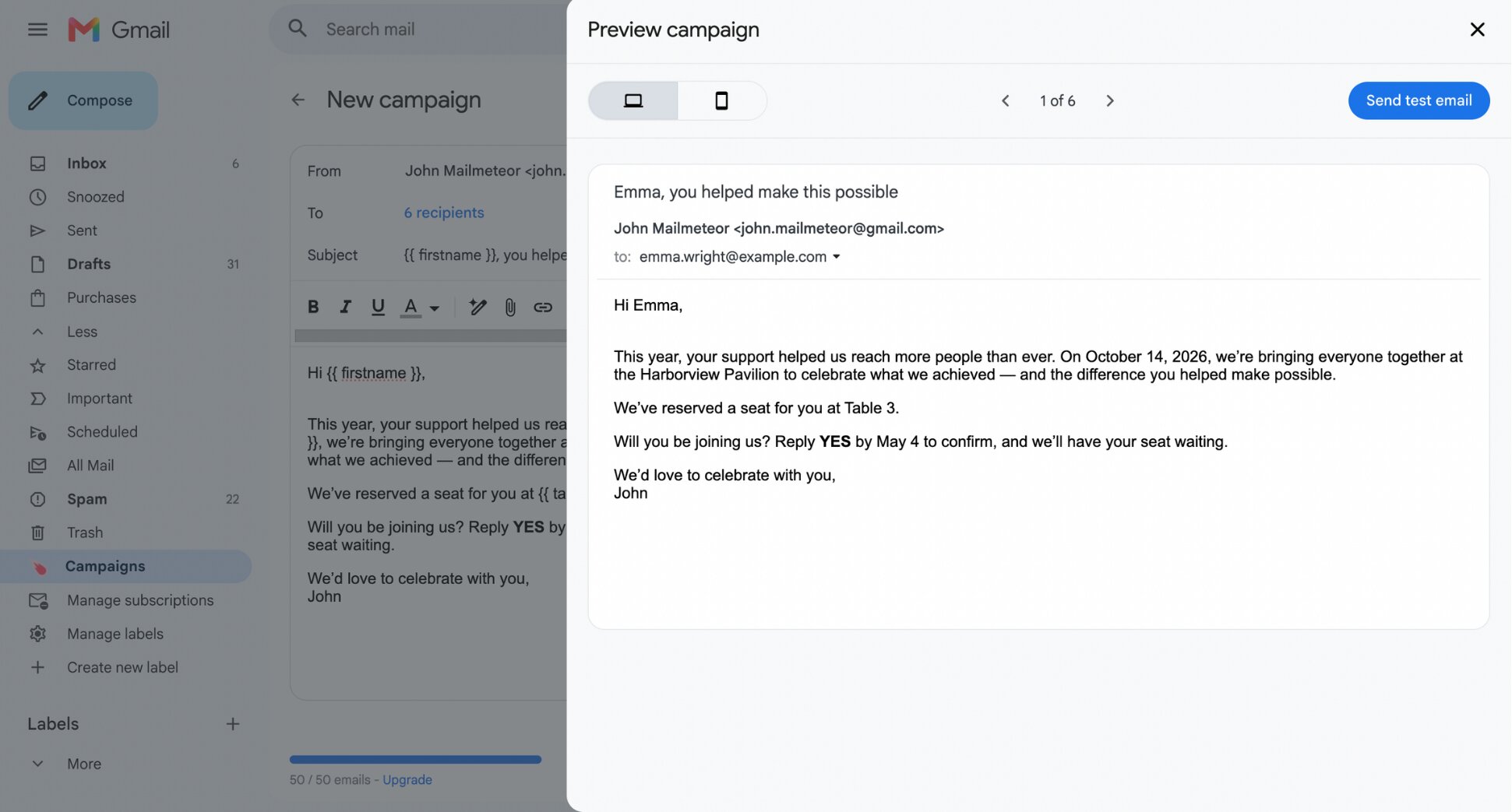
- Click Schedule send, pick a date and time, then press Send.
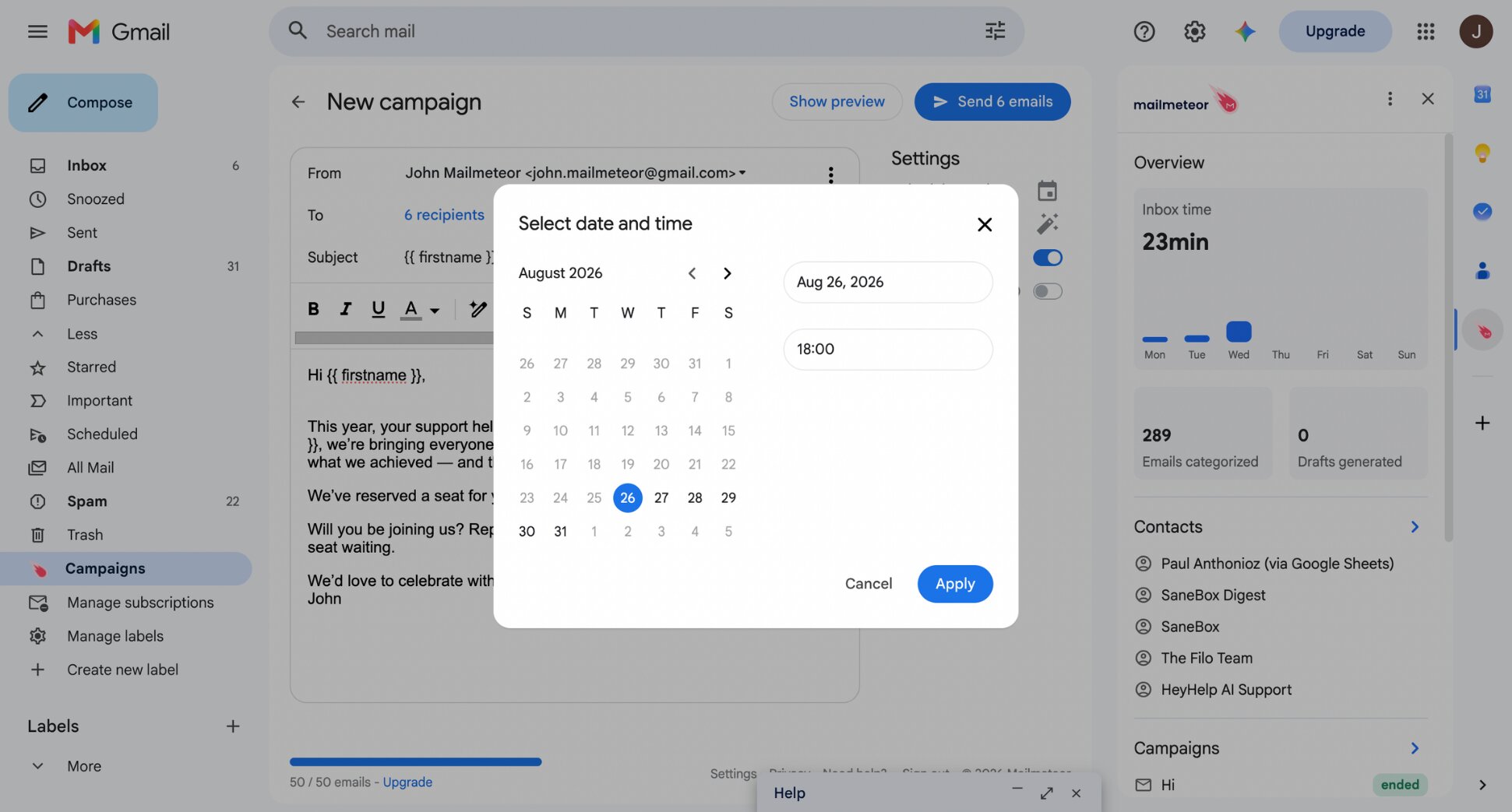
All done. Your invitations go out personalized, and you’ll be able to see who’s opened and responded directly from your Gmail inbox.
From Google Docs
Compose in Google Docs if you’d rather send a well-designed invitation.
Here’s how it works ⤵️
1.. Open a Google Doc and design your invitation. You can also browse our library of pre-designed templates to save time.
- Go to Extensions > Mailmeteor > New campaign.
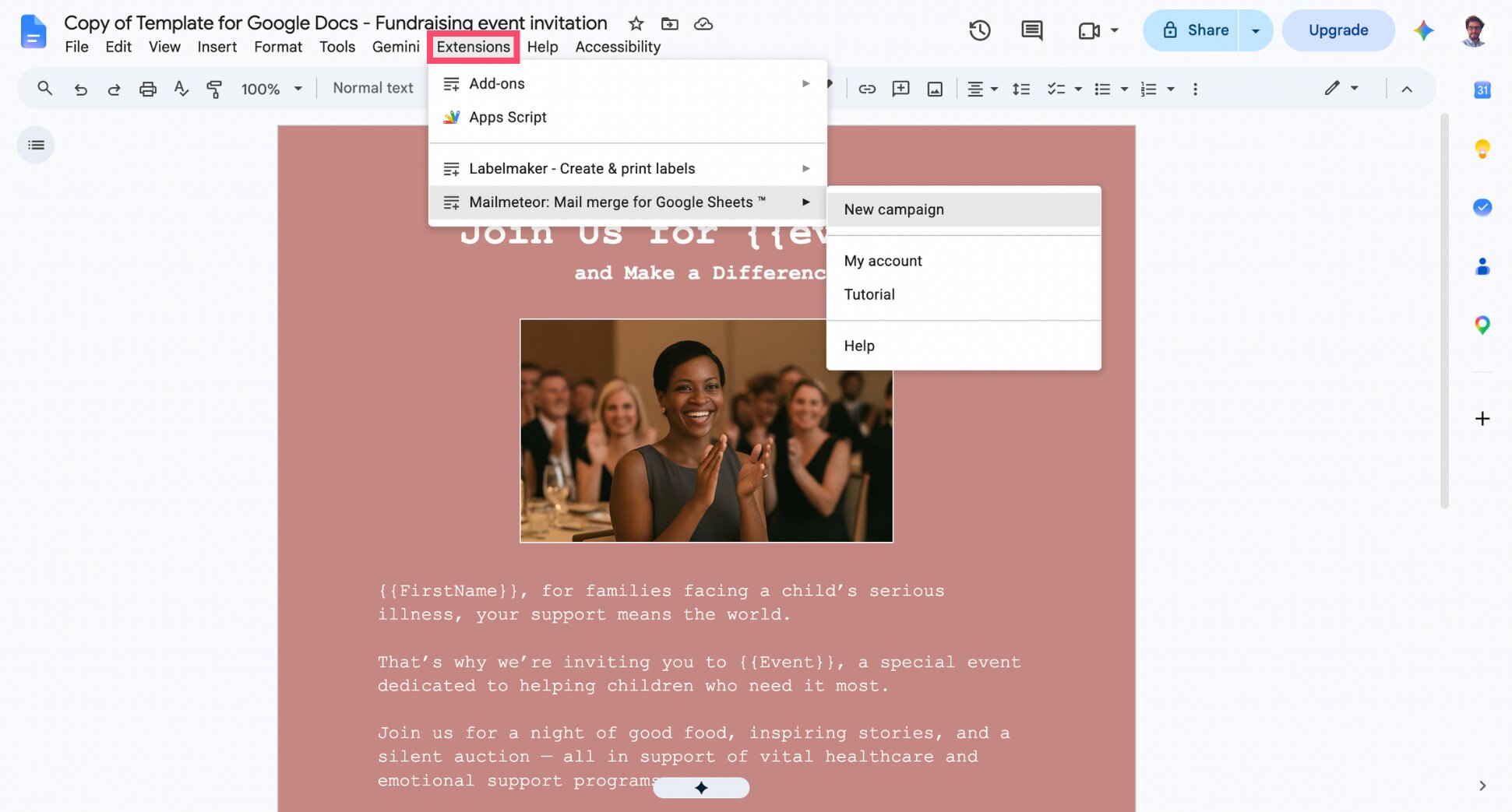
- Click Select recipients to import your guest list from a Google Sheet, a CSV file, or a contact list.
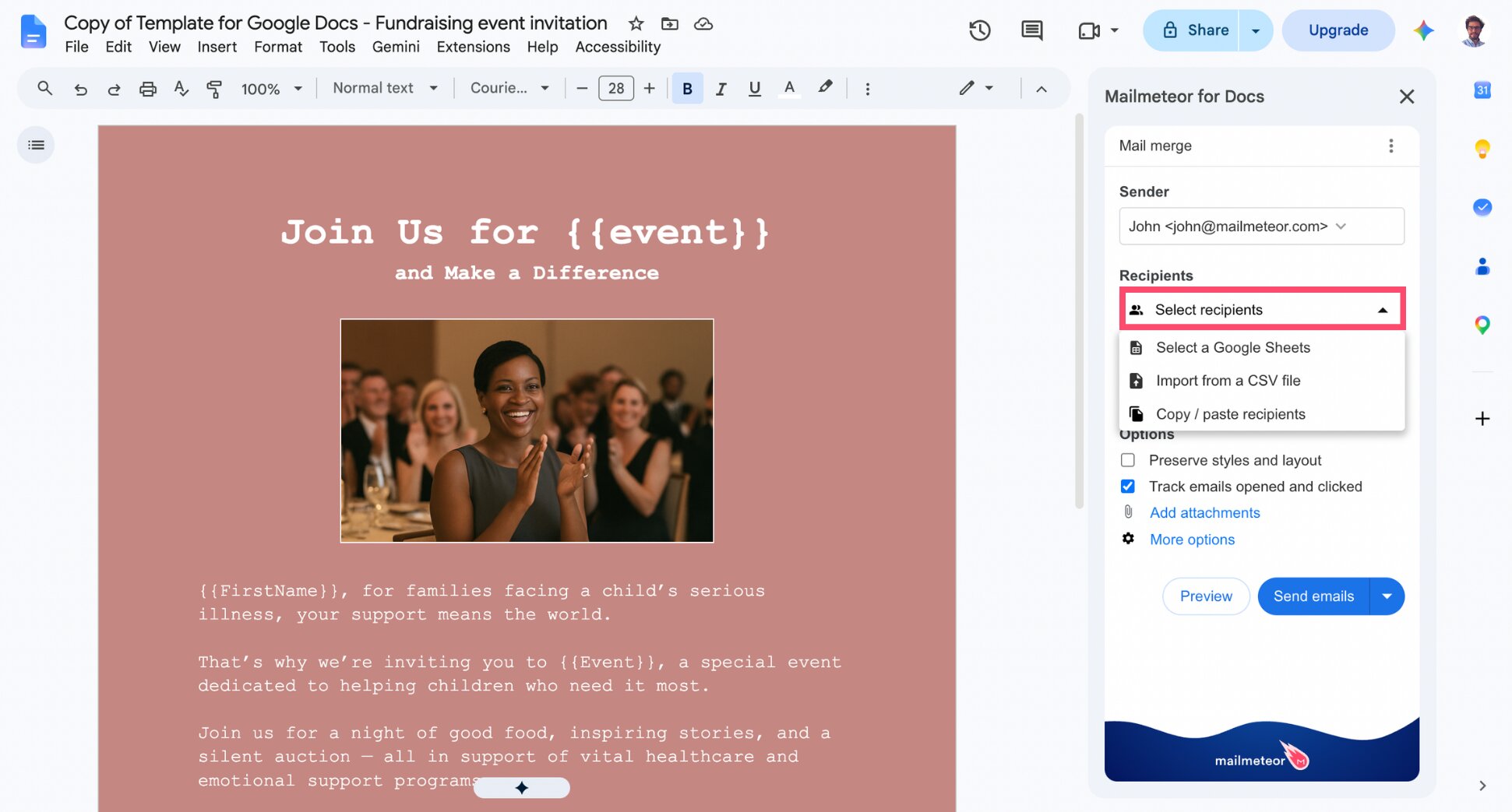
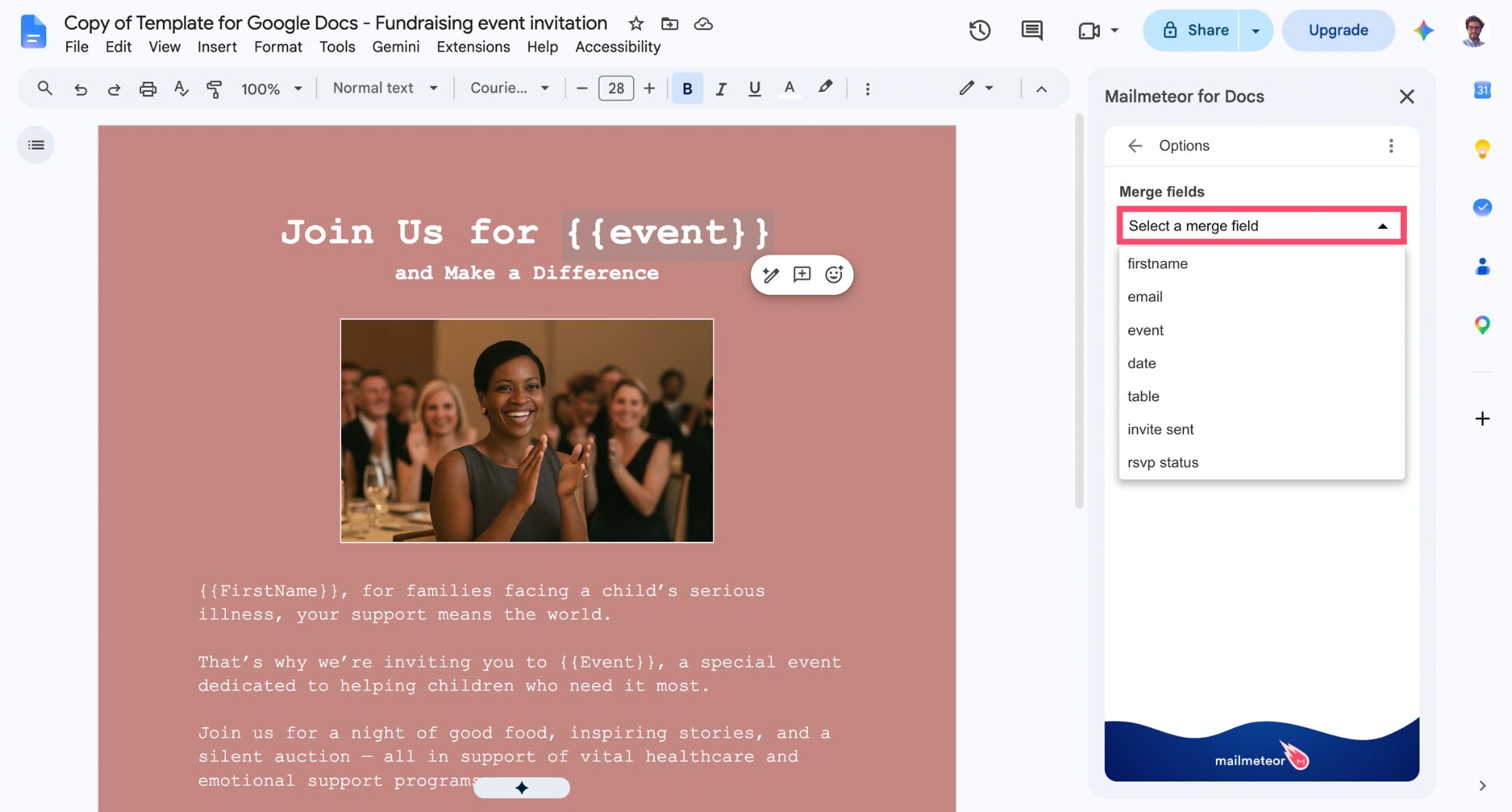
- Click More options > Select a merge field to personalize your invitation with dynamic fields.
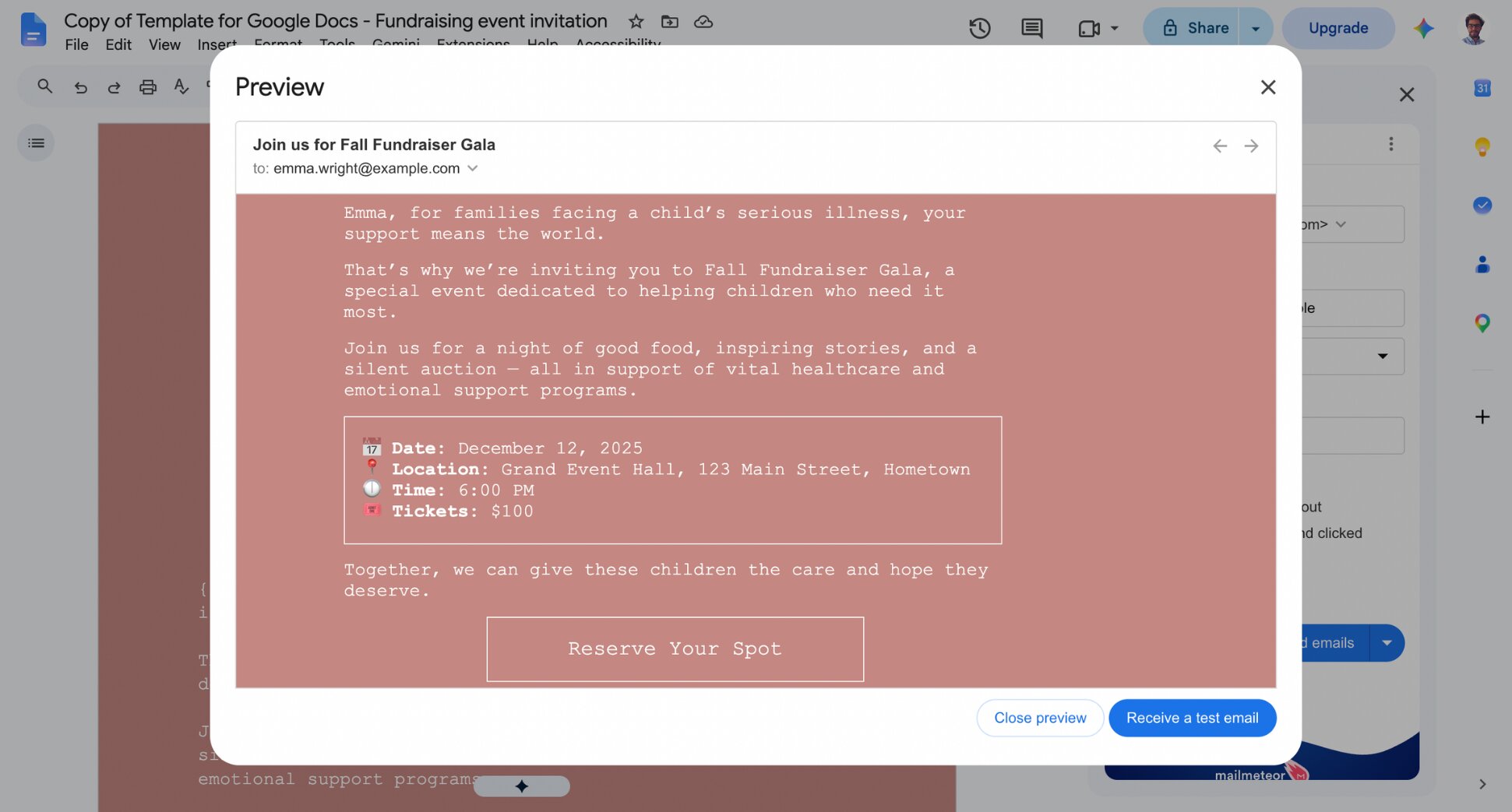
- Click Show preview to check that each guest’s details appear correctly.
- Send your campaign or schedule it.
And that’s it. Your invitation goes out with the formatting you designed — though it’s worth clicking Preview first, since email clients don’t always render Google Docs styling perfectly.
How to Collect RSVPs from an Event Invitation
How you ask for an RSVP depends on how much detail you need back from guests.
Reply-Based RSVPs
The simplest option? Ask guests to reply directly to the invitation. For example, “Reply YES or NO by [date] to confirm your spot.” This works well for smaller guest lists or informal events, and it keeps the whole exchange inside Gmail.
Linked RSVP Form
For larger events, or when you need more than a yes or no (meal choice, plus-ones, dietary restrictions), link a Google Form in the invitation. Guests click through, fill in their details, and their responses land in a separate response sheet.
How to Track RSVPs and Engagement Automatically
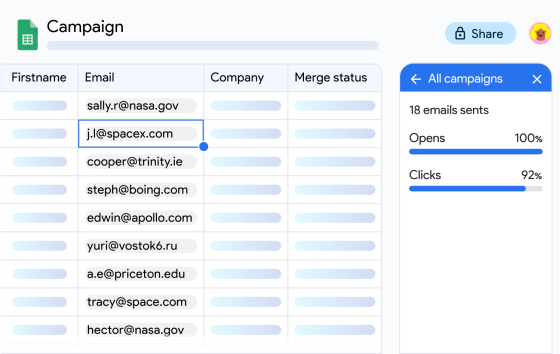
Once your campaign is sent, Mailmeteor adds a tracking report directly in your Dashboard or in your spreadsheet, right next to your guest list. A new Campaign status column shows, for each guest:
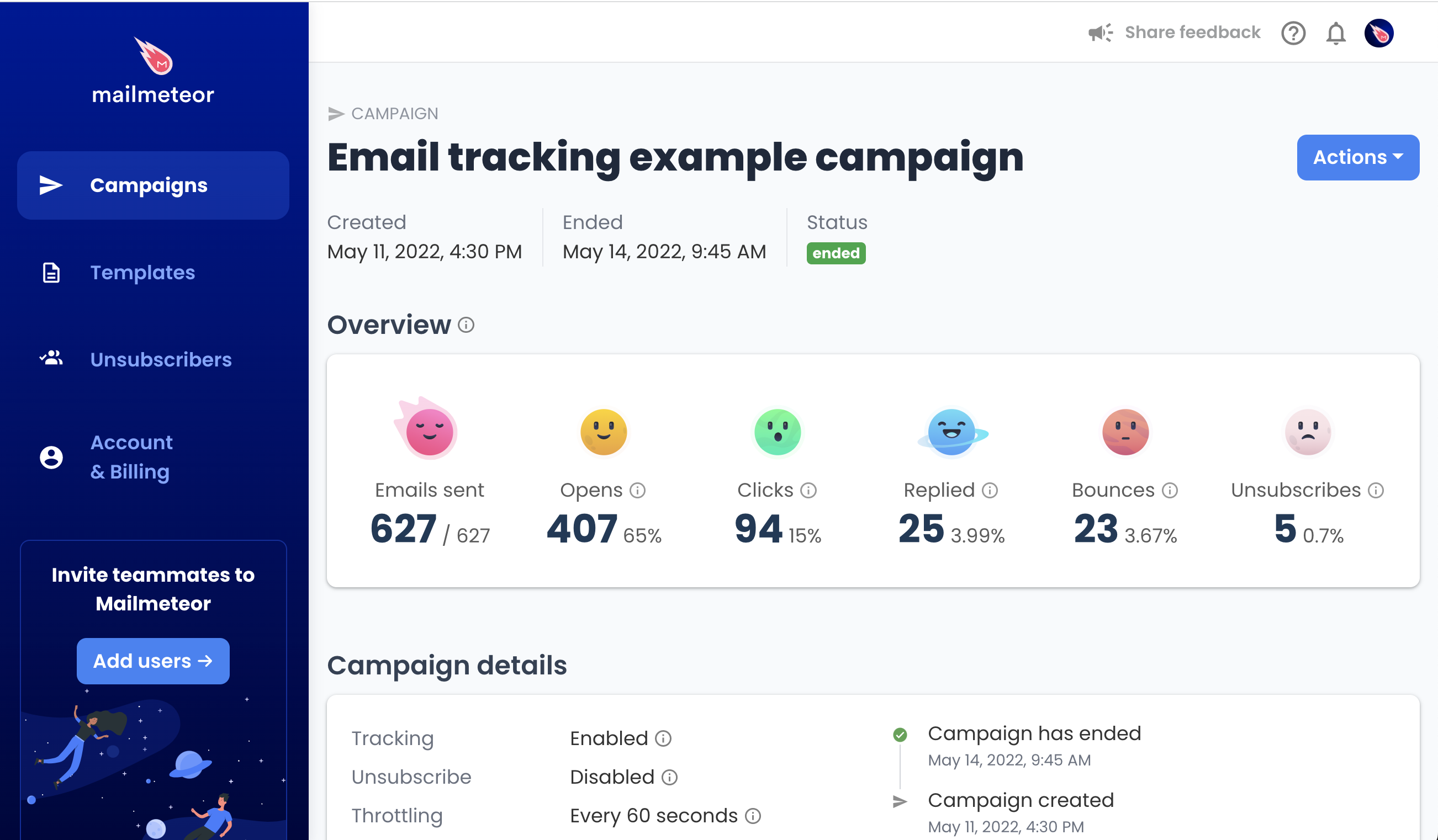
- Sent – the invitation went out successfully.
- Opened – the guest opened the email.
- Clicked – the guest clicked a link inside it (your RSVP form, for example).
- Replied – the guest responded directly.
- Bounced – the email didn’t reach the guest.
- Unsubscribed – the guest opted out.
Opens, clicks, and unsubscribes are tracked on Mailmeteor’s Premium plan. Bounces and replies require the Pro plan. Tracking updates in real time, so you can check your sheet at any point to see who’s confirmed, who’s declined, and who’s gone quiet.
How to Follow Up With Guests Who Haven’t Responded
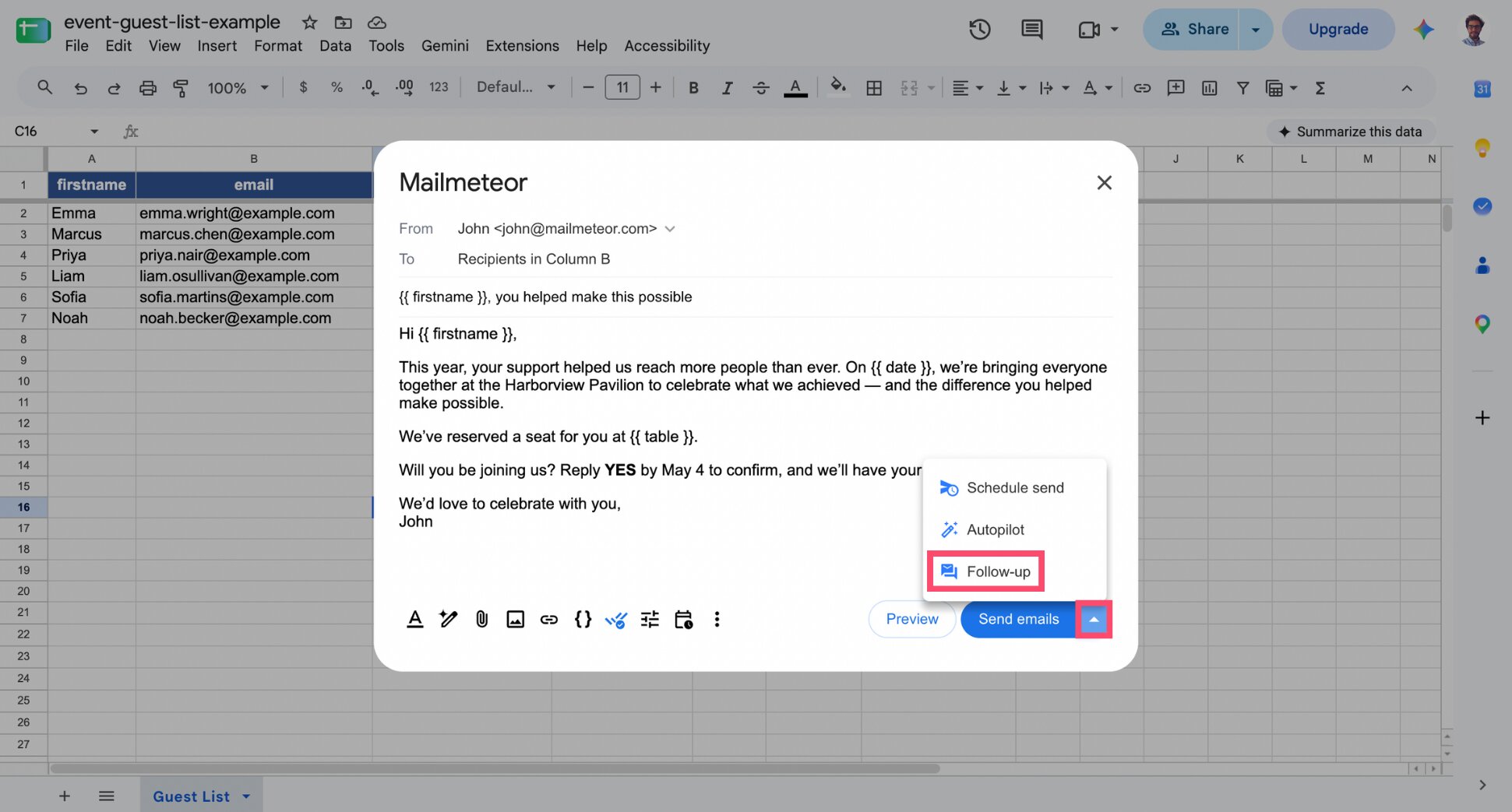
You don’t need to track down non-responders manually. Mailmeteor lets you schedule a follow-up that only sends if a guest hasn’t replied, clicked or opened your invitation. Here’s how it works ⤵️
- When composing your invitation, click Follow-up.
- Write your reminder message.
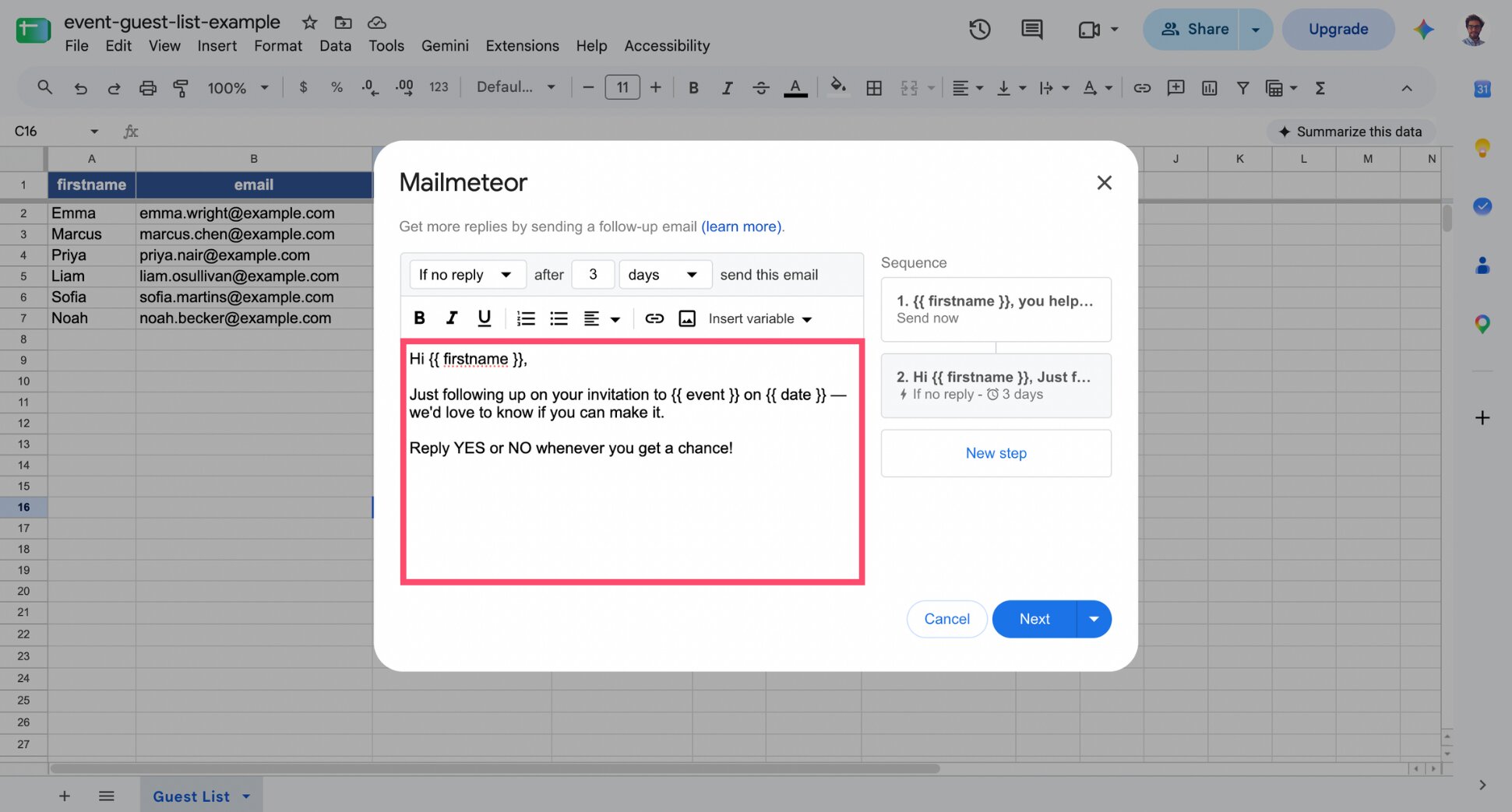
- Set the trigger to If no reply, and choose a delay (for example, 3 days after the original invitation).
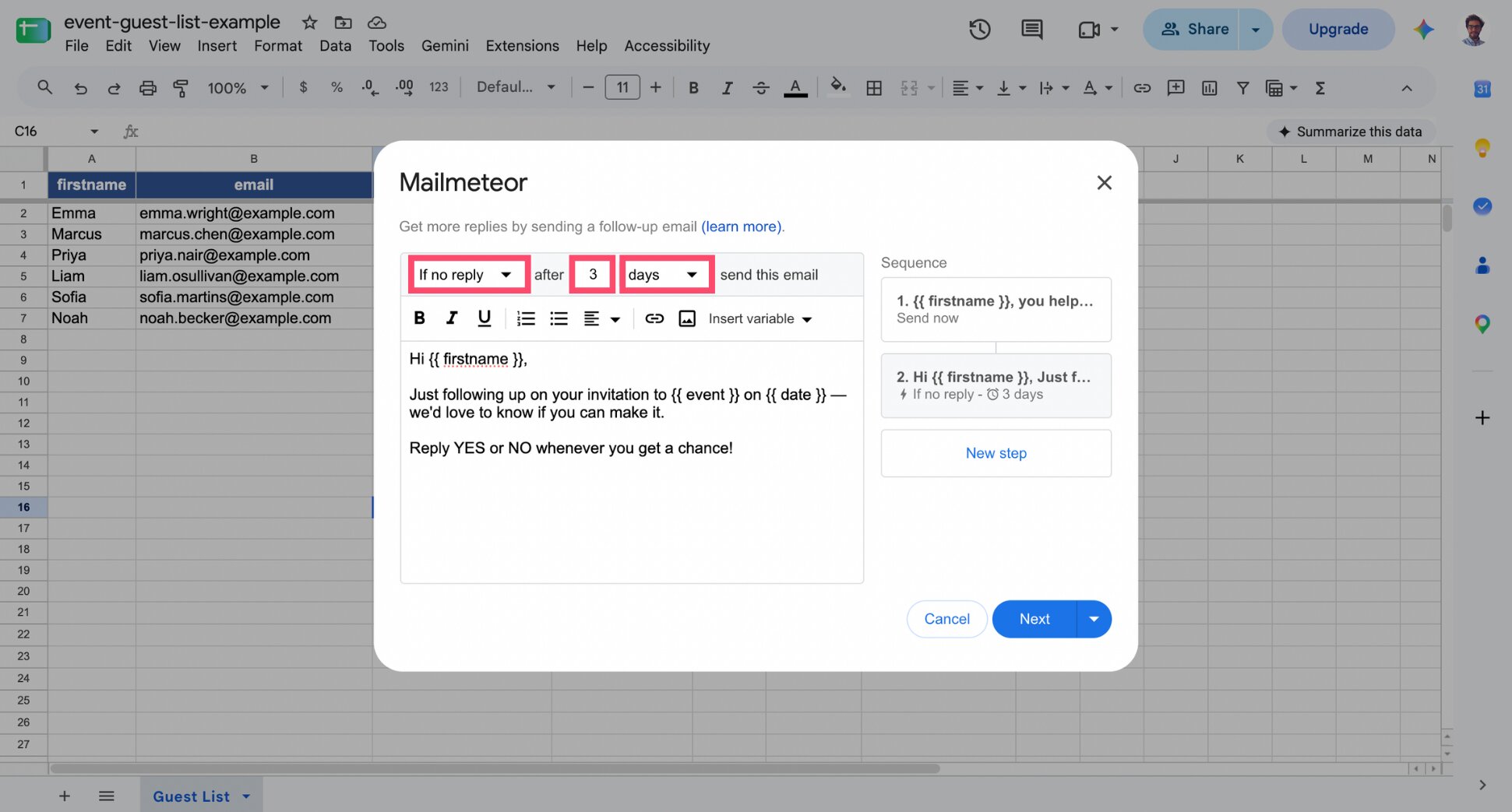
- Send your campaign as usual.
And voilà. Mailmeteor sends the reminder automatically to guests who haven’t responded, and skips anyone who already has.
Event Invitation Templates by Occasion
Not sure where to start? These templates cover the most common reasons people send event invitations — swap in your own details and merge fields, and they’re ready to send.
Nonprofit Fundraiser or Gala
Hi {{ firstname }},
This year, your support helped us reach more people than ever. On {{ date }}, we’re getting together at the Harborview Pavilion to celebrate what that actually meant — and you’re the reason it happened.
You’re seated at {{ table }}. Reply YES by [rsvp date] and we’ll save it for you.
Real Estate Open House
Hi {{ firstname }},
{{ location }} is opening its doors on {{ date }} — thought you’d want a first look before it hits the wider market.
Stop by any time between {{ start time }} and {{ end time}}, no appointment needed. Reply if you’d like to arrange a private walkthrough instead.
School or Parent Event
Hi {{ firstname }},
Your child has probably already mentioned it — {{ event }} is happening on {{ date }} at {{ location }}, and it’s shaping up to be a good one.
Let us know you’re coming: reply by {{ rsvp by }} so we can plan for the right number of families.
Client Appreciation Event or Workshop
Hi {{ firstname }},
Working with you this year has been the best part of the job. On {{ date }}, we’re hosting {{ event }} at {{ location }} to say thanks properly — good food, good company, zero agenda.
Reply by {{ rsvp by }} to grab a spot.
Wrapping Up
Sending personalized event invitations doesn’t have to mean choosing between a generic blast and hours of manual work. And tracking RSVPs doesn’t have to mean a separate app, a messy inbox, or copying replies into a spreadsheet by hand.
Whether you’re working from Gmail, a Google Sheet, or a Doc, you can personalize once, send to everyone, and let the replies come back to one place. This way, no guest falls through the cracks, and no RSVP goes untracked.
Here’s how Mailmeteor helps:
📬 Personalize invitations at scale from Google Sheets, Gmail or Google Docs.
📊 Track opens, clicks, and replies in real time, so you always know who’s confirmed.
🔁 Send automatic follow-ups to guests who haven’t responded.
📋 Import your guest list from a Google Sheet, CSV, or contact list in seconds.
✅ Verify addresses in bulk before you send, so invites don’t bounce.
Try Mailmeteor today (it’s free!) to send personalized invitations in bulk and never lose track of an RSVP again.
Frequently Asked Questions
Can I send personalized event invitations from Gmail?
Yes. Using a mail merge tool, you can personalize each invitation with details like the guest’s name, table, or RSVP link, then send them all at once instead of one by one.
How do I track who opened my event invitation?
Email tracking tools add an invisible pixel to your message that reports back when it’s opened. Some tools also track link clicks and replies, so you can see engagement beyond just opens.
What’s the best way to collect RSVPs without a separate event platform?
Two options work well: ask guests to reply directly to the invitation, or link a Google Form for more detailed responses (meal choice, plus-ones). Both keep everything inside the same guest list, without a dedicated RSVP platform.
Can I automatically remind guests who haven’t RSVP’d?
Yes, if your mail merge tool supports conditional follow-ups. Instead of manually tracking who’s responded, you set a trigger — “if no reply” — and a delay, and the reminder sends itself only to guests who haven’t replied yet.
Can I use a Google Form for RSVPs and still send personalized invitations?
Yes. Link the form inside your invitation as you would any other link. The form collects structured responses separately, while your invitation stays personalized through mail merge.
How do I send invites and track guests without buying event software?
Build your guest list in a spreadsheet, personalize your invitations with mail merge, and use a tool with built-in tracking to see who’s opened, clicked, or replied. No dedicated event management platform required.