You moved to Fastmail for a clean, ad-free inbox on your own domain. Now you need to email 80 clients about new rates, or invite 150 members to your annual meetup. And you want each person to get a message with their own name and details.
Fastmail can’t do that on its own. There’s no mail merge, so your only built-in option is one generic message with everyone in BCC. And Fastmail is clear that its servers aren’t meant for bulk mail.
The workaround is to connect your Fastmail account to Mailmeteor through SMTP. Mailmeteor then sends a separate, personalized email to each contact. And every message goes out from your Fastmail address, through Fastmail’s servers.
This guide covers which Fastmail plans support SMTP, how to create the app password Fastmail requires, what Fastmail’s sending limits mean for your email campaigns, and how to send your first mail merge from Fastmail.
- Check your plan – Basic plans don't include SMTP. You need Individual, Duo, Family, Business Standard, or Business Professional.
- Create an app password – Go to Settings > Privacy & Security in Fastmail. Your login password won't work with Mailmeteor.
- Connect Mailmeteor to Fastmail – Use smtp.fastmail.com (port 465) to send and imap.fastmail.com (port 993) to track replies.
- Stay far below Fastmail's limits – Paid plans allow 8,000 to 16,000 emails a day, trials only 120. Fastmail also bans duplicative email.
- Test before you launch – Send yourself a test email, then let Autopilot pace the campaign.
Here’s what we’ll cover:
- Can You Mail Merge in Fastmail?
- Why Send Mass Emails From Fastmail?
- What You Need to Send Mass Emails From Fastmail
- How to Create a Fastmail App Password
- How to Send Mass Emails From Fastmail With Mailmeteor
- Fastmail SMTP and IMAP Settings
- Fastmail Sending Limits
- How to Keep Your Fastmail Emails Out of Spam
- How to Fix Fastmail SMTP Errors
- Run Campaigns From Your Fastmail Address
Sounds good? Then let’s dive in.
Can You Mail Merge in Fastmail?
No. Fastmail has no built-in mail merge. It can’t pull names from a spreadsheet and send each contact their own version of a message. What most paid Fastmail plans do include is SMTP access, which lets outside tools send email through your account.
A mail merge tool like Mailmeteor uses that access. It turns your contact list into individual emails, fills in each person’s details, and sends them one by one through Fastmail’s servers.
To your recipients, each email looks like a normal message sent from you. It comes from your Fastmail address, it’s addressed to them alone, and nobody else’s email address is visible.
Why Send Mass Emails From Fastmail?
Sending from Fastmail makes sense when your contacts already know your address and you want their replies in the inbox you use every day. Here’s what you gain.
Keep the Address Your Contacts Already Trust
Many people use Fastmail with a custom domain, like you@yourstudio.com. That address is already in your clients’ contacts, it’s in your email signature, and recipients’ mail servers have seen it before.
Sending your campaign from that address, rather than from a new marketing tool’s domain, keeps everything in one place. Replies go to the inbox you already check, and every reply stays in the thread with your earlier emails.
Get the Campaign Features Fastmail Doesn’t Have
Fastmail is built for everyday email, and it does that well. It isn’t built for campaigns. When you connect it to Mailmeteor, you get ⤵️
- Personalized emails built from your spreadsheet, using variables like first name, company, or order number
- Automatic pacing, so you don’t send hundreds of emails in a few minutes and get flagged by spam filters
- Open, click, and reply tracking for every contact
- Personalized follow-ups that skip anyone who has already replied
What You Need to Send Mass Emails From Fastmail
Before you start, check that you have ⤵️
- A Fastmail plan that includes SMTP access. Individual, Duo, Family, Business Standard, and Business Professional plans all do. Basic plans don’t include SMTP or IMAP, so they can’t connect to Mailmeteor.
- Your Fastmail login address. This is the address you use to log in to Fastmail. It’s not necessarily the address you send from.
- A Mailmeteor Premium plan or above. Premium lets you add a custom sender like your Fastmail address.
How to Create a Fastmail App Password
Fastmail doesn’t let other apps use your regular password. Each app you connect, including Mailmeteor, gets its own app password. That way, you can cut off Mailmeteor’s access later without changing your main password.
Here’s how to create one ⤵️
- Log in to Fastmail in your web browser.
- Go to Settings > Privacy & Security.
- In the Connected apps & API tokens section, click Manage app passwords and access.
- Click New app password. If Fastmail asks you to verify it’s you, enter your password and click Continue.
- Pick a name for the password. Click Custom… and type “Mailmeteor” so you’ll recognize it later.
- Under access, keep the default option, Mail, Contacts & Calendars. It includes the SMTP and IMAP access Mailmeteor needs.
- Click Generate password.
- Copy the 16-character password Fastmail displays.
And that’s it. Keep this tab open for now. You’ll come back to click Done once Mailmeteor is connected.
How to Send Mass Emails From Fastmail With Mailmeteor
Once you have your app password, the setup takes about 5 minutes. You’ll connect two servers: one to send your emails (SMTP), and one to detect replies (IMAP).
Step 1: Create Your Fastmail Sender
- Sign in to the Mailmeteor Dashboard.
- Go to Products > More > Senders.
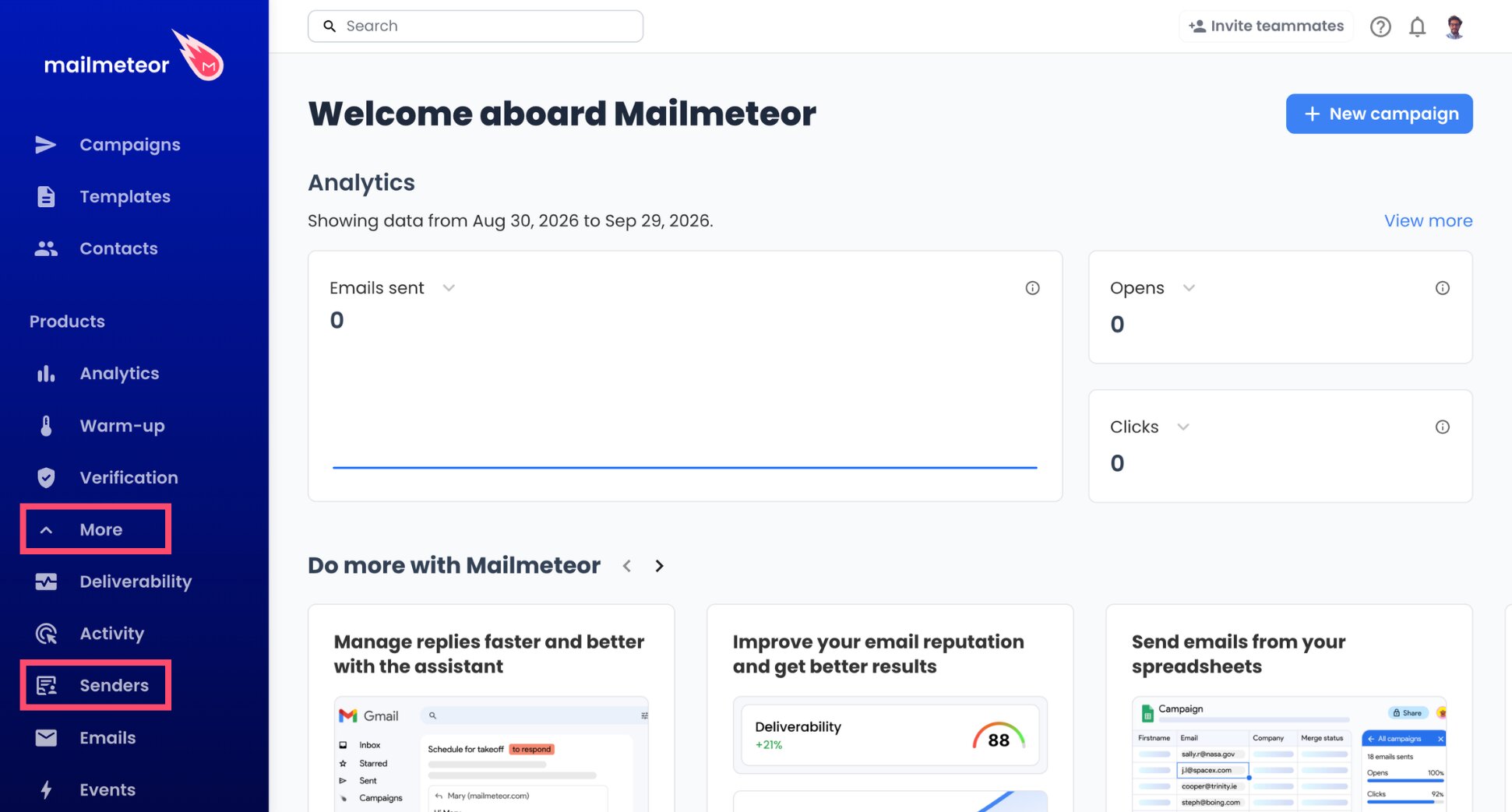
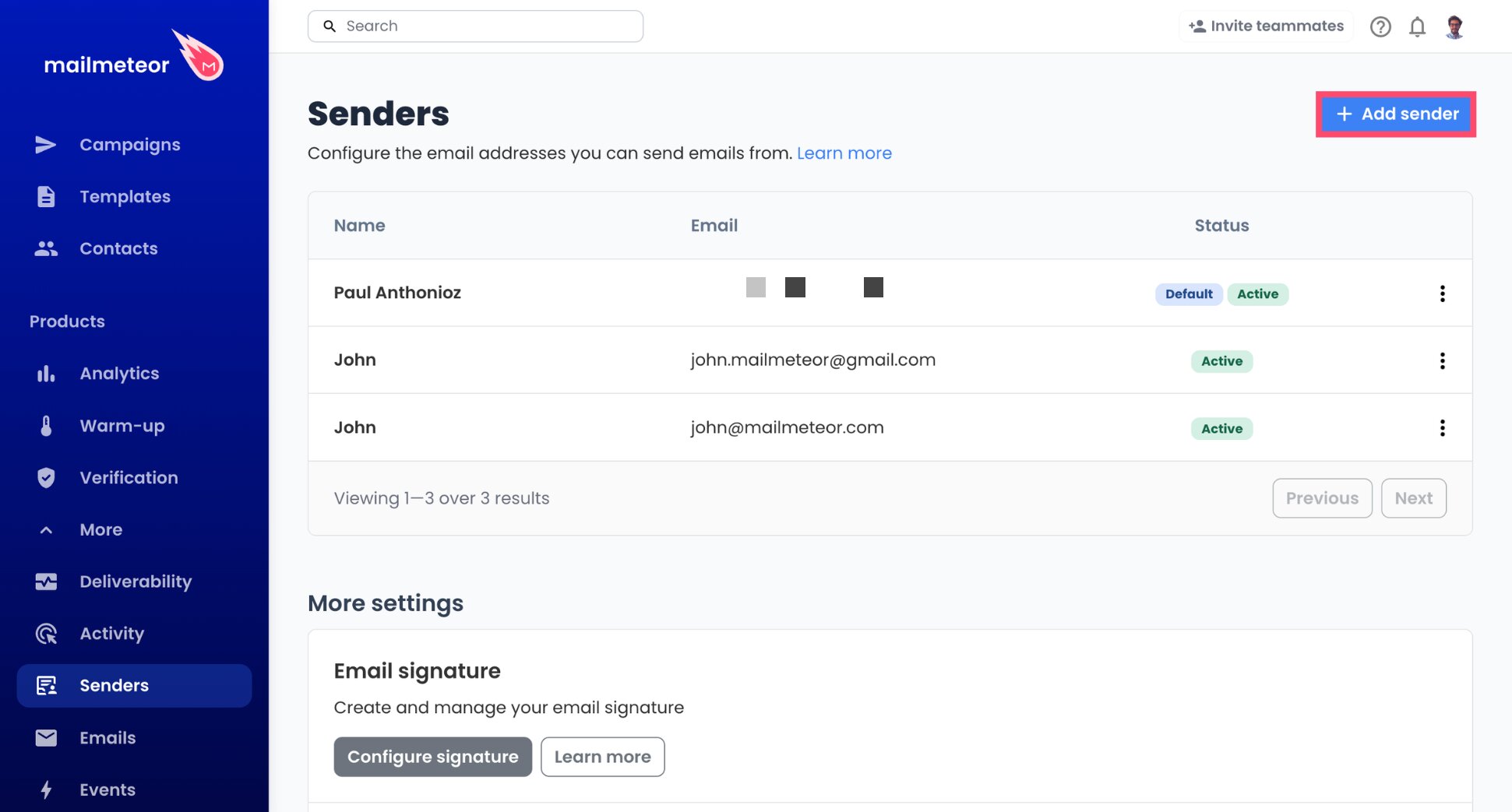
- Click Add sender.
- Enter the name your contacts should see, followed by the Fastmail address you want to send from.
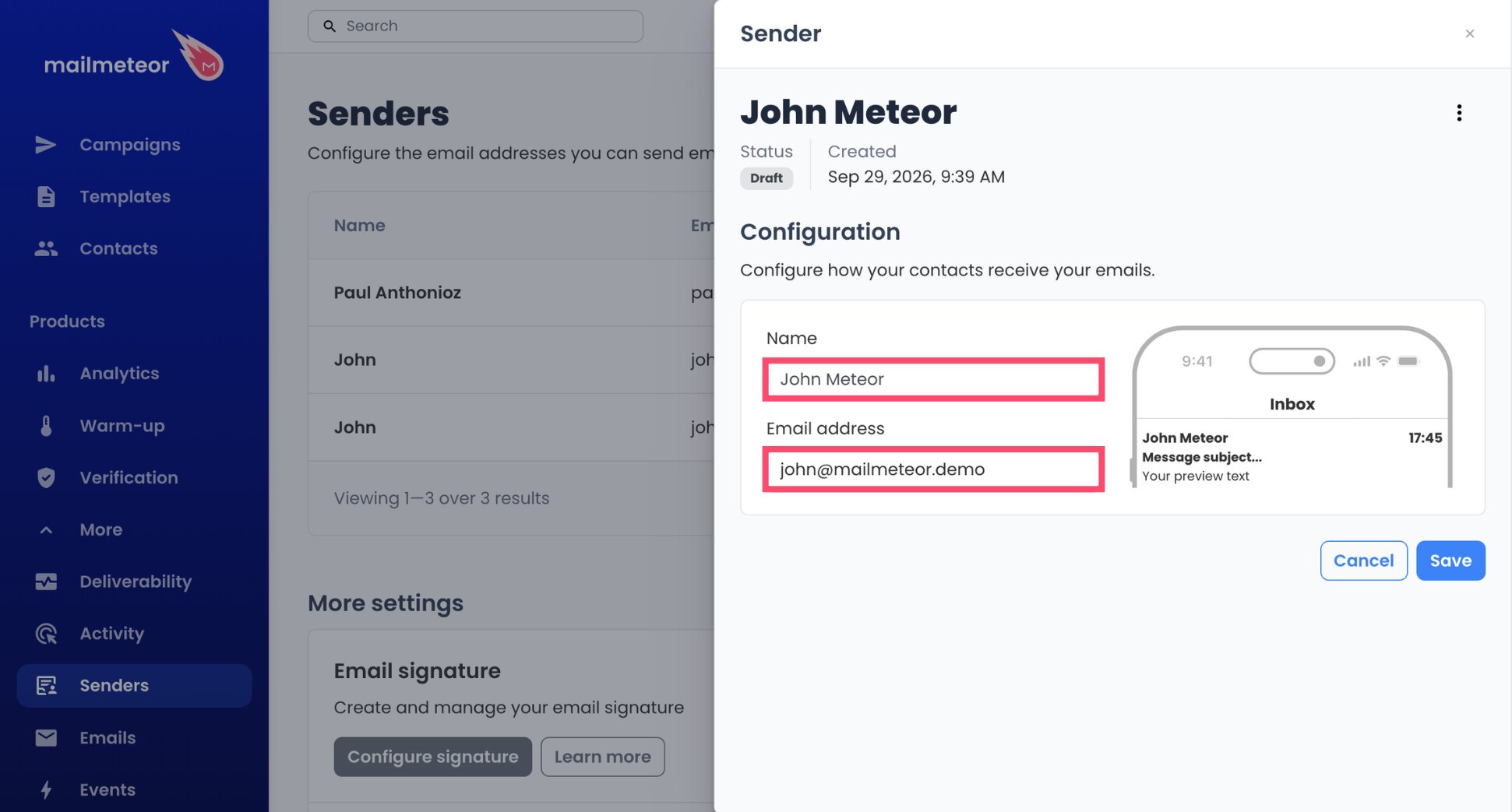
- Click Save.
The sender address can be your login address, or any other address listed in Fastmail under Settings > My email addresses, including an alias on your custom domain.
Step 2: Connect Fastmail’s Sending Server (SMTP)
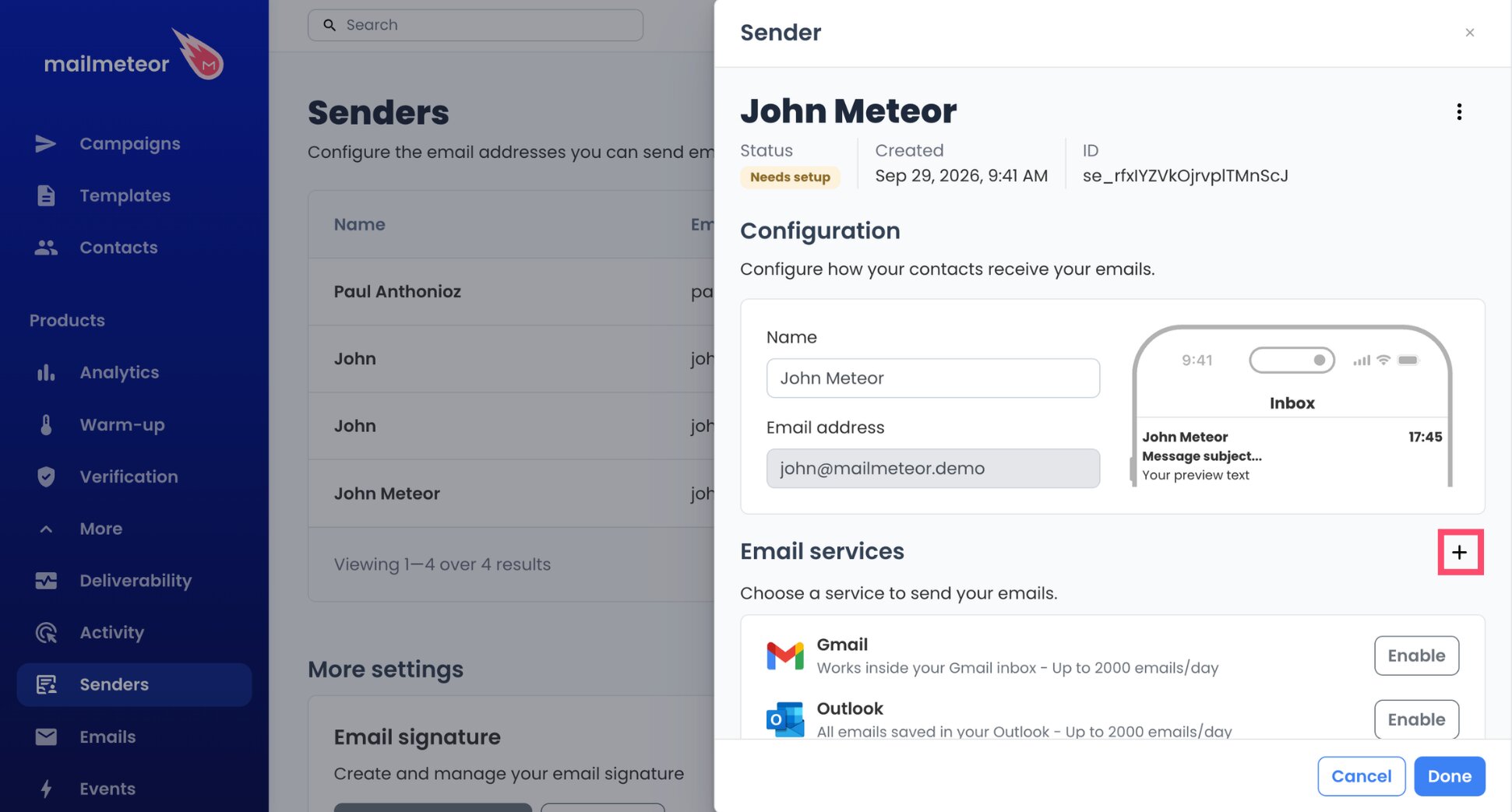
- Next to Email services, click the + button.
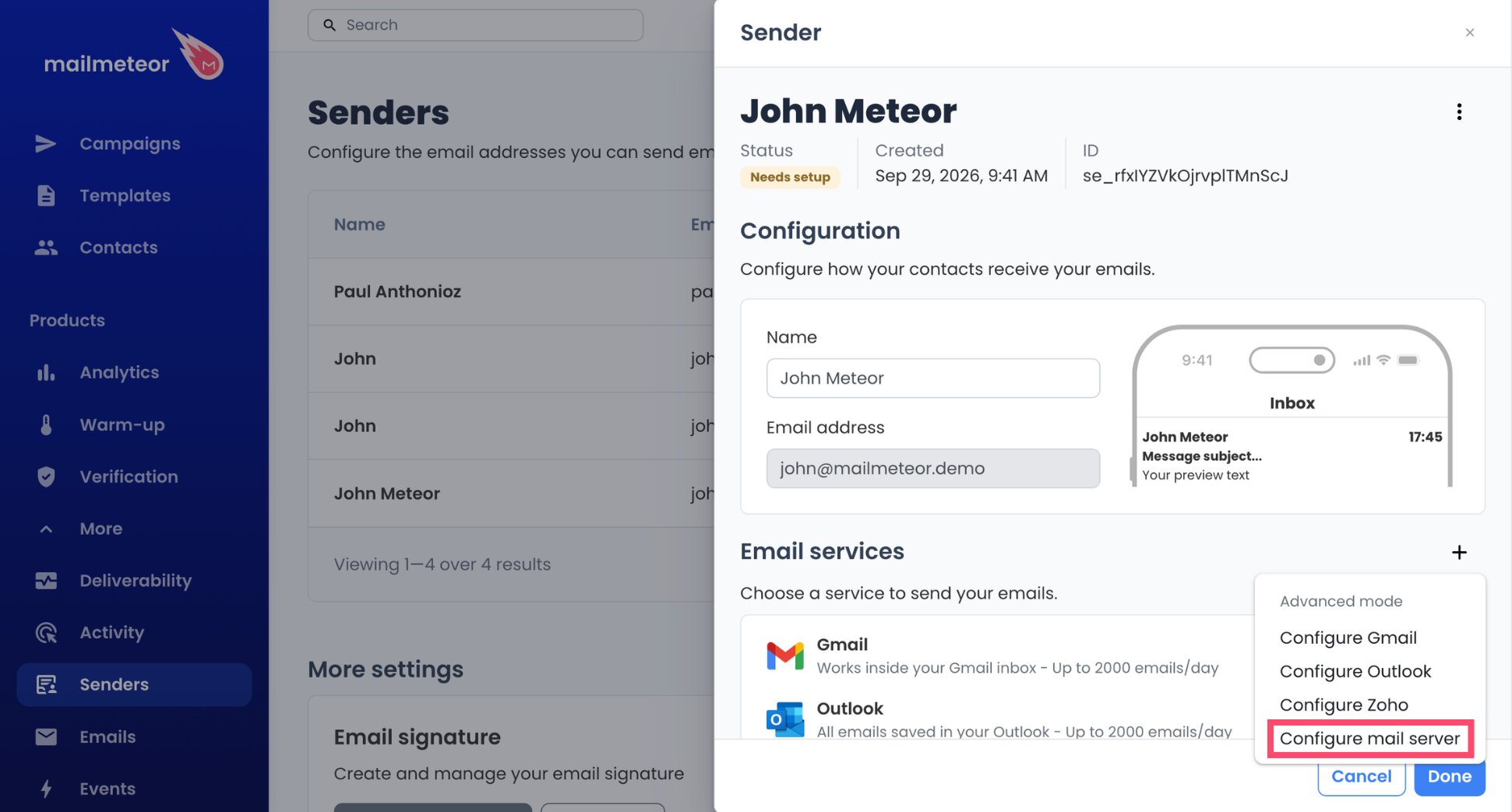
- Select Configure mail server.
- In the Sending server section, enter
smtp.fastmail.comas the Server name.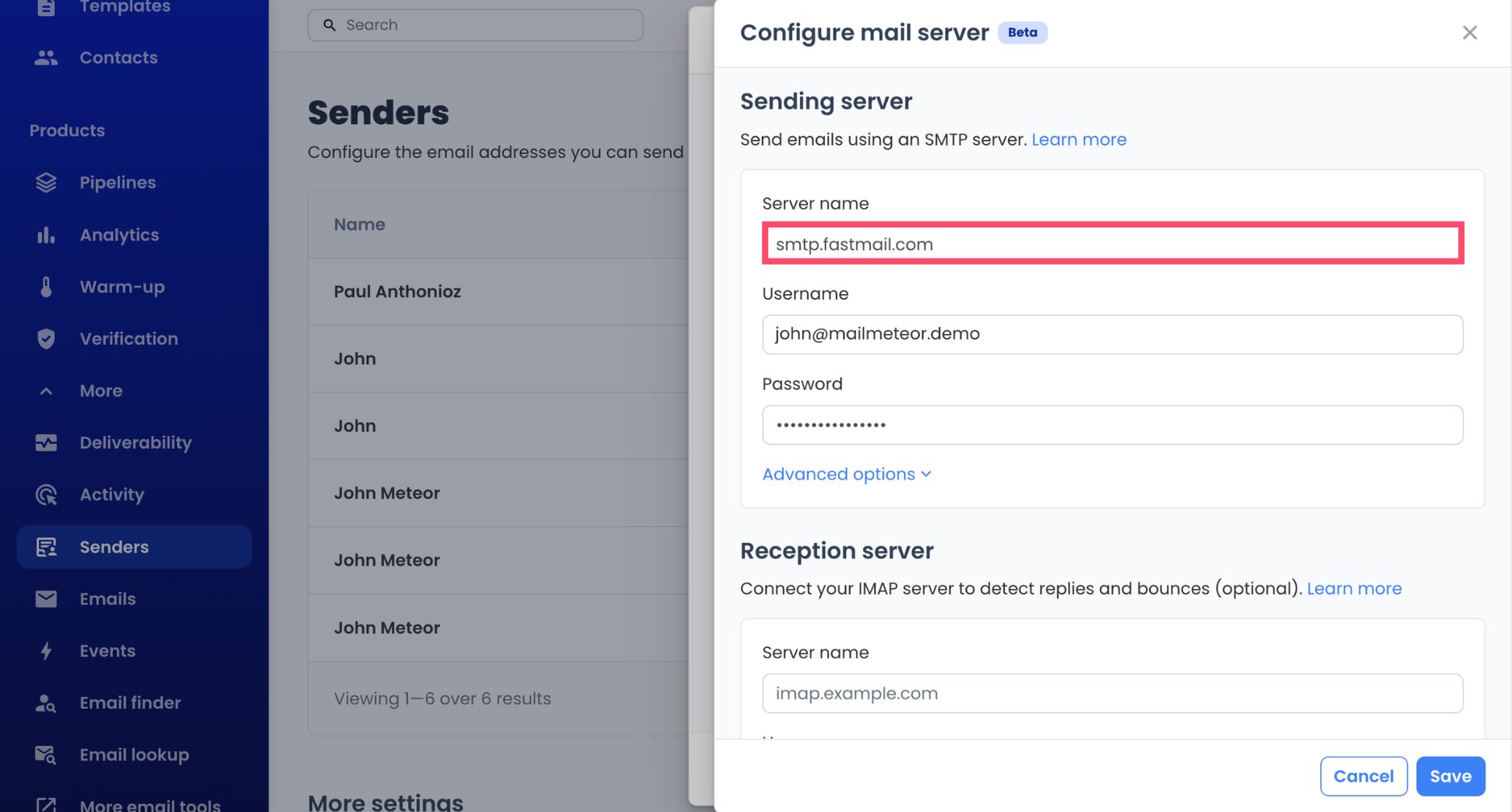
- Enter your Fastmail login address as the Username. Use the address you log in with, even if you send from an alias.
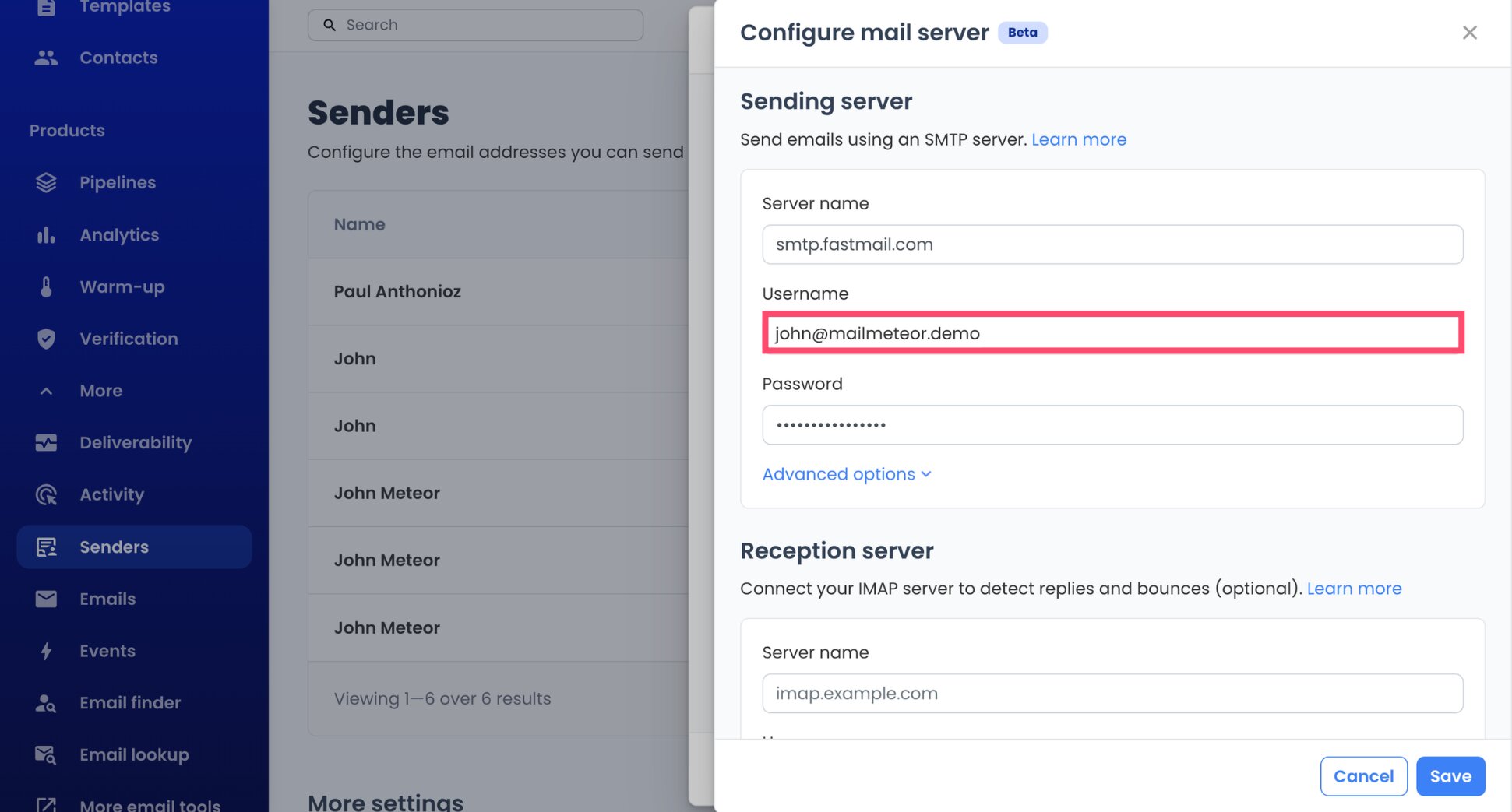
- Paste your app password into the Password field.
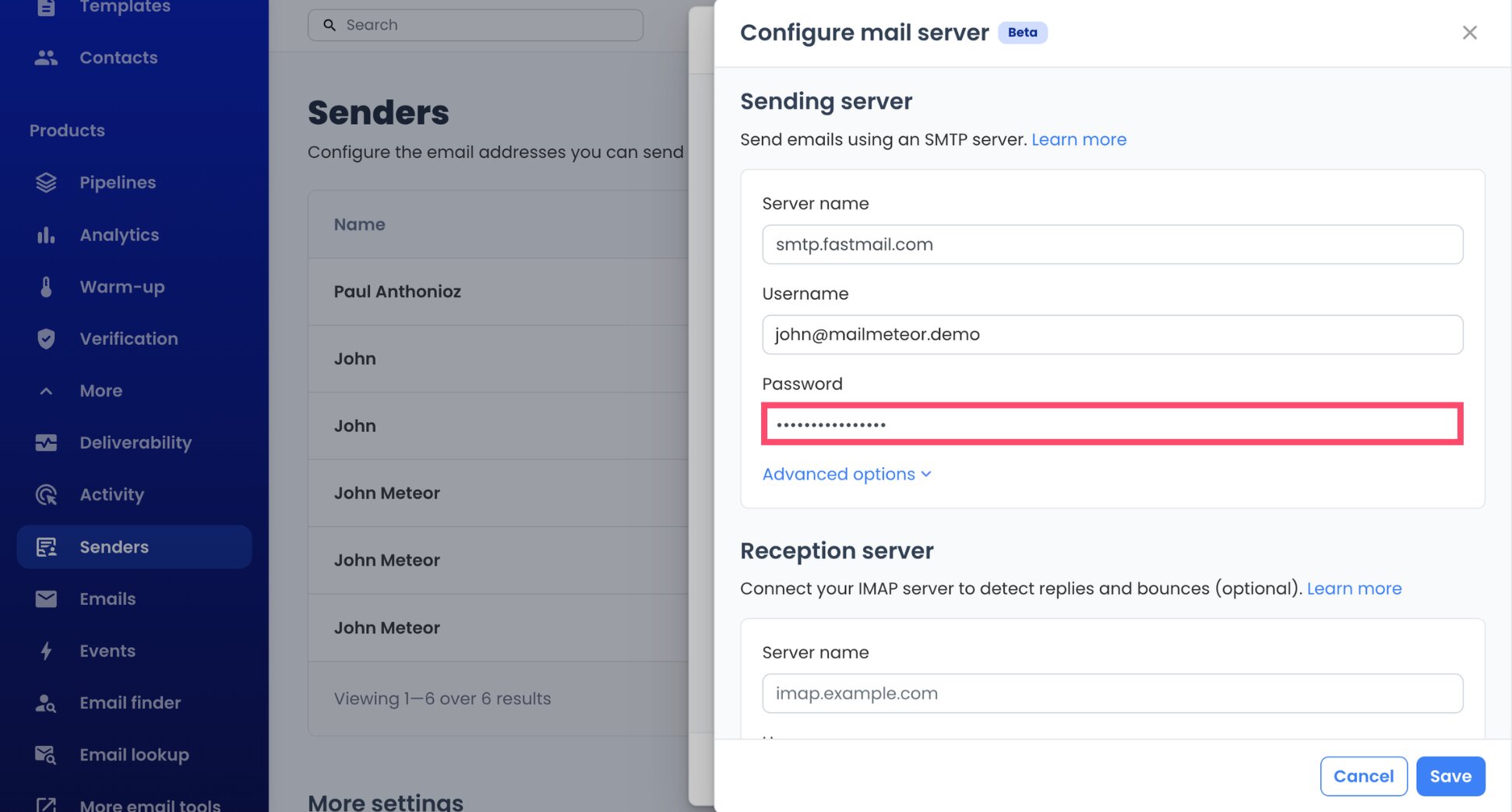
Mailmeteor usually picks the right port by itself. If the connection fails, open Advanced options and set port 465 with SSL/TLS.
Step 3: Connect Fastmail’s Reception Server (IMAP)
This step is optional, but it’s what lets Mailmeteor detect replies and bounces. Without it, follow-ups can’t stop when someone replies.
- In the Reception server section, enter
imap.fastmail.comas the Server name.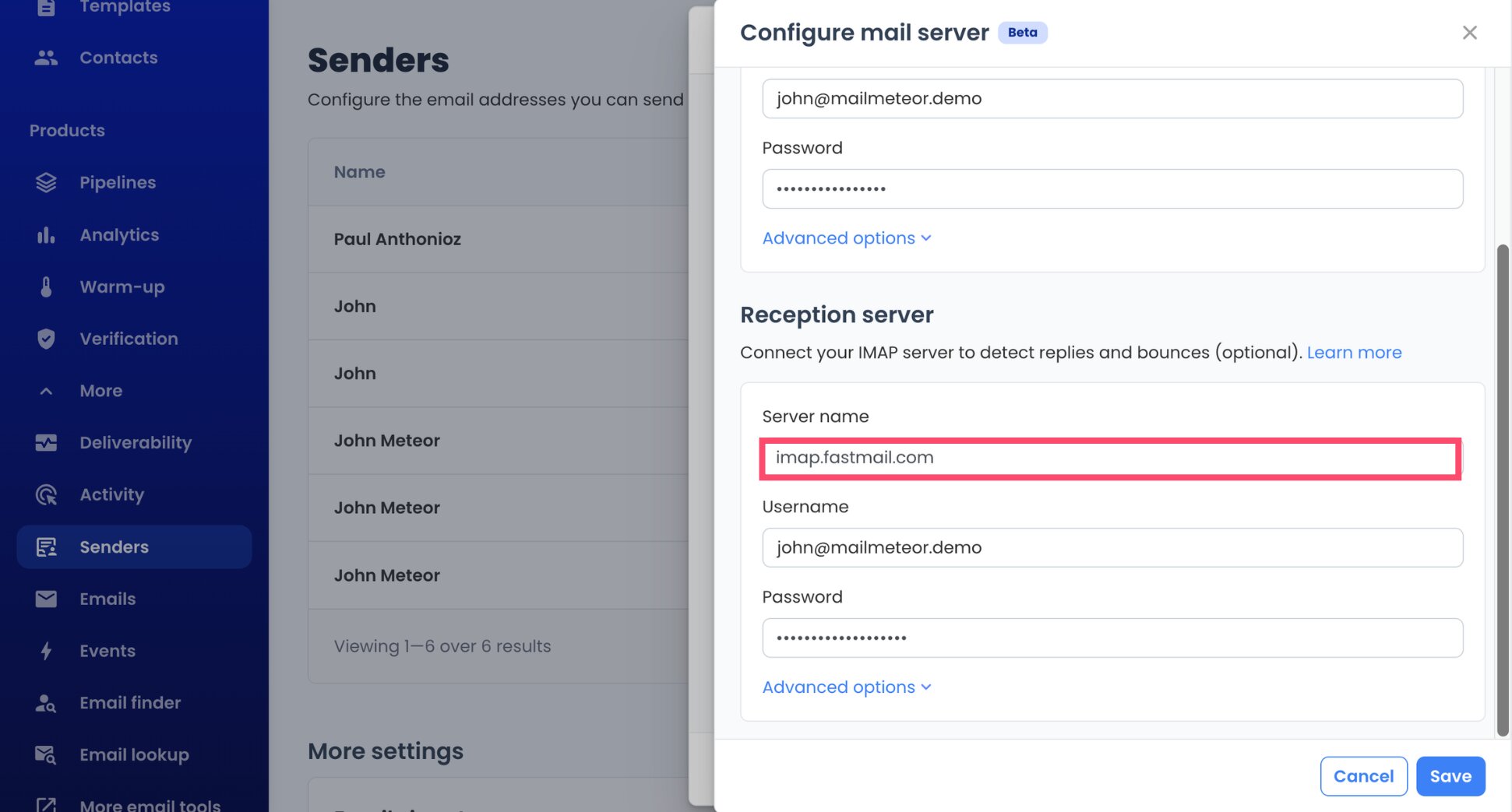
- Enter your Fastmail login address again as the Username.
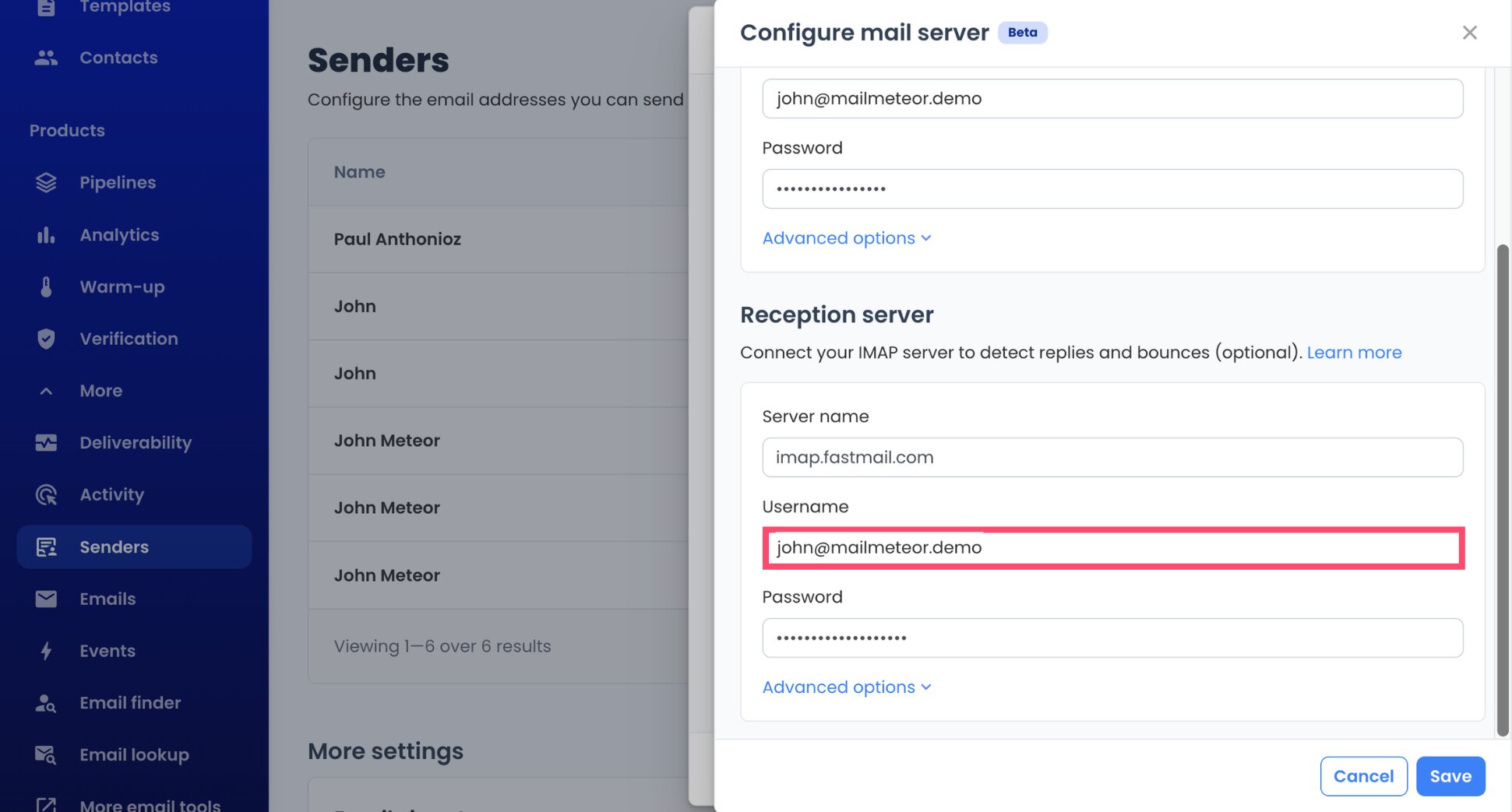
- Paste the same app password into the Password field.
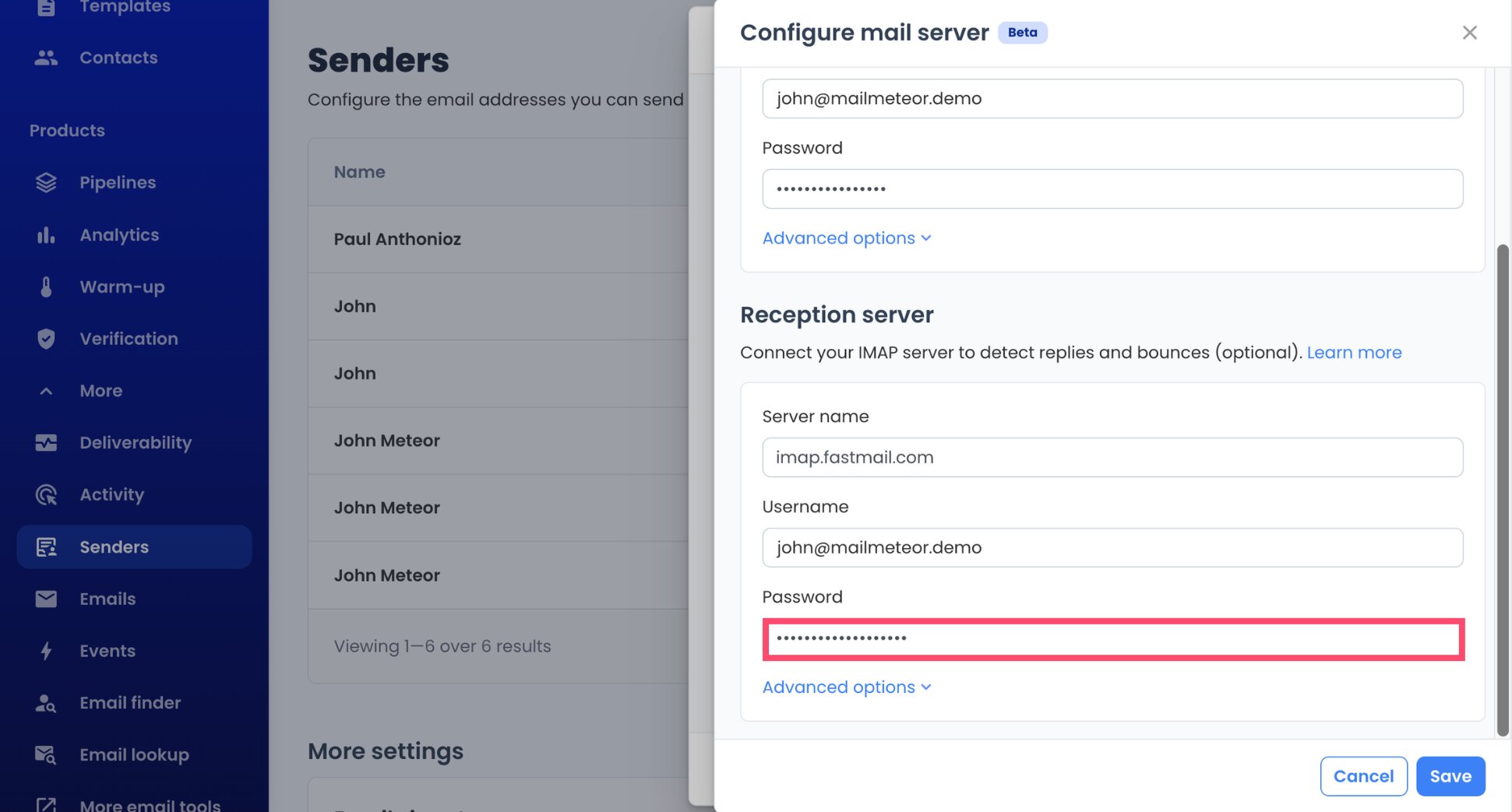
- Click Save, then Done.
Your Fastmail account is now connected. Go back to your Fastmail tab and click Done on the app password screen.
Step 4: Write a Campaign That Reads Like a Personal Email
- In the Mailmeteor Dashboard, start a new campaign.
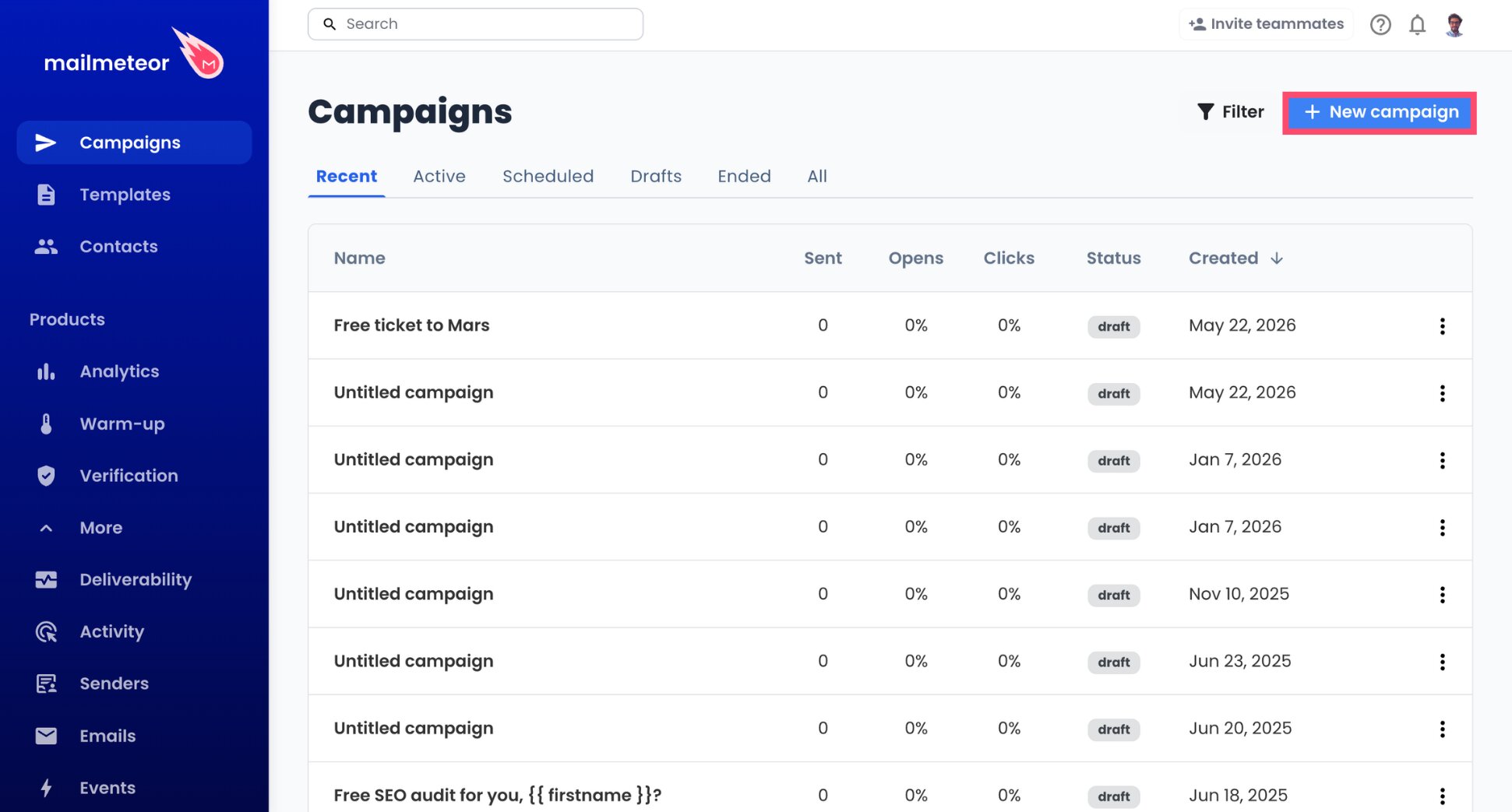
- In the From menu, select your Fastmail sender.
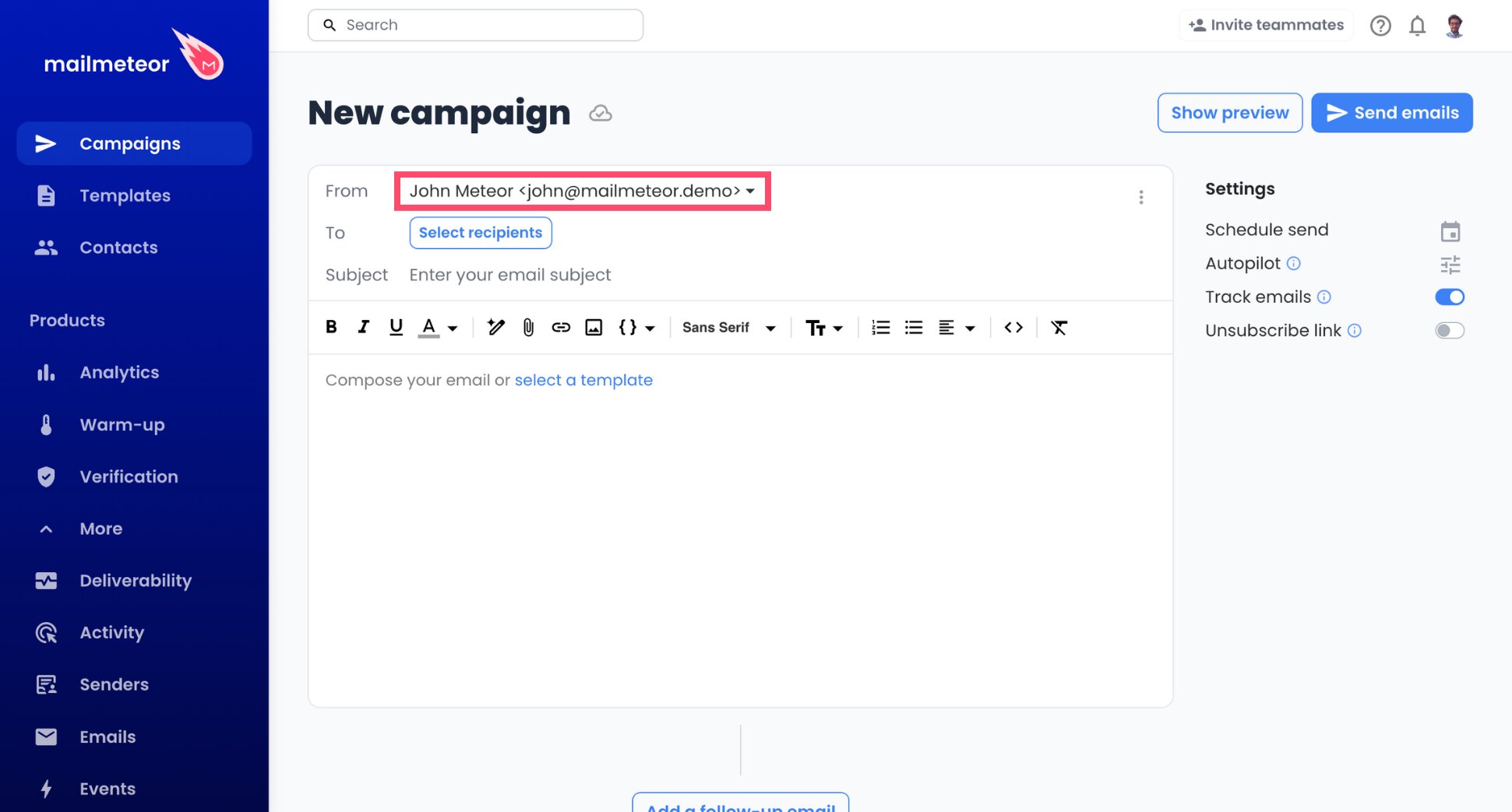
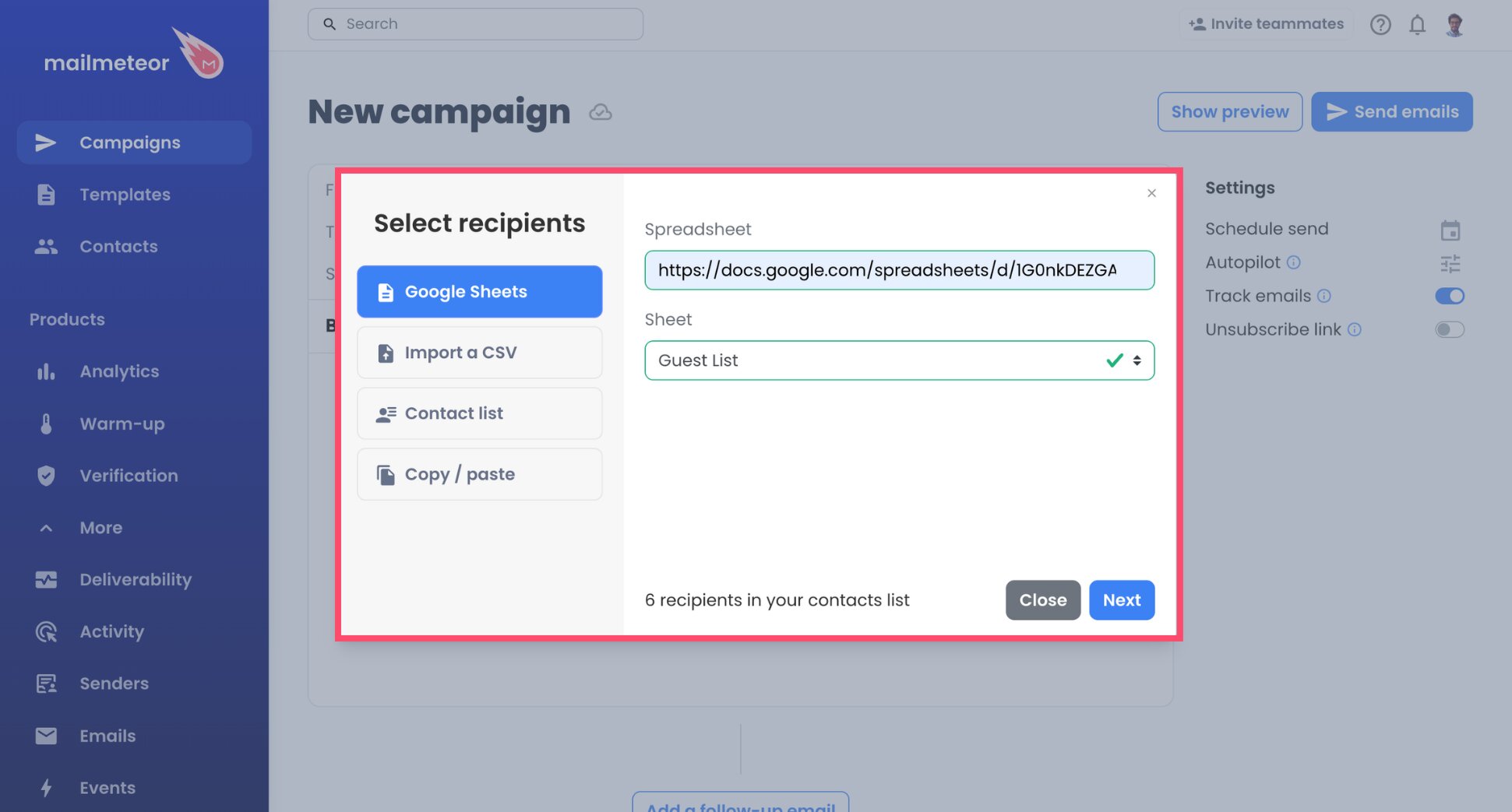
- Import your contacts. You can use a Google Sheet, a CSV file, a saved contact list, or paste addresses directly.
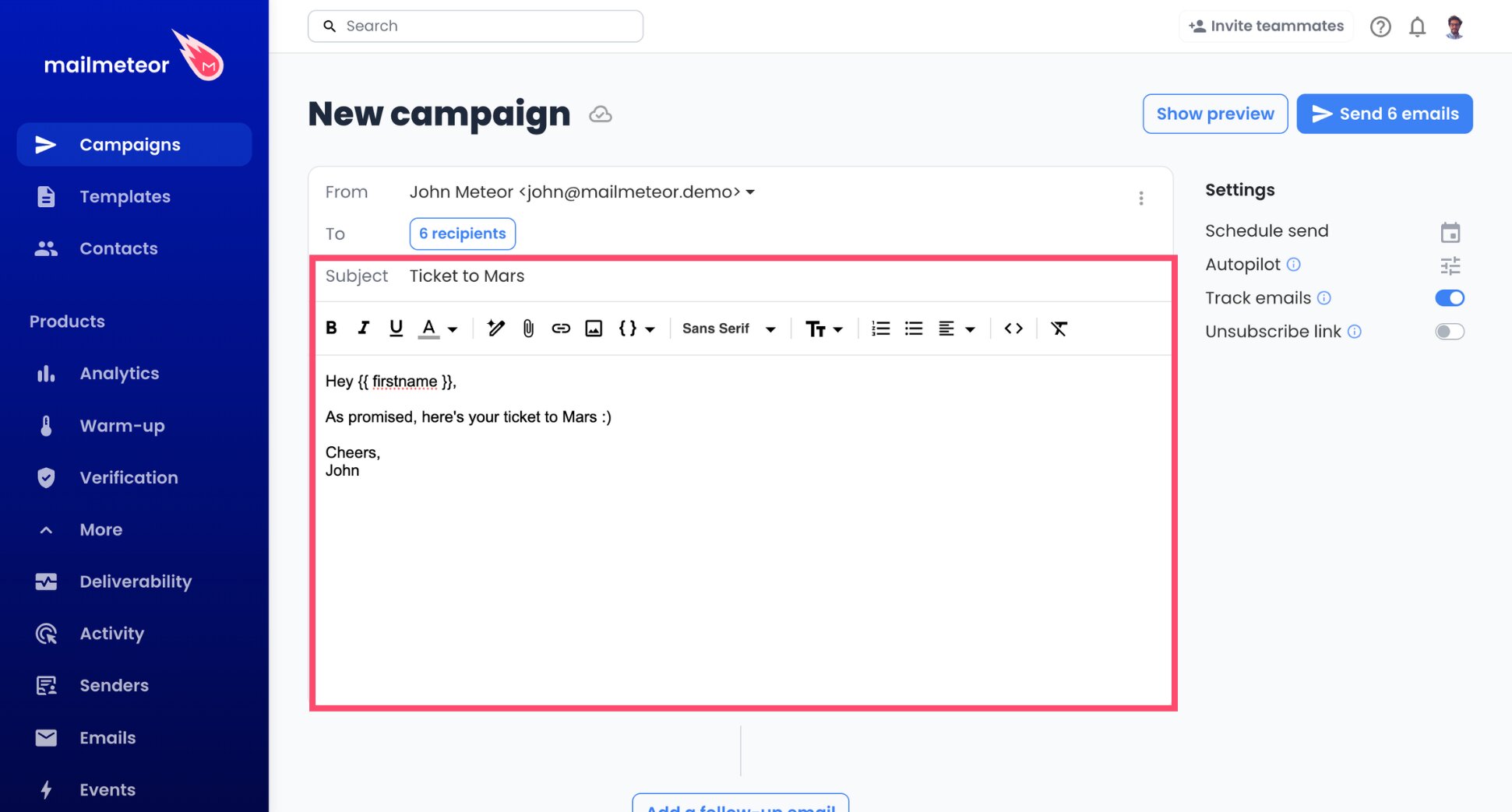
- Write your subject line and message.
- Insert variables wherever the copy should change from one contact to the next. If your sheet has a column called firstname, for example,
{{ firstname }}becomes each contact’s first name.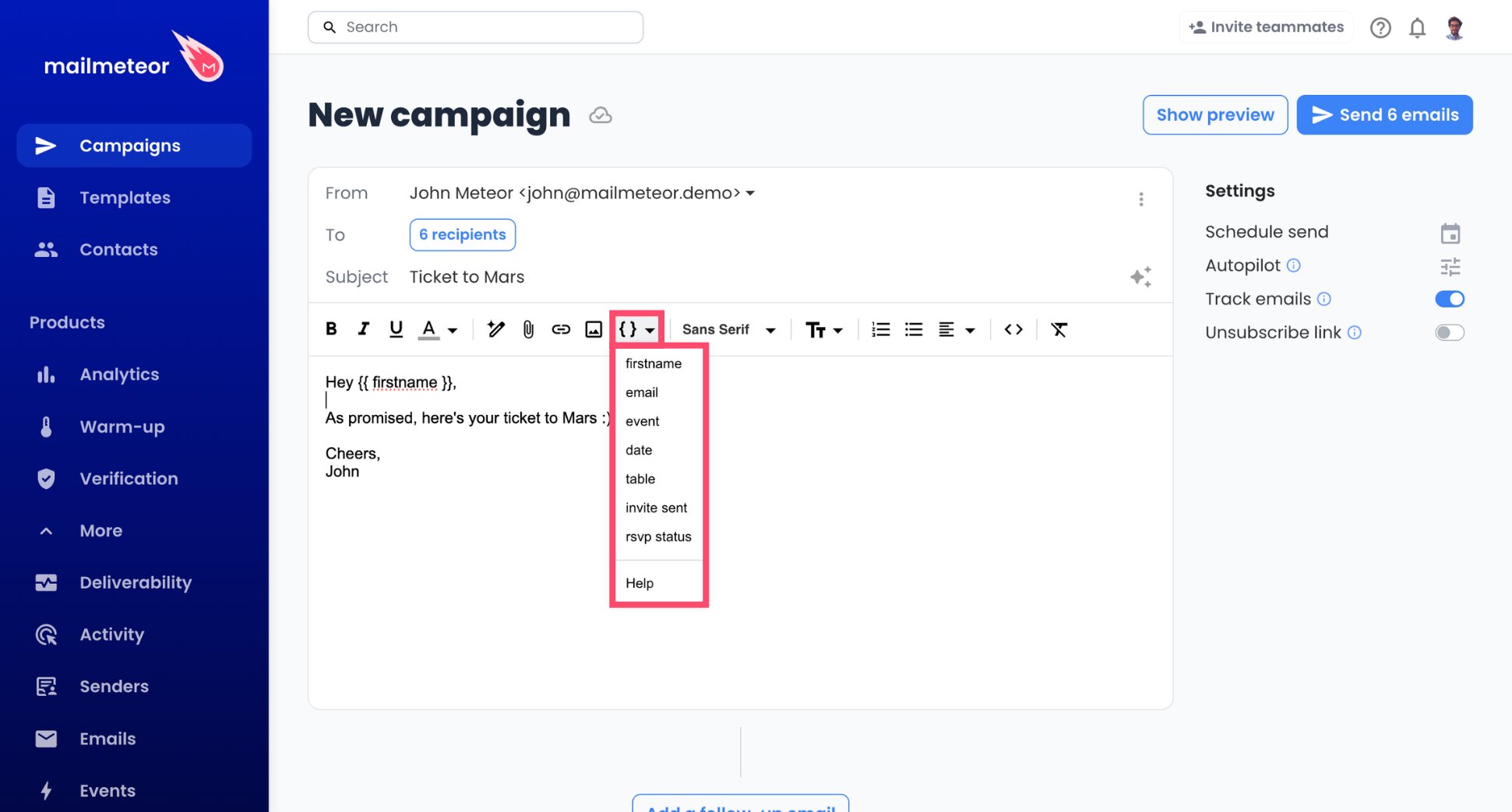
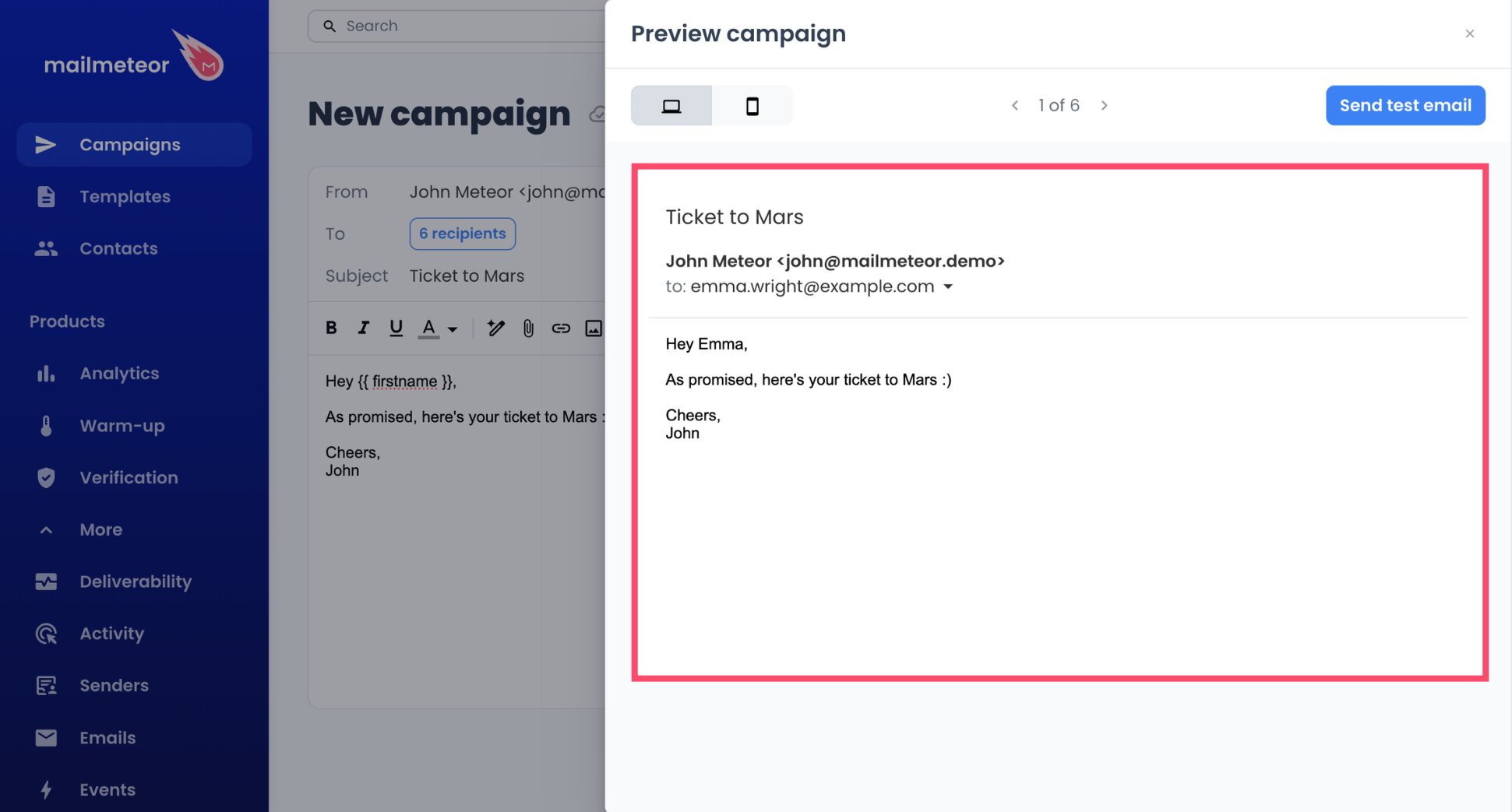
- Preview the email for a few different contacts.
Step 5: Pace Your Sending With Autopilot
Autopilot spreads your campaign across hours or days instead of sending everything at once.
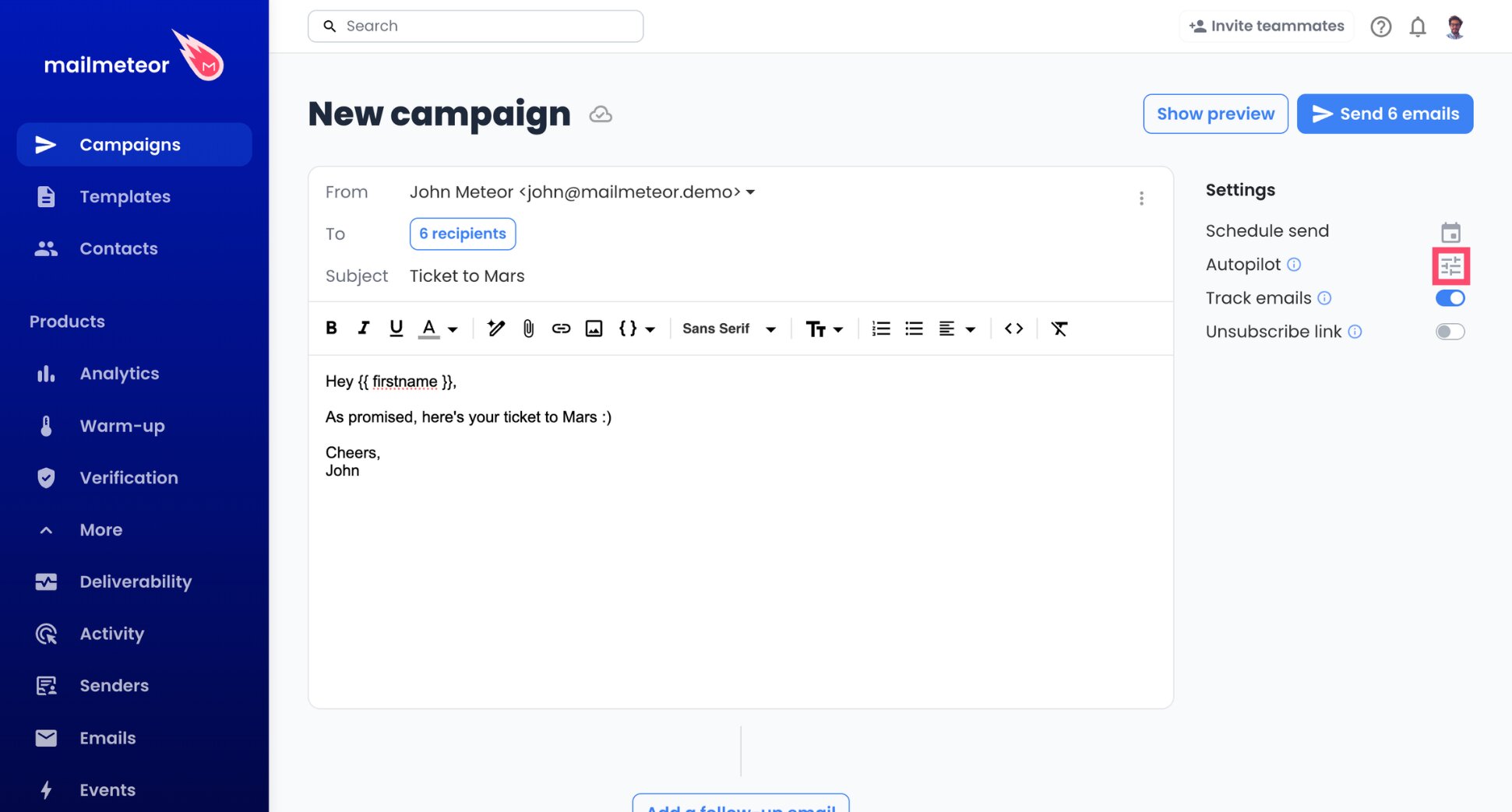
- Open the Autopilot settings for your campaign.
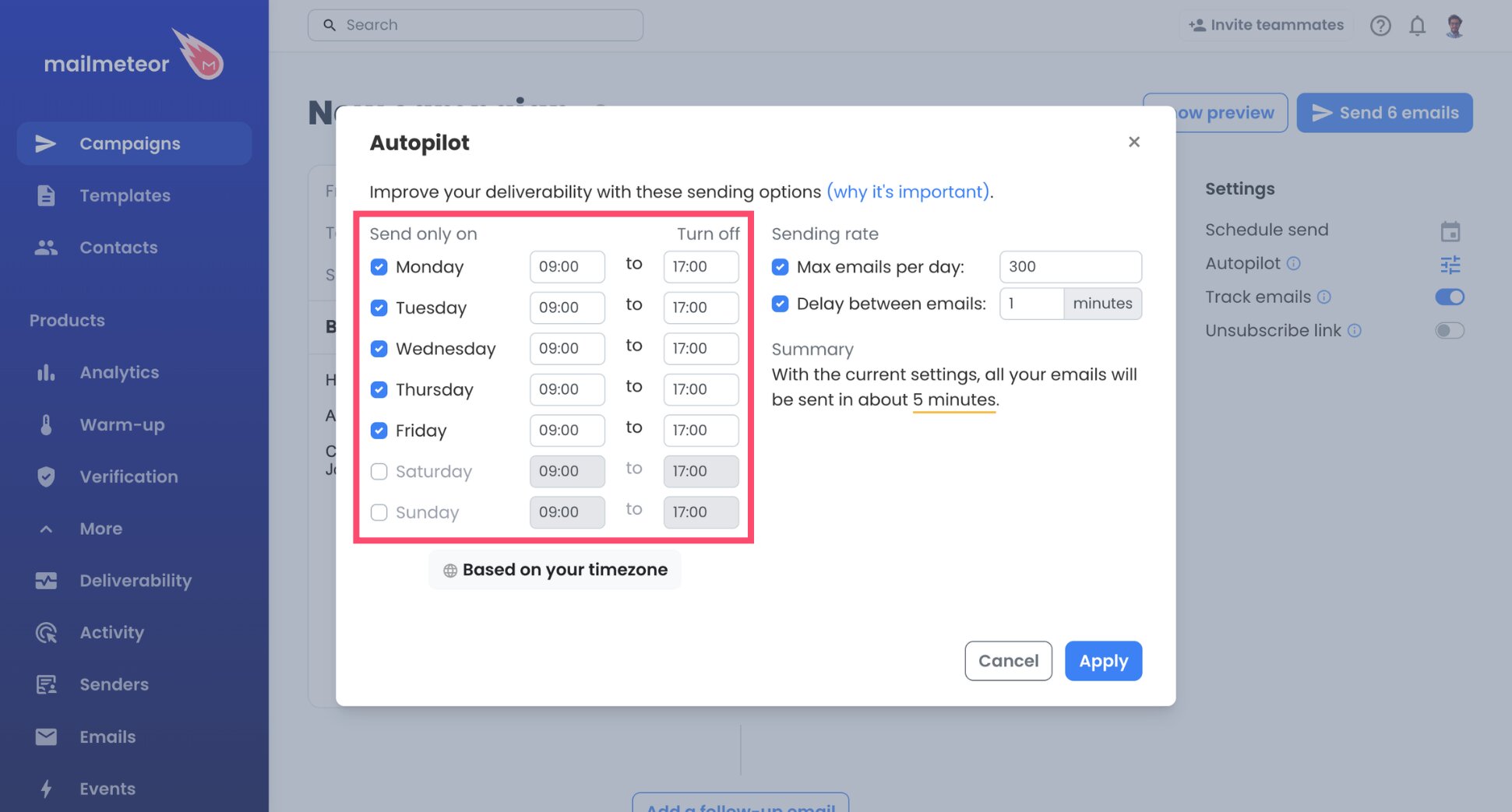
- Choose your sending days and hours, for example weekdays from 9 AM to 5 PM.
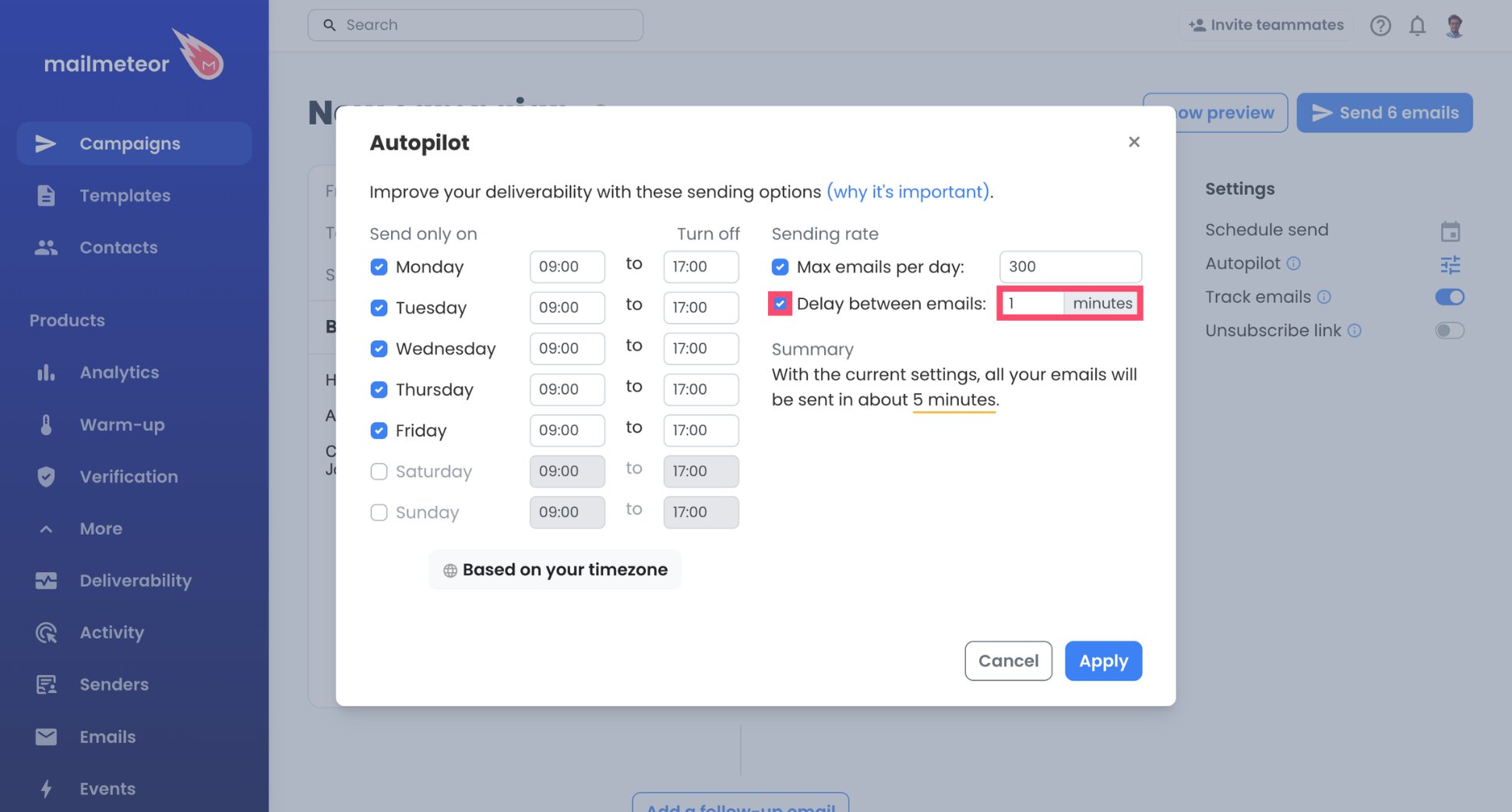
- Set an interval between emails. One minute or more keeps the pace human.
- Set a daily cap.
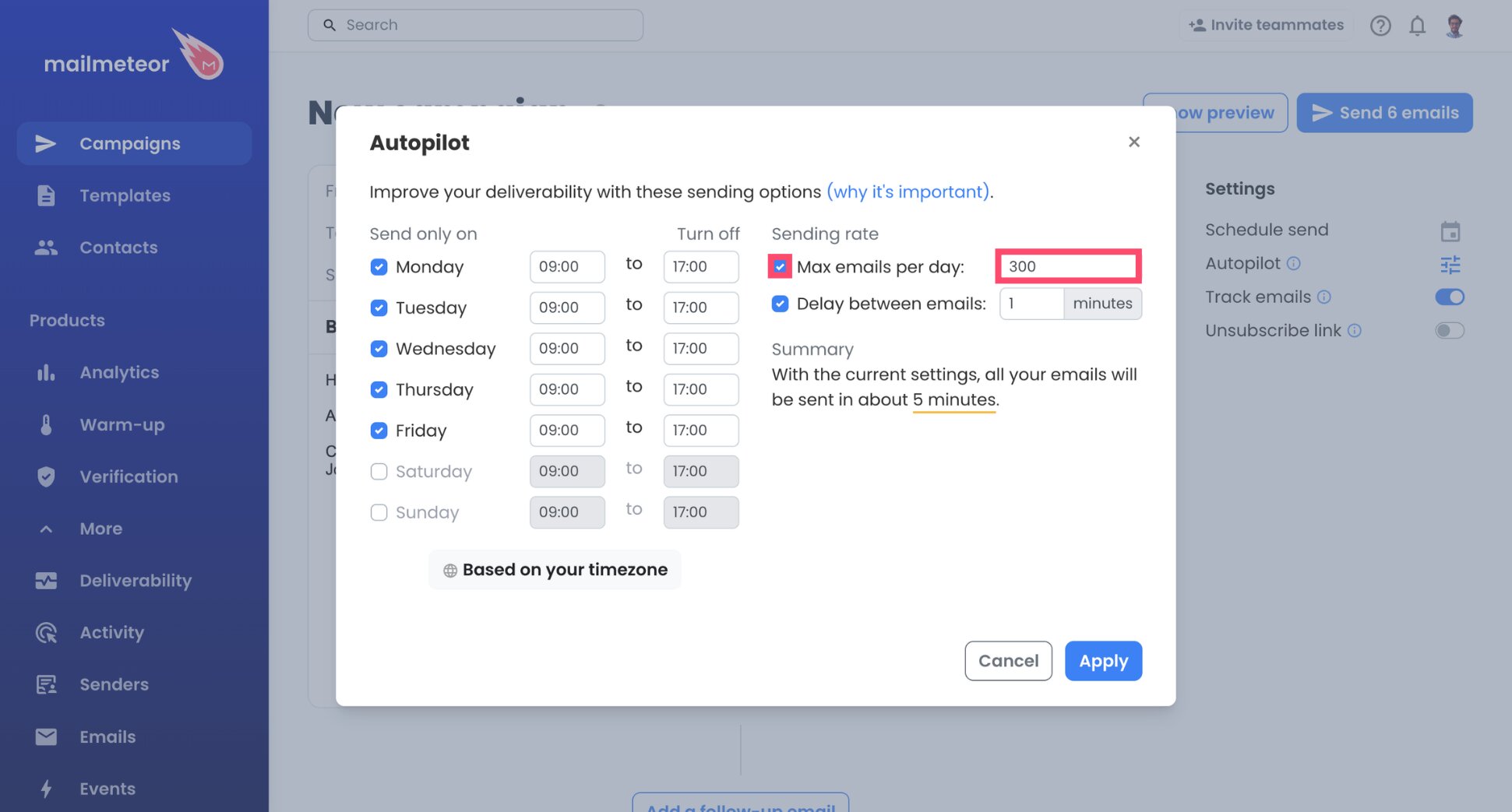
Fastmail’s limits run into the thousands, but you don’t need to get anywhere near them. Start around 50 emails a day, check for bounces and replies, and increase gradually. On a trial account, keep the daily cap well under 120.
Step 6: Send a Test, Then Launch
- Send a test email to yourself, ideally at an address outside Fastmail, like a Gmail account.
- Check the subject line, the links, and every variable. An empty cell shows up as a blank in the email.
- Click Send emails.
And voilà. Your campaign goes out through Fastmail, one email at a time. Opens, clicks, and replies show up in your Mailmeteor Dashboard.
Fastmail SMTP and IMAP Settings
Here are the settings Mailmeteor uses to connect to Fastmail:
| Setting | Sending server (SMTP) | Reception server (IMAP) |
|---|---|---|
| Server name | smtp.fastmail.com | imap.fastmail.com |
| Port | 465 | 993 |
| Security | SSL/TLS | SSL/TLS |
| Username | Your Fastmail login address | Your Fastmail login address |
| Password | Your app password | The same app password |
Need the POP settings too, or a way to test your connection? See our full guide to Fastmail SMTP settings, or check your server with the free SMTP Test Tool.
Fastmail Sending Limits
Fastmail publishes its sending limits, and they’re generous compared with most email providers. Here’s what each plan allows:
| Fastmail plan | Emails per day | Per hour | Per 10 minutes | Data sent per day |
|---|---|---|---|---|
| Individual, Duo, Family | 8,000 per user | 4,000 | 2,000 | 2 GB |
| Business Standard | 8,000 | 4,000 | 2,000 | 2 GB |
| Business Professional | 16,000 | 8,000 | 4,000 | 4 GB |
| Free trial (any plan) | 120 | – | – | – |
| Basic (personal or business) | No SMTP access | – | – | – |
Your Mailmeteor plan also has its own limits. Your campaign stops at whichever limit is lower, Fastmail’s or Mailmeteor’s.
Know Where Fastmail Draws the Line
Fastmail says it plainly in its own documentation: “Fastmail is not a bulk email sending service.” Its limits are designed for people, not for marketing lists. That makes SMTP campaigns from Fastmail a good fit for some jobs, and a bad one for others:
| Option | How it sends | What each recipient gets | Tracking | Best for |
|---|---|---|---|---|
| Fastmail alone (BCC) | One message to many people | The same generic email | None | A quick note to a small group |
| Mailmeteor + Fastmail | One email per contact, through Fastmail’s servers | Their own email, with their details filled in | Opens, clicks, replies, bounces | Personal outreach to clients, members, or partners |
| Newsletter platform | The platform’s own servers | A designed newsletter | Opens, clicks, unsubscribes | Marketing to large subscriber lists |
If your list is people who know you and expect to hear from you, Fastmail with Mailmeteor works well. If you’re mailing thousands of subscribers every week, use a dedicated newsletter platform.
How to Keep Your Fastmail Emails Out of Spam
Fastmail’s servers have a solid reputation, but that doesn’t guarantee your campaign reaches the inbox. What decides it is how you send. Bounces, identical messages, and sudden spikes in volume are what get an account flagged.
A few habits keep you in the clear ⤵️
Clean Your List Before Every Campaign
Emails to addresses that no longer exist bounce. And a high bounce rate can hurt your Fastmail account’s reputation. Run your list through Mailmeteor’s Email Checker, or use built-in email verification to remove invalid addresses before you send.
Give Every Contact a Different Email
Personalization doesn’t just help with Fastmail’s rules. It also helps with spam filters, which can flag large numbers of identical messages.
- Use at least one detail beyond the first name, like a company, a project, or a past order.
- Keep the layout simple, with few images and links.
- Avoid spam words in your subject line, and run your draft through the Spam Checker.
- Add an unsubscribe link to any promotional email.
Increase Your Volume Over Weeks, Not Days
A Fastmail account that normally sends 20 emails a day and suddenly sends 500 looks suspicious. Start small, watch your bounce rate and replies, and increase your daily cap a little each week. Email warm-up can also help build your sending reputation before a big campaign.
How to Fix Fastmail SMTP Errors
Most Fastmail connection problems come from the plan, the password, or the username. Here’s how to fix the most common ones ⤵️
| Problem | Likely cause | Fix |
|---|---|---|
| You can’t find the app password option | You’re on a Basic plan, which doesn’t include SMTP or IMAP | Upgrade to Individual, Duo, Family, Business Standard, or Business Professional |
| Authentication failed | You entered your regular Fastmail password, or the app password was disabled or removed | Use the app password. Check it’s still active in Manage app passwords and access |
| The username is rejected | You entered an alias or sending address as the username | Use your Fastmail login address. The username and the sender address can be different |
| The connection times out | The server name, port, or security setting is wrong | Check the server name. Port 465 needs SSL/TLS, and port 587 needs STARTTLS |
| Sending stops at 120 emails a day | Your Fastmail account is still on its free trial | Wait until you pay. The full limit applies after that |
| Fastmail emails you about a sending limit | You’ve hit an hourly, 10-minute, or unique-recipient limit | Wait for it to reset, then lengthen the Autopilot interval or lower your daily cap |
| Emails send, but replies don’t appear in Mailmeteor | The reception server is missing | Add imap.fastmail.com on port 993, with the same username and app password |
Still stuck? Check the mail server documentation or contact Mailmeteor support.
Run Campaigns From Your Fastmail Address
You don’t need to leave Fastmail to reach your whole client or member list. With an app password and two server settings, your Fastmail address can send personalized campaigns while your inbox stays exactly where it is.
Connect Fastmail to Mailmeteor, and your address can do a lot more ⤵️
✍️ Write your email once, and send every contact a version with their own details
⏰ Let Autopilot pace your campaign, so you stay far below Fastmail’s limits
🔁 Send automated follow-ups that stop as soon as someone replies
📊 Track who opened, clicked, and replied to your emails, contact by contact
✅ Remove invalid addresses before you send, so bounces don’t hurt your reputation
Try Mailmeteor with Fastmail today (it’s free!) and send personal emails to everyone on your list, from the address they already know.
FAQs
Can you do a mail merge in Fastmail?
Not natively. Fastmail has no mail merge feature, so it can’t personalize one message for a list of contacts. You can connect Fastmail to a mail merge tool like Mailmeteor through SMTP. Each contact then gets their own email, sent from your Fastmail address.
What is the Fastmail SMTP server?
The Fastmail SMTP server is smtp.fastmail.com, on port 465 with SSL/TLS. Port 587 with STARTTLS also works. The username is your Fastmail login address, and the password is an app password, not your regular one.
How many emails can I send per day with Fastmail?
It depends on your plan. Individual, Duo, Family, and Business Standard plans allow 8,000 emails per user per day, and Business Professional allows 16,000. Trial accounts are capped at 120 a day. Each recipient counts as one email.
Does the Fastmail Basic plan support SMTP?
No. Basic plans don’t include SMTP, IMAP, or app passwords, so you can’t connect them to Mailmeteor or other third-party apps. You can use Basic only in the Fastmail web interface and mobile app.
Why does Fastmail require an app password?
Fastmail never shares your main password with third-party apps. An app password gives one app access to your mail, and you can disable or remove it at any time without changing your main password.
Can I send a campaign from a Fastmail alias or custom domain?
Yes. Your sender address in Mailmeteor can be any address set up in Fastmail, including an alias on your own domain. The SMTP username must still be the address you log in to Fastmail with.
Is it against Fastmail’s rules to send mass emails?
Fastmail isn’t a bulk email service, and its terms ban duplicative email. Sending personalized emails to people who know you, at a moderate pace, is a different use from blasting the same message to a purchased list. If you want to send marketing email to a large list, use a newsletter platform instead.