Email was supposed to make communication faster. Instead, for many professionals, it has become one of the biggest sources of distraction at work. The average office worker now receives around 121 emails per day, and professionals spend about 28% of their workweek managing email, according to research from CloudHQ.
When emails arrive faster than you can read, organize, or respond to them, the result is email overload. Important messages get buried, notifications interrupt your focus, and your inbox feels impossible to manage.
The good news is that email overload isn’t inevitable. In this guide, you’ll learn why it happens, how to recognize the signs, and 9 practical ways to take back control of your inbox and reduce the number of emails competing for your attention.
What Is Email Overload?
Email overload happens when the number of messages in your inbox grows faster than you can realistically keep up with. Instead of being a simple communication tool, email becomes a constant stream competing for your attention.
In practical terms, email overload means spending a large part of your day scanning, sorting, and responding to emails just to stay afloat. Your inbox starts feeling like a never-ending queue of messages waiting to be processed.
Why Email Overload Happens
In most cases, email overload doesn’t happen overnight. It builds up gradually as more messages, notifications, and conversations compete for your attention. Several factors contribute to this growing volume of email:
- Too many conversations happening over email: Many teams rely on email for internal communication, project updates, and quick questions. As a result, long threads and large CC lists quickly multiply the number of messages in your inbox.
- Newsletters, notifications, and automated alerts: Marketing emails, product updates, system notifications, and automated reports can generate dozens of messages every day — even when they’re not relevant.
- Email becoming a task manager: Instead of a communication tool, the inbox often turns into a place where people store reminders and unresolved conversations. This causes emails to accumulate instead of being processed.
- Constant interruptions: Notifications on your phone, computer, or browser encourage frequent inbox checking. Each interruption breaks your concentration and makes it harder to process the emails already waiting in your inbox.
Over time, these factors create a steady stream of emails that becomes increasingly difficult to manage.
Signs You’re Experiencing Email Overload
Email overload often shows up through small daily frustrations that gradually become part of your routine. If some of the situations below sound familiar, your inbox may be becoming harder to manage than it should be:
- Your inbox keeps growing despite your efforts. Even after replying, archiving, or deleting messages, new emails arrive faster than you can process them.
- You feel the urge to check email constantly. You open your inbox throughout the day because you’re afraid of missing something important.
- Important messages get buried. Newsletters, CC threads, and automated alerts push relevant conversations further down your inbox.
- Your focus keeps getting interrupted. Notifications pull you away from tasks, making it difficult to stay focused for long periods of time.
- You reread the same emails multiple times. Threads stay in your inbox because you don’t have time to respond immediately.
- Email starts consuming a large part of your day. Instead of being a quick communication tool, your inbox becomes one of your main daily activities.
- Work starts spilling outside working hours. You feel pressure to reply or catch up on messages during evenings or weekends.
Recognizing these signs is the first step toward fixing the problem. Once you understand how email overload shows up in your workflow, it becomes easier to adopt systems and tools that help you regain control of your inbox.
The Hidden Costs of Email Overload
Email overload doesn’t just make your inbox messy. Over time, it can affect your productivity, focus, and mental health. When email becomes a constant barrage of messages, it quietly reshapes how you work.
Here are some of the hidden costs of email overload:
- Constant context switching. Every time you check your inbox, your brain switches from focused work to reactive communication. These small interruptions break your concentration and make it harder to return to deep work.
- Lost productivity. When a large portion of your day is spent reading, sorting, and responding to emails, less time remains for high-value tasks like planning, problem solving, or creative work.
- Delayed responses and slower collaboration. When your inbox is overloaded, it becomes harder to respond quickly to the messages that matter. Important conversations can get delayed, which slows down projects and decision-making.
- Decision fatigue. Each email requires a small decision: reply, archive, schedule, ignore, or follow up later. Hundreds of these micro-decisions throughout the day can quickly drain your mental energy.
- Increased stress and anxiety. According to research, 70% of workers cite email as their top source of workplace stress, especially when messages keep arriving faster than they can be processed.
Over time, these hidden costs add up. Your inbox becomes a constant source of distraction and stress. The good news is that most of these problems can be solved with better habits and the right tools.
9 Practical Ways to Reduce Email Overload
By making a few small changes to how you manage email, you can reduce the number of messages you receive, process them faster, and regain control of your inbox. Here are 9 simple ways to do it.
1. Unsubscribe From Emails You Don’t Need
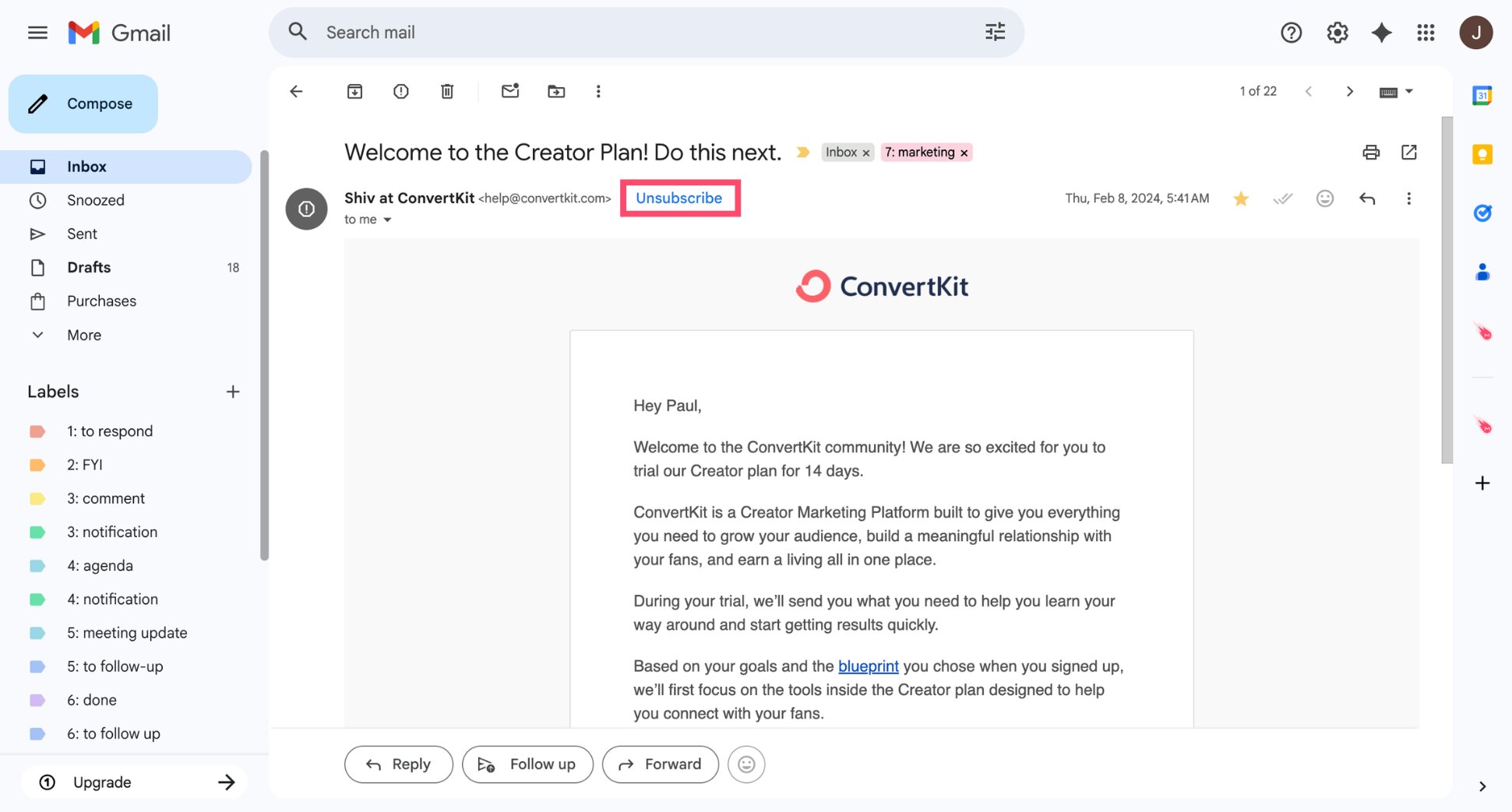
One of the fastest ways to reduce email overload is to stop receiving emails you don’t actually read. Over time, most inboxes accumulate dozens of newsletters, marketing emails, product updates, and automated notifications.
Individually these messages may seem harmless, but together they create a constant stream of distractions. Take a few minutes to review your inbox and unsubscribe from emails that no longer provide value.
Most marketing emails include an unsubscribe link at the bottom of the message. If you want a step-by-step walkthrough, check out our guide on how to unsubscribe from emails.
2. Set Up Filters to Automatically Sort Emails
Email filters allow you to create rules that sort incoming messages based on criteria like the sender, subject line, or keywords. Instead of landing in your main inbox, these emails can be automatically labeled, archived, or moved to a specific folder.
For example, you can create filters to:
- Send newsletters directly to a Newsletters label
- Move automated notifications into a separate folder
- Automatically label emails from clients or teammates
- Delete promotional emails so they don’t clutter your inbox
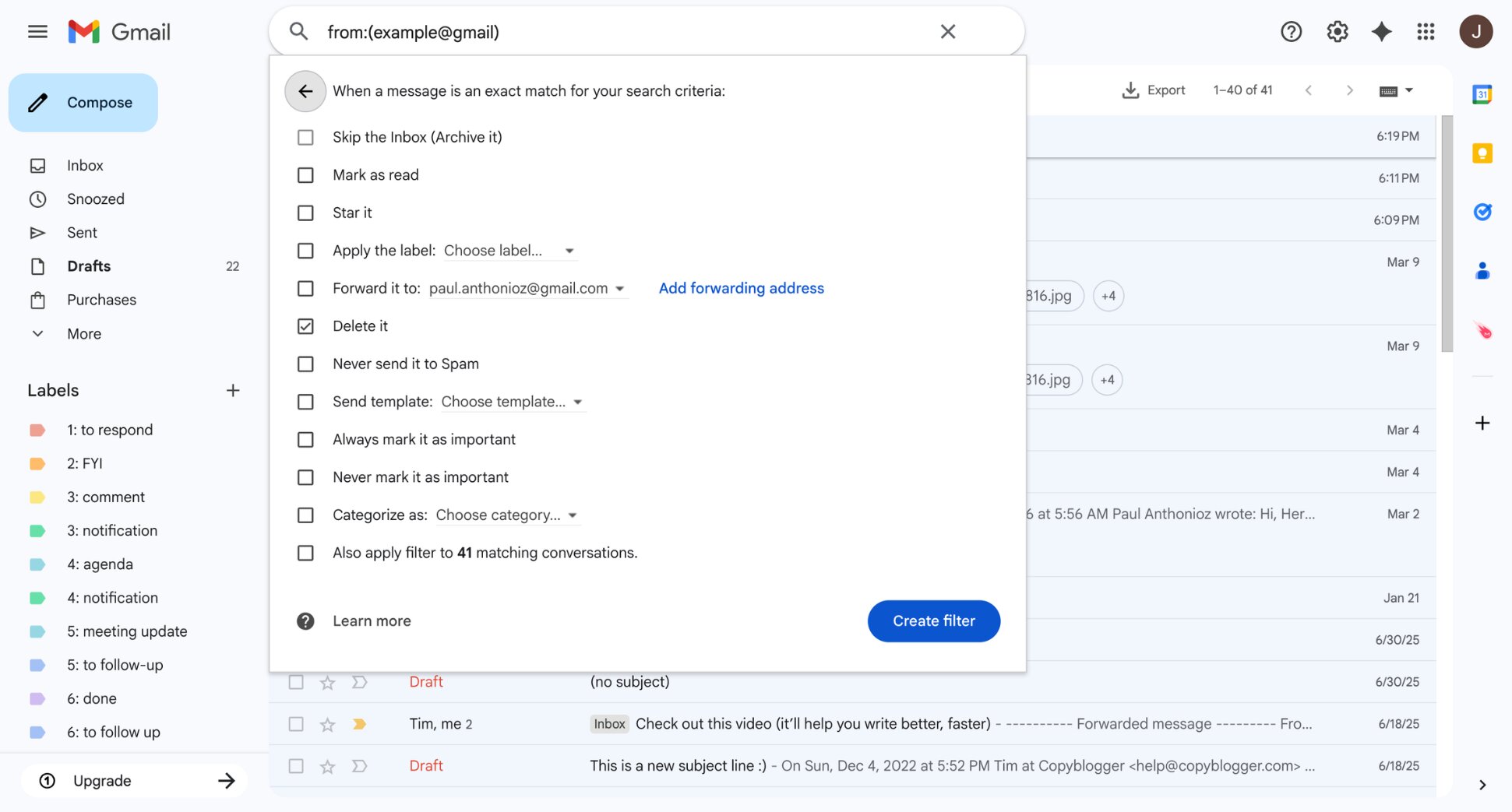
Once these rules are in place, your inbox becomes much quieter. Important conversations remain visible, while low-priority emails are organized automatically in the background.
3. Turn Off Email Notifications
Email notifications may seem helpful, but they often make email overload worse. Every alert pulls your attention away from what you’re doing and encourages you to check your inbox more frequently.
Instead of reacting to every incoming message, consider turning off email notifications on your phone, computer, and browser. This helps you stay focused on your work without being constantly interrupted.
4. Batch Process Your Emails at Specific Times
Process your inbox in batches instead of checking it constantly. Set specific moments during the day to review your email — for example once in the morning, once after lunch, and once before finishing work.
During each session, reply if action is needed, archive or delete messages that are done, and schedule follow-ups when necessary. Handling emails in batches helps you stay organized while keeping most of your day free for focused work.
5. Use the 2-Minute Rule
Some emails only require a quick response. The 2-minute rule is a simple productivity principle that helps you deal with these messages right away. The idea is simple: if an email can be handled in two minutes or less, do it immediately.
Reply to the message, forward it, confirm the information, or archive it once the task is done. Handling quick emails on the spot prevents them from piling up in your inbox and turning into a long list of small tasks you keep postponing.
For messages that require more time or attention, avoid leaving them in your inbox. Instead, schedule a follow-up or move them to a task list so you can deal with them later without cluttering your inbox.
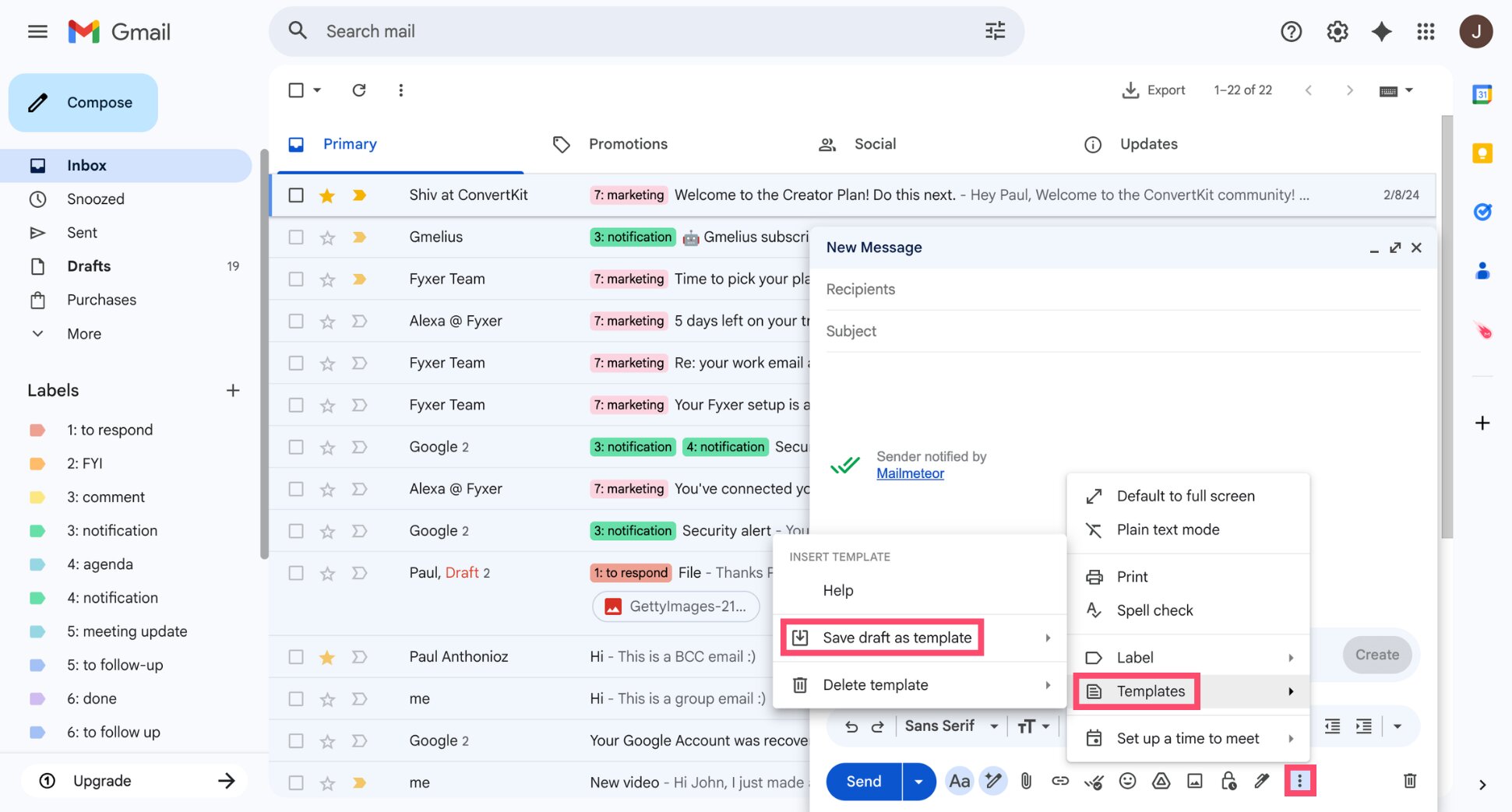
6. Use Templates for Repetitive Replies
Some emails require the same response over and over again. Instead of writing these messages from scratch each time, create email templates for replies you send frequently. For example, you could save templates for:
- Meeting confirmations
- Pricing or product information
- Support answers to common questions
- Follow-up emails after a conversation
When you receive a similar request, simply insert the template and adjust a few details before sending. This approach helps you reply much faster and keeps your communication consistent.
If you use Gmail, you can create and save reusable responses directly in your inbox. Follow this guide to set up Gmail templates and start replying to common emails in seconds.
7. Use Swipe Gestures and Quick Actions
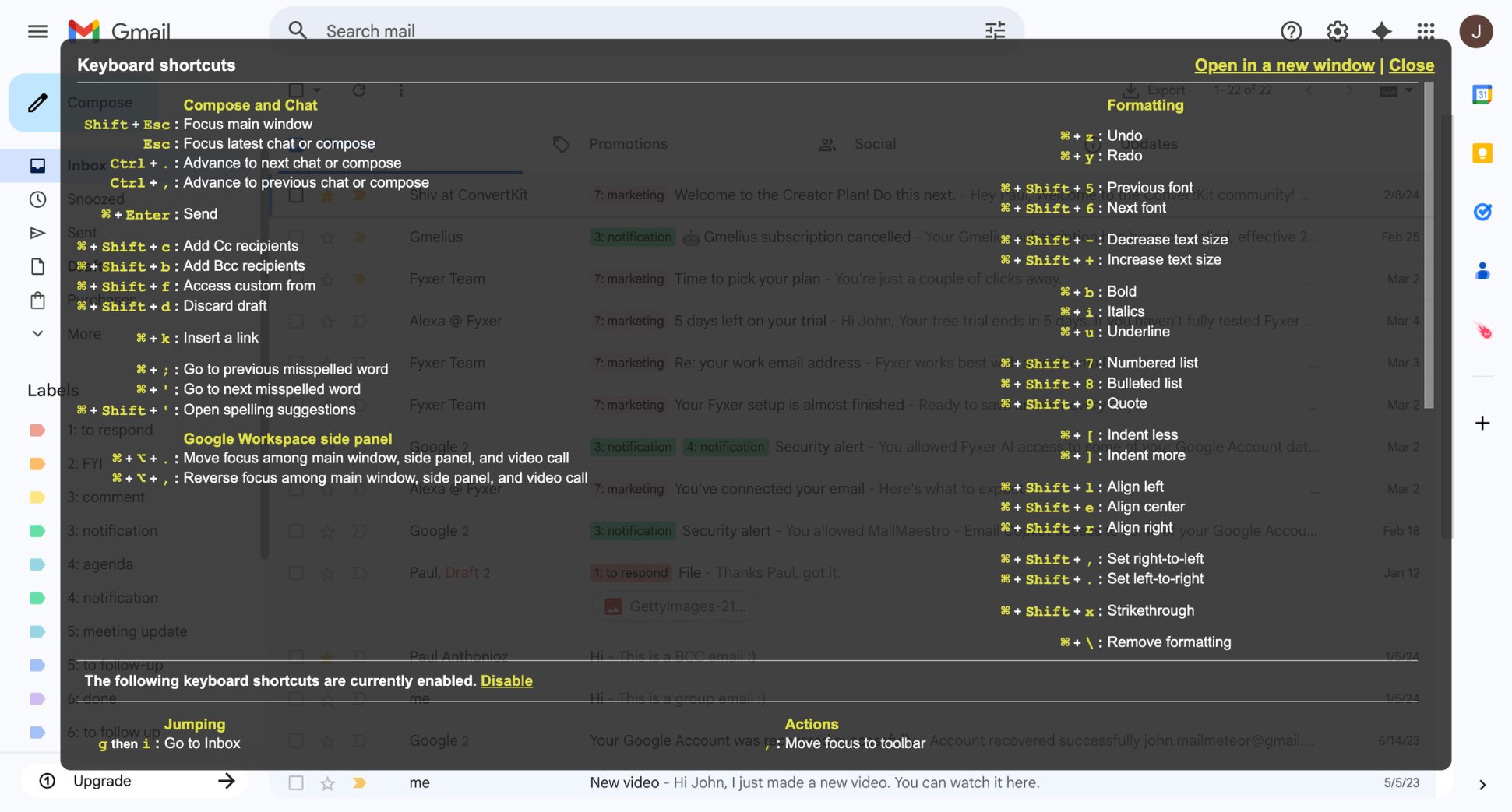
Small actions like archiving, marking messages as read, or moving emails to folders can add up quickly when you repeat them dozens of times per day. Using swipe gestures and keyboard shortcuts helps you handle these actions much faster.
On mobile, swipe gestures let you process emails with a simple movement of your finger. For example, you can swipe to archive, delete, or snooze messages without opening each email. If you use Gmail, you can even customize your swipe settings.
On desktop, keyboard shortcuts can dramatically speed up inbox management. Instead of clicking through menus, you can archive emails, reply, or delete messages using a single key or shortcut combination.
8. Schedule Follow-Ups Instead of Leaving Emails in Your Inbox
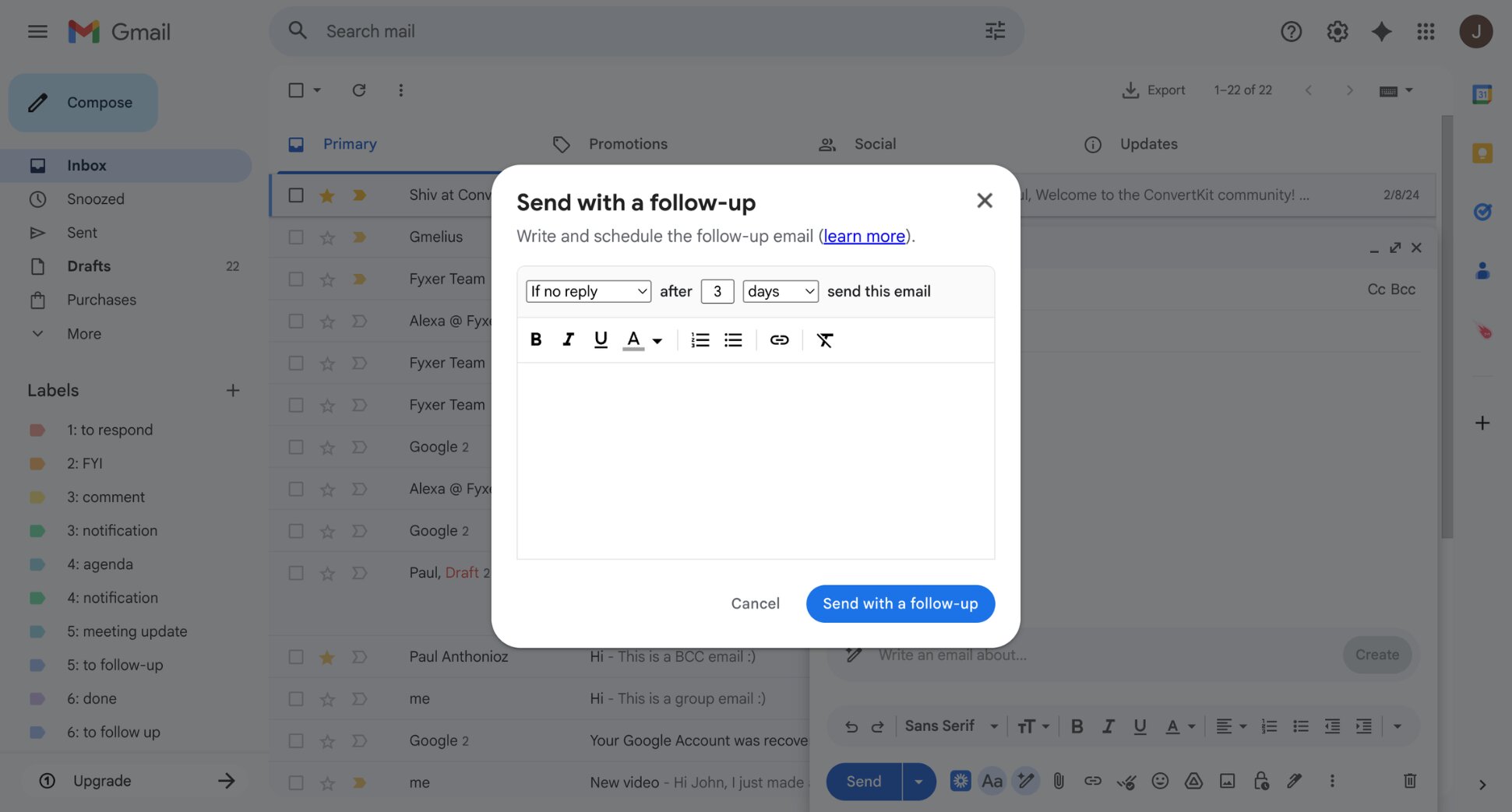
A common cause of email overload is constantly checking whether someone replied to a message you sent. Instead of reopening the same conversation again and again, schedule a follow-up when you send the email.
That way, if the recipient doesn’t reply, a reminder will automatically be triggered. This approach ensures important conversations don’t get forgotten and removes the need to manually track unanswered emails.
9. Use AI to Prioritize and Draft Emails
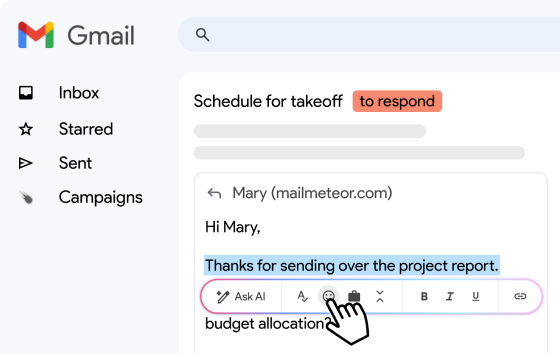
As your inbox grows, it becomes harder to quickly identify which emails need your attention. AI email assistants can help by highlighting important conversations, summarizing long threads, and suggesting replies.
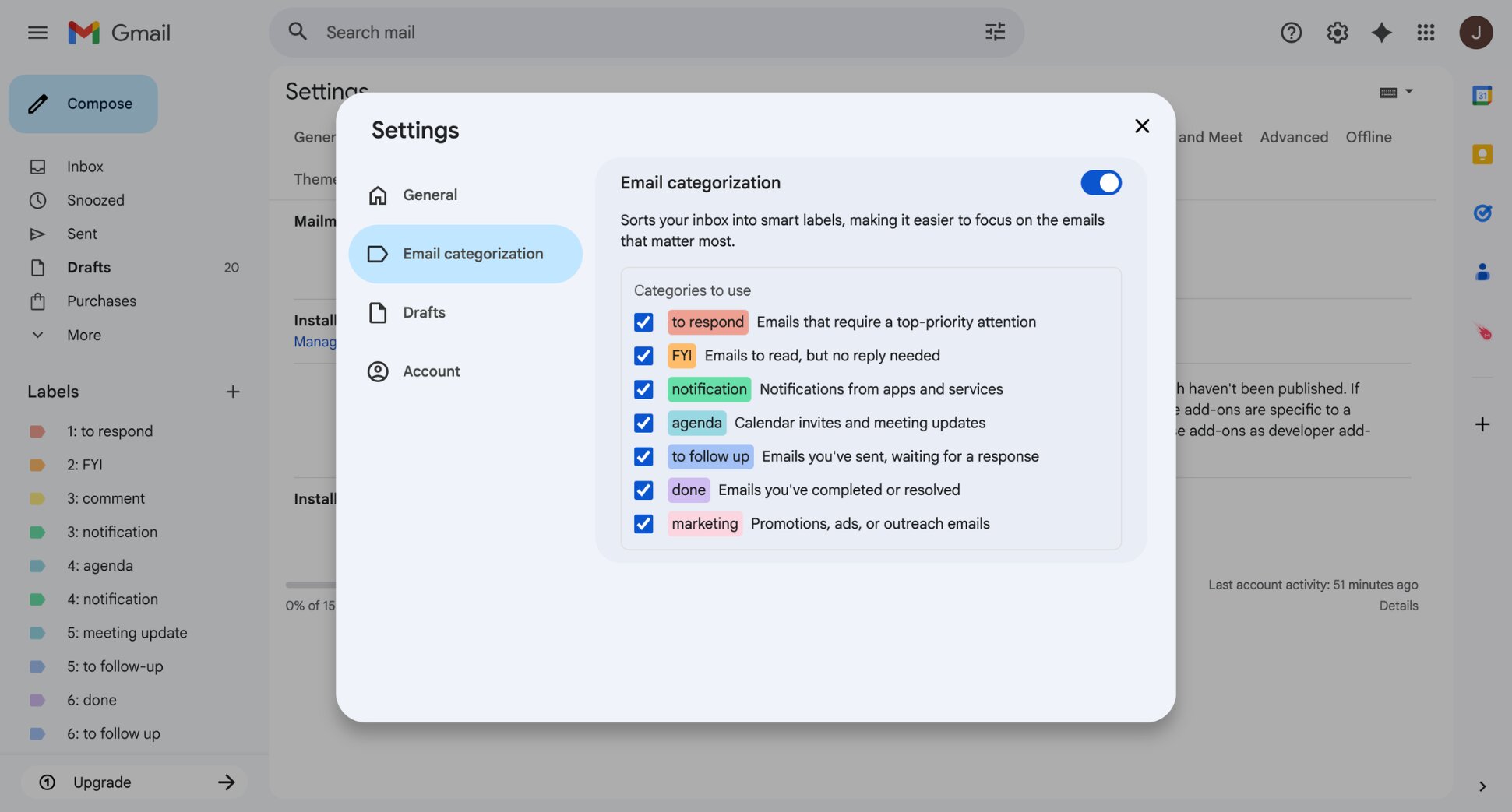
For example, an AI-powered tool like Mailmeteor automatically labels your emails based on their content, making it easier to spot messages that require action and prioritize them.
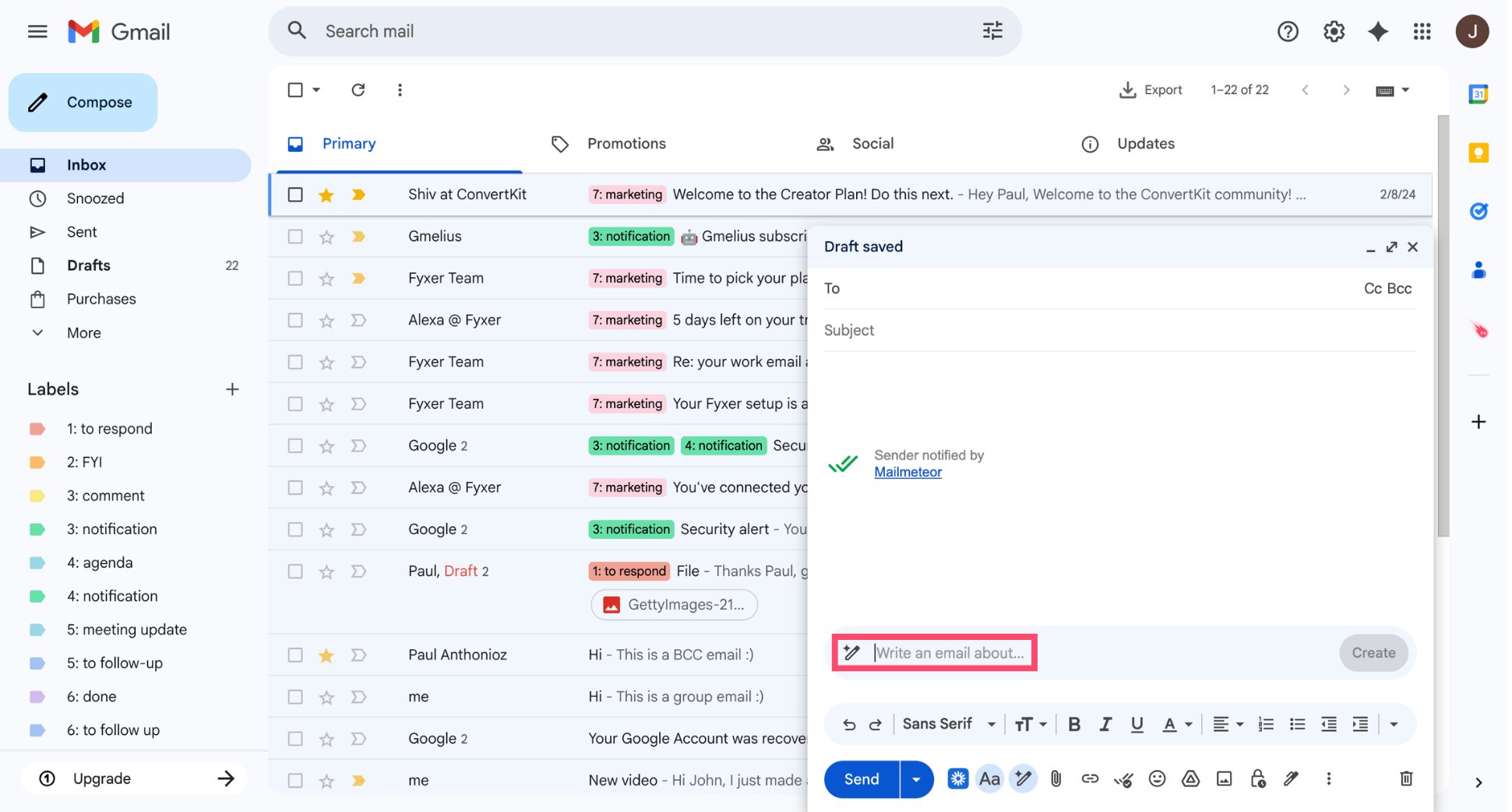
AI can also generate draft replies based on the conversation, so you can respond faster without starting every email from scratch. You can then fine-tune the tone in just a few clicks to make the message sound exactly like you.
Conclusion
Email overload can make your inbox feel impossible to manage. But most of the time, the real problem isn’t email itself — it’s the constant flow of messages and the habit of reacting to every notification.
By removing unnecessary emails, organizing incoming messages, and handling your inbox more intentionally, you can significantly reduce the time and energy email demands from you.
And if you want to go even further, AI tools like Mailmeteor can help you handle messages faster, highlight the conversations that matter, and spend less time dealing with email.
With Mailmeteor, you can:
- Write emails faster with AI-powered drafting and tone suggestions
- Generate replies instantly based on the context of your conversations
- Automatically categorize emails to reduce inbox noise
- Monitor the time you spend in your inbox so you can reduce email distractions
- Send personalized email campaigns without leaving Gmail
- Track opens and clicks to understand what happens after you send an email
- Automate follow-ups so important conversations don’t slip through the cracks
Want to spend less time managing email and more time doing meaningful work? Try Mailmeteor today (it’s free!) and see how much faster you can handle your inbox.
FAQs
What causes email overload at work?
Email overload at work often happens because of long CC chains, internal email threads, newsletters, automated alerts, and constant notifications that interrupt your workflow and make it harder to focus.
How many emails per day is considered too many?
There’s no exact number, but many professionals receive 80–120 emails per day. Email overload usually occurs when messages accumulate faster than you can read, organize, or respond to them.
How do you stop email overload in Gmail?
To reduce email overload in Gmail, unsubscribe from unnecessary emails, create filters and labels to organize incoming messages, turn off notifications, use AI to categorize your emails and process your inbox in batches.
Is Inbox Zero the best way to deal with email overload?
Inbox Zero can help manage email overload by encouraging you to process messages quickly instead of letting them pile up. Many people combine it with batching, filters, and automation to keep their inbox manageable.
Can AI help manage email overload?
Yes. AI tools like Mailmeteor can help by prioritizing important emails, summarizing long threads, and drafting replies automatically. This allows you to process messages faster and focus on the most important conversations.
Why does my inbox fill up so quickly?
Inbox volume often grows because of newsletters, notifications, marketing emails, and long email threads. Without filters or regular cleanup, these messages quickly pile up and create email overload.