Spam emails can pile up fast — cluttering your inbox, wasting storage space, and making it harder to spot the messages that actually matter. Every day, more than 170 billion spam emails are sent worldwide, turning manual cleanup into a constant chore. In fact, research from The Radicati Group and Kaspersky Lab shows that spam still accounts for nearly 47% of global email traffic.
The good news? Gmail automatically deletes spam after 30 days. But if you want faster results, you can create a simple filter to delete unwanted emails as soon as they arrive — no manual cleanup required.
In this guide, you’ll learn how to auto delete spam in Gmail, remove recurring junk from specific senders or based on certain keywords, and reduce the number of unwanted emails reaching your inbox in the first place.
Does Gmail Automatically Delete Spam?
Yes, Gmail automatically deletes messages in your Spam folder after they have been there for 30 days. This 30-day window is a safety feature designed by Google to ensure you have time to recover “false positives” — legitimate emails that were accidentally flagged as junk.
However, this means that even the most obvious spam stays in your account for a full month, taking up valuable storage space. If you don’t want to wait that long, you can bypass Gmail’s default behavior by creating a custom filter that auto-deletes spam the moment it arrives.
How to Automatically Delete Spam in Gmail
The most effective way to manage junk mail is to use Gmail filters. By creating a specific rule for your incoming mail, you can tell Google to bypass the 30-day waiting period and delete messages immediately.
Automatically Delete All Incoming Spam
If you receive large volumes of junk email, you can create a filter to automatically delete incoming spam before it clutters your inbox.
To automatically delete spam in Gmail:
- Open Gmail.
- Click the Show search options icon in the search bar.
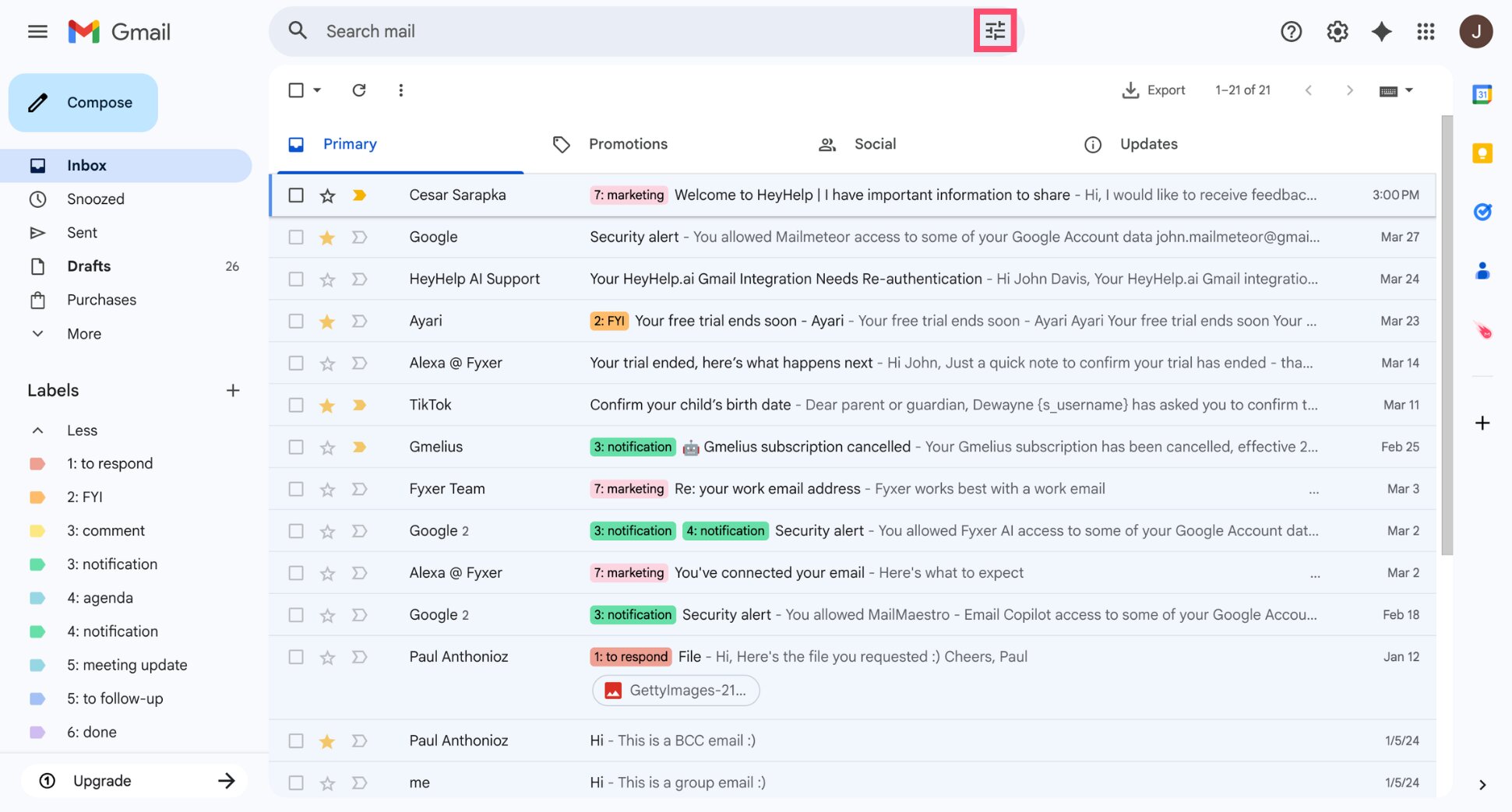
- In the Has the words field, type: is:spam.
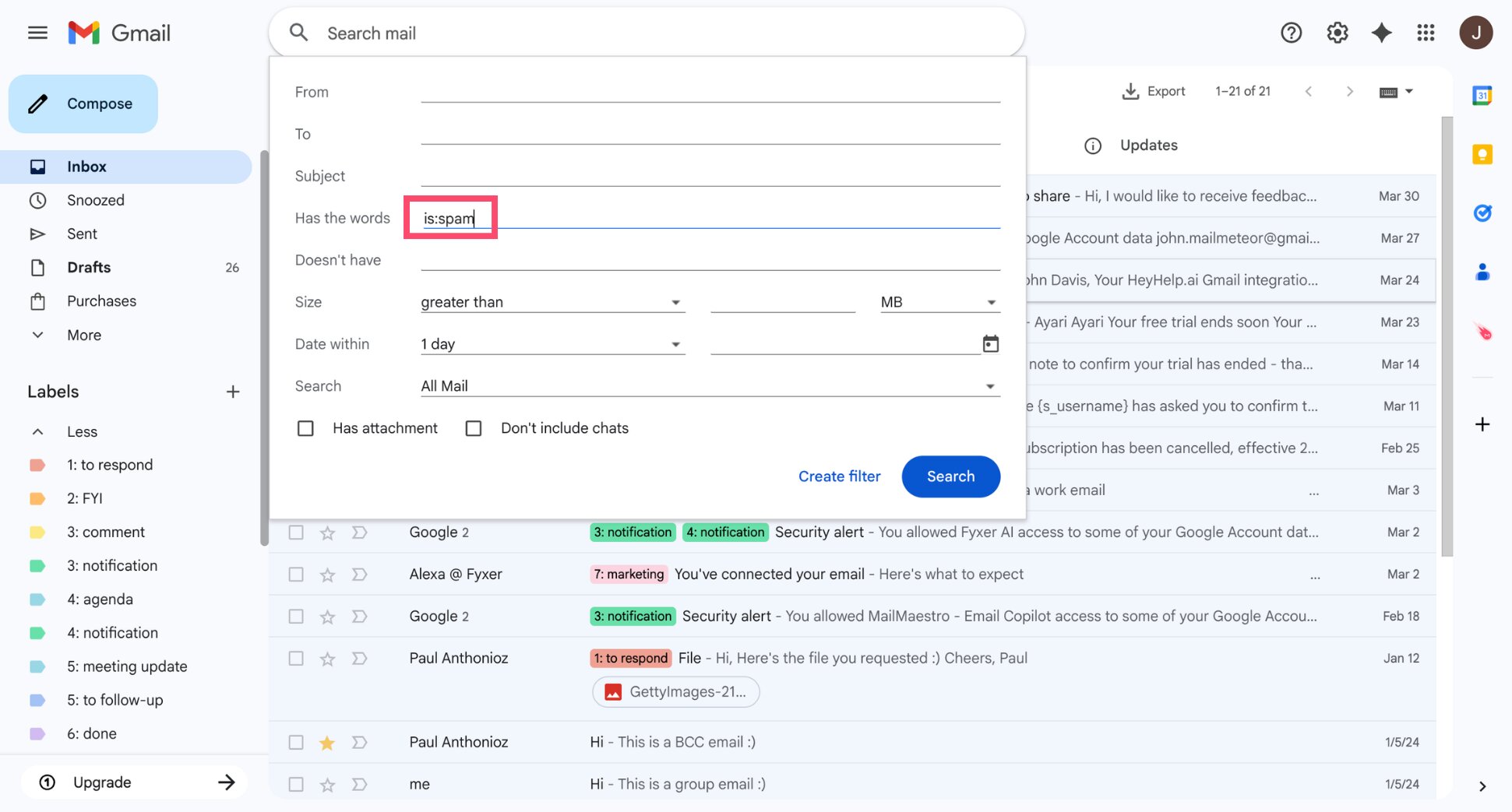
- Click Create filter.
- Select Delete it. You can also check Also apply filter to matching conversations if you want Gmail to delete existing spam emails.
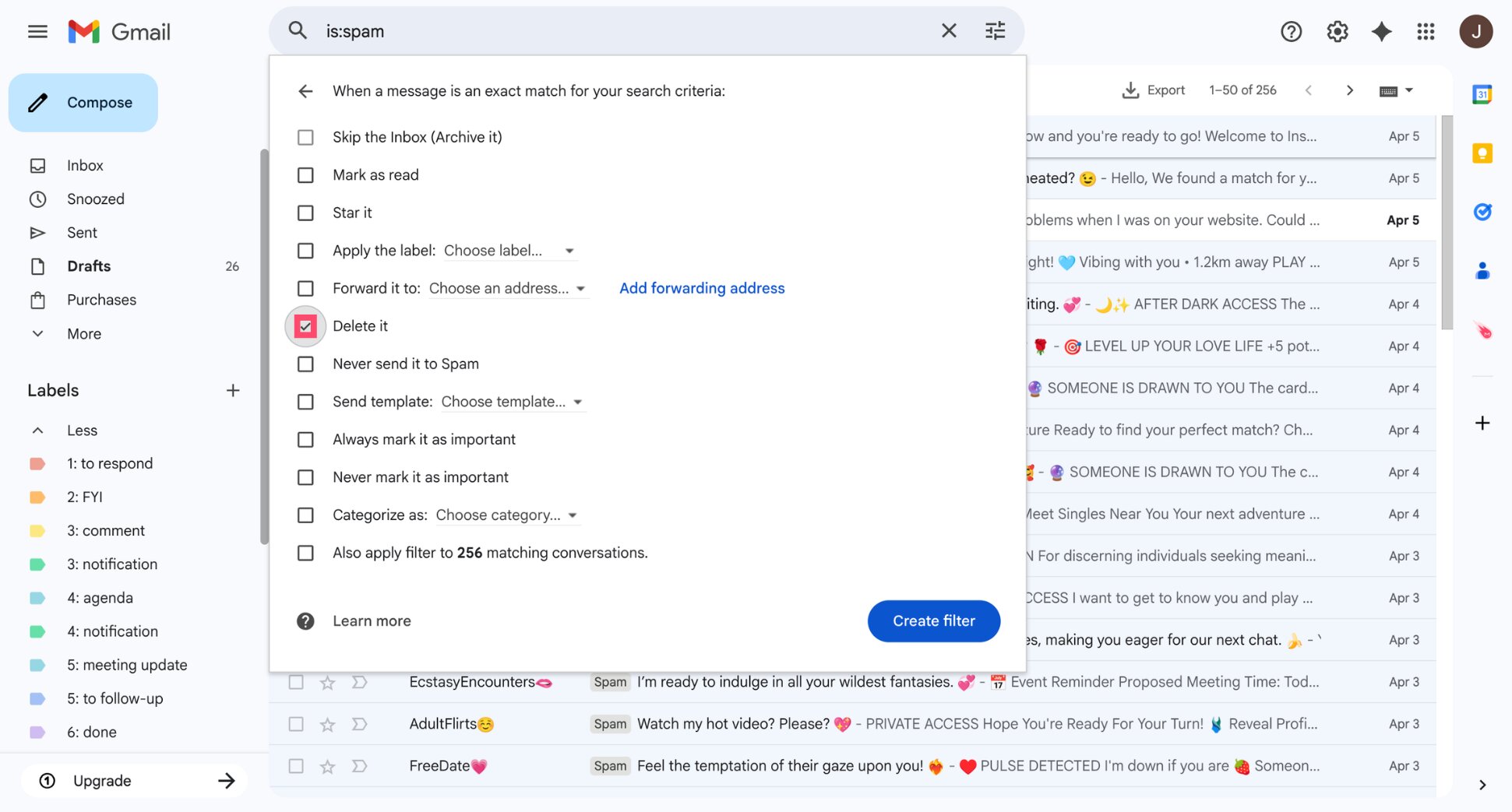
- Click Create filter again to confirm.
And voilà. From now on, any email marked as spam will be moved to the Trash automatically.
Automatically Delete Emails From a Specific Sender
If a persistent spammer keeps hitting your inbox, you can create a filter to automatically delete emails from that sender before you ever see them.
To automatically delete emails from a specific sender:
- Open Gmail.
- Click the Show search options icon in the search bar.
- Enter the sender’s email address in the From field. You can also enter a domain (for example:
@company.com) to block emails from the entire organization.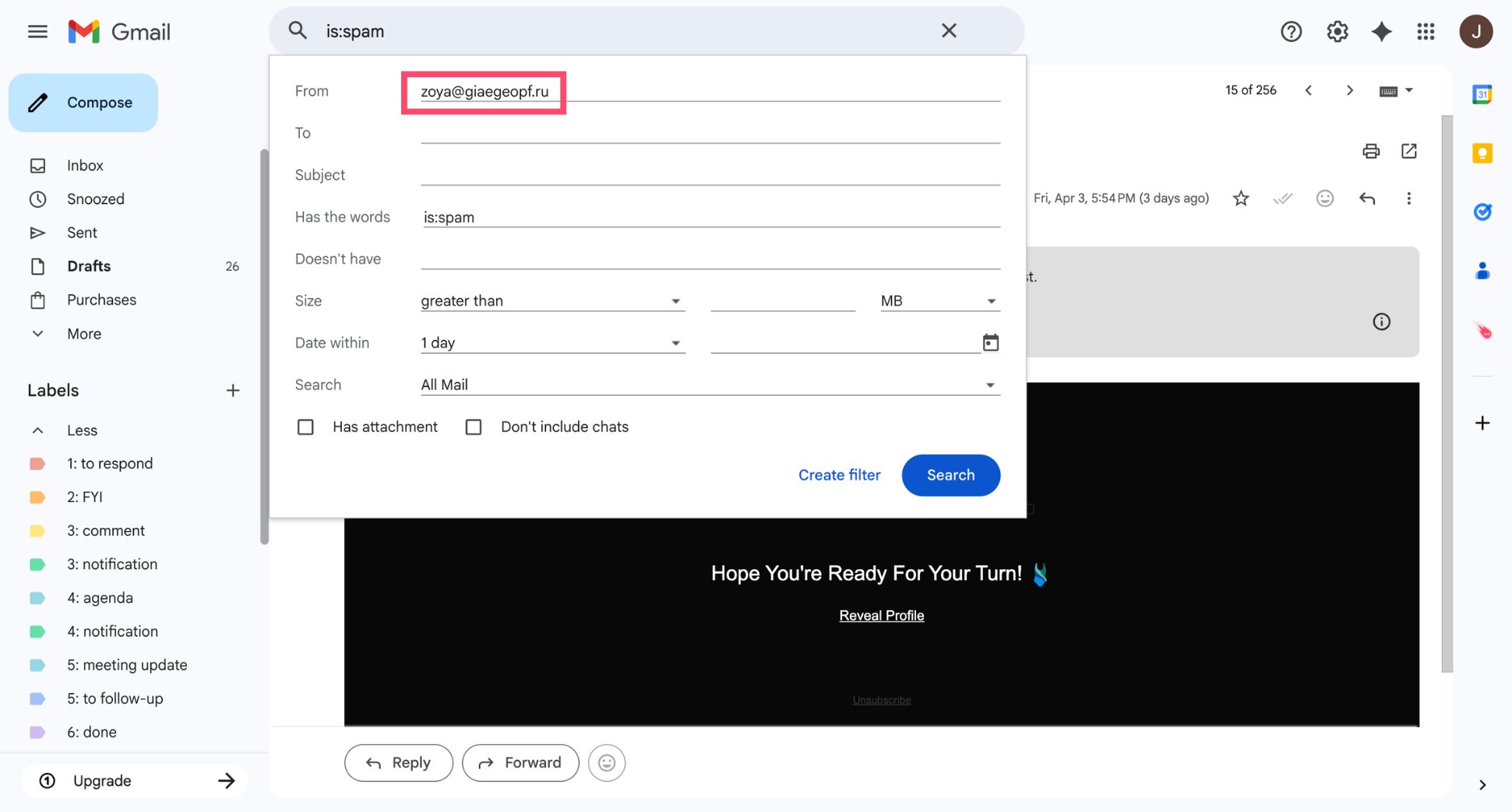
- Click Create filter.
- Select Delete it.
- Click Create filter again to confirm.
And that’s it. Gmail will now move emails from that sender directly to the Trash, keeping your inbox clear of repeat junk.
Automatically Delete Emails with Certain Keywords
Spammers often reuse the same trigger words — even when they change email addresses. By filtering messages based on specific keywords, you can catch these emails before they reach your inbox.
To automatically delete emails containing certain keywords:
- Open Gmail.
- Click the Show search options icon in the search bar.
- In the Has the words field, enter the keyword or phrase you want to filter (for example:
Winner OR Prize OR Lottery OR "Act now").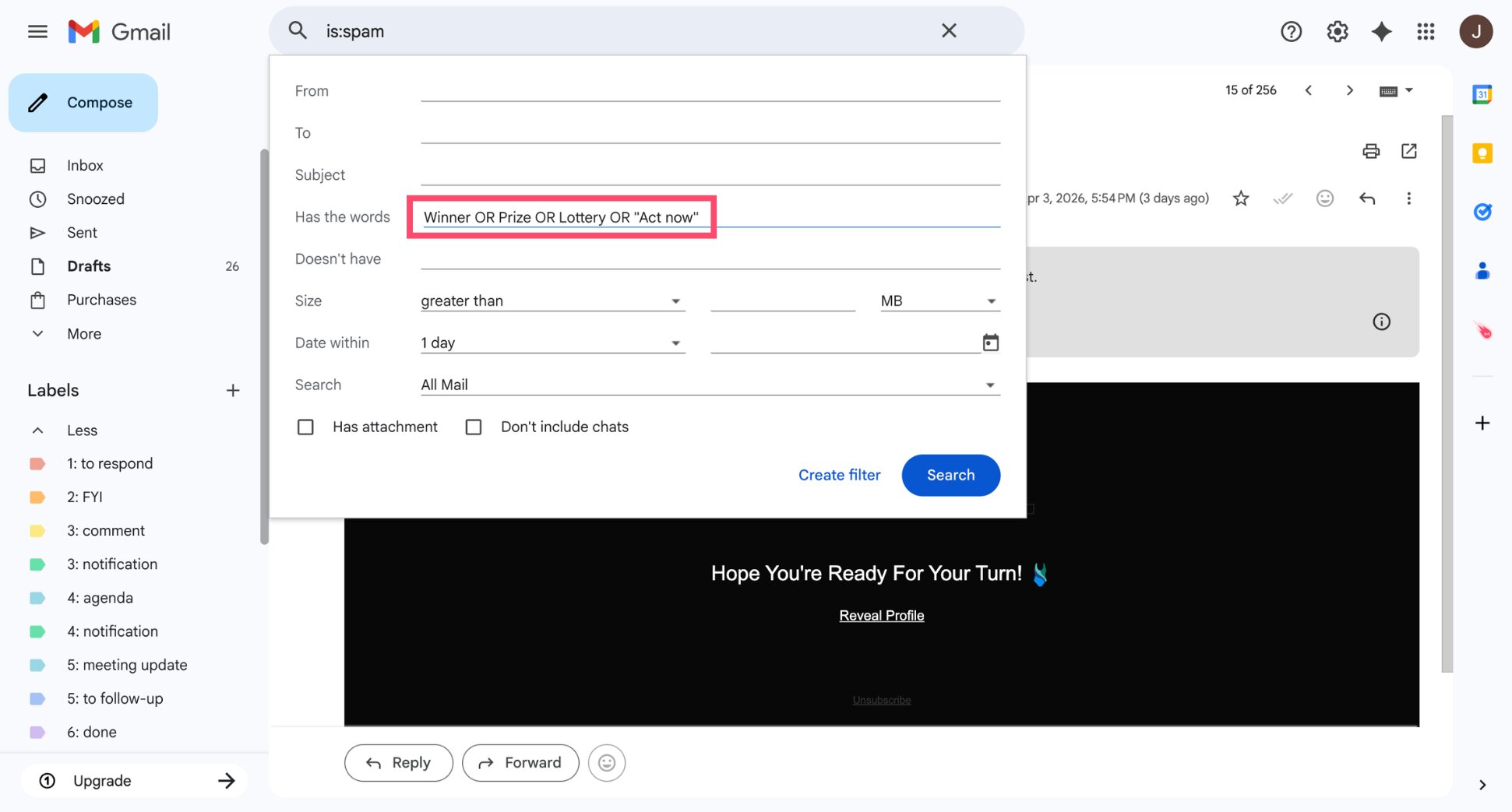
- Click Create filter.
- Select Delete it.
- Click Create filter again to confirm.
All done. From now on, any email containing those keywords will be moved to the Trash automatically — even if the sender changes their address.
How to Reduce Spam Emails in Gmail
Deleting spam is a temporary fix — stopping it at the source is the real solution. By teaching Gmail what you consider junk and protecting your primary address, you can significantly reduce the amount of spam reaching your inbox.
Unsubscribe From Unwanted Emails
Not all unwanted emails are malicious. Many come from newsletters, promotions, or services you signed up for in the past. If you keep receiving messages you no longer want, the fastest solution is to unsubscribe.
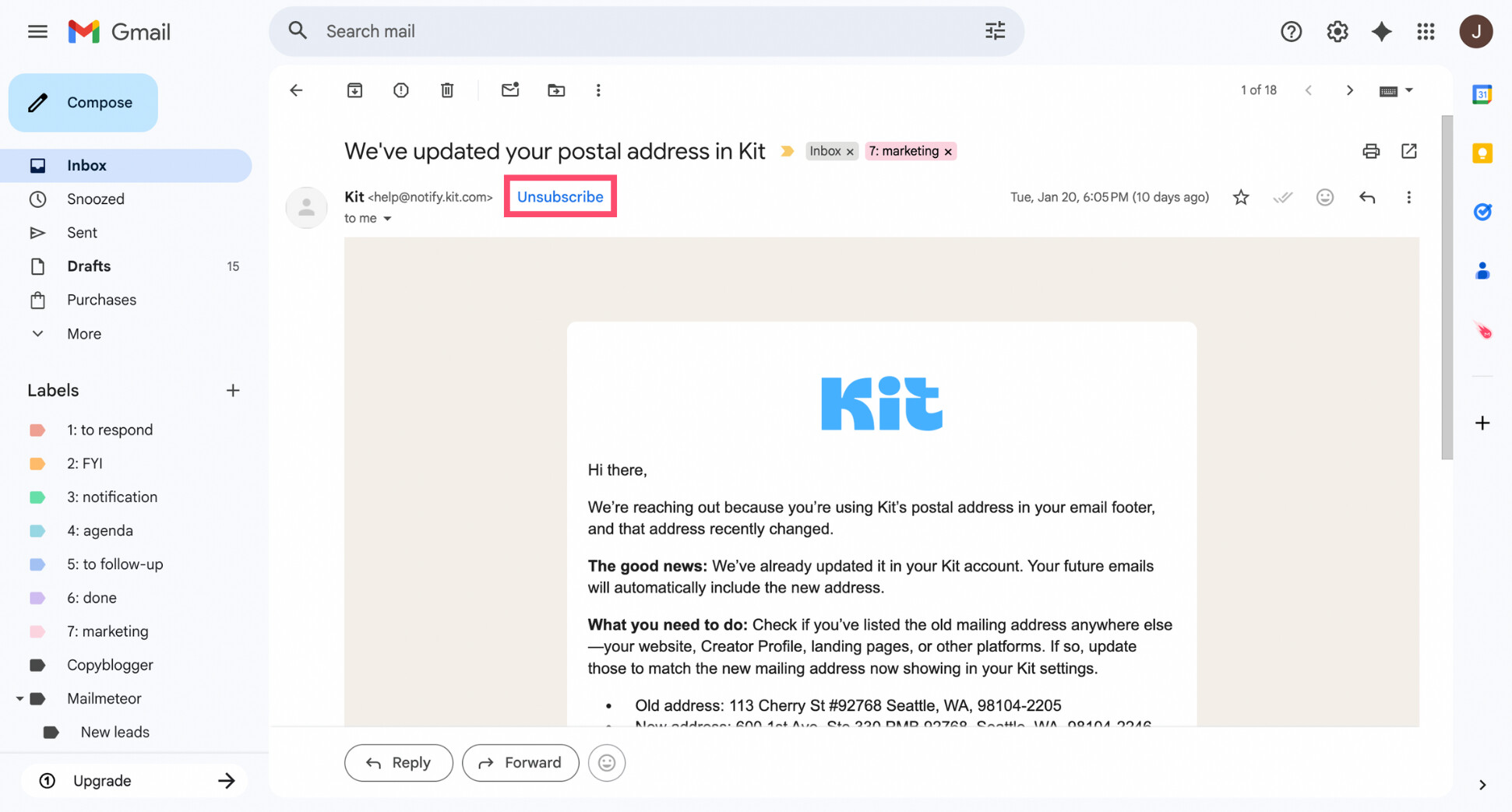
You can do so using Gmail’s built-in Unsubscribe feature. Look for the blue Unsubscribe link next to the sender’s name at the top of the email. With one click, Gmail removes you from the mailing list.
Block Spam Senders in Gmail
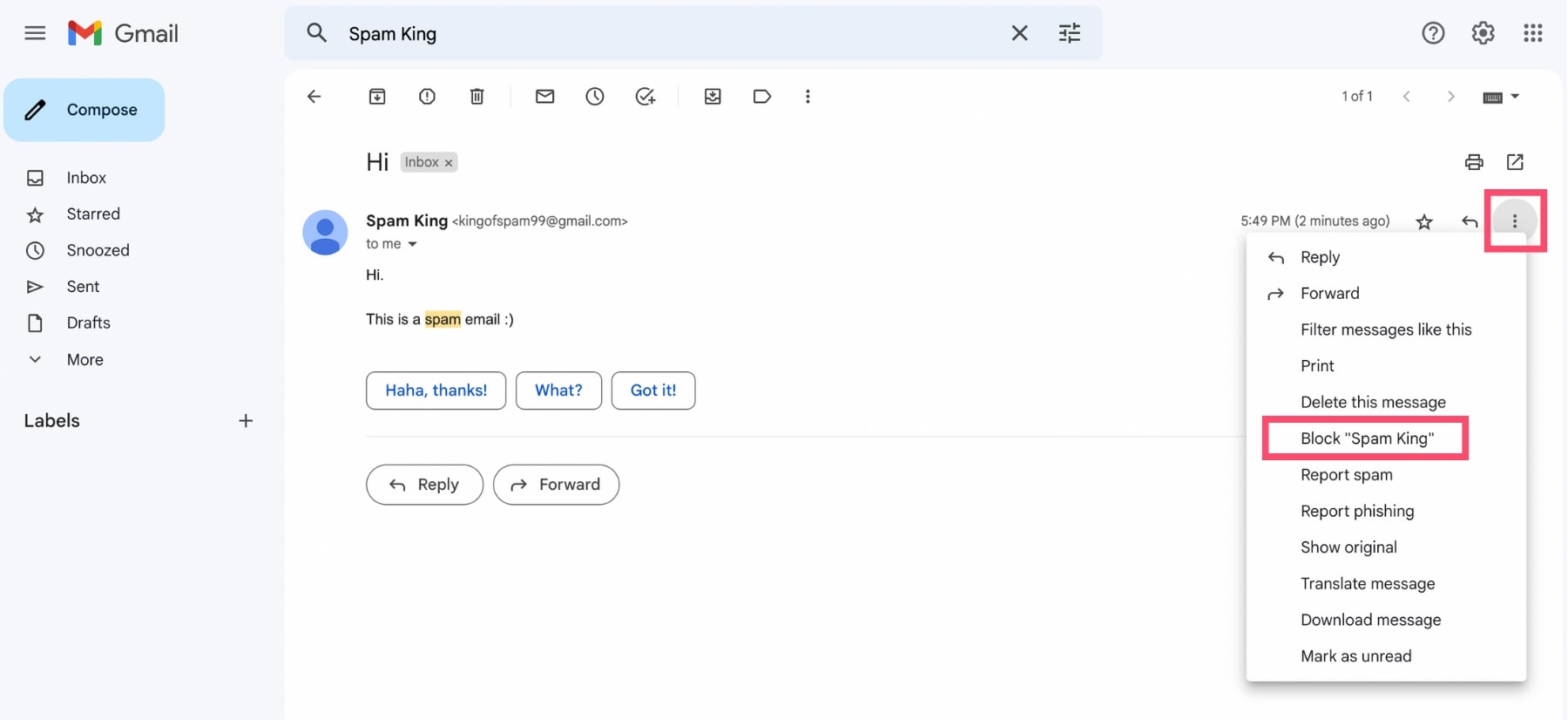
If spam keeps coming from the same address, block the sender. It’s one of the quickest ways to stop repeat messages without setting up complex rules. Once blocked, future emails from that address go straight to your Spam folder — skipping your inbox.
To block a sender in Gmail:
- Sign in to Gmail.
- Open an email from the sender you want to block.
- Click the three-dot menu.
- Select Block.
That’s it. Gmail will handle the rest automatically.
Use the “+” Alias Trick to Filter Spam Emails
Gmail ignores anything after a “+” in your email address. This lets you create simple variations — called Gmail aliases — of your email address without changing your actual account settings.
For example, if your email is:
alex@gmail.com
You can sign up to a service using:
alex+brandname@gmail.com
This way, if you start receiving junk sent to that specific address, you’ll know exactly which company shared or leaked your data. You can then create a filter to auto-delete any email where the To field matches that alias.
Keep Your Inbox Clean With Mailmeteor
Spam never fully disappears — but with the right filters and habits, you can keep it under control. By automatically deleting unwanted emails, blocking repeat senders, and targeting common spam keywords, you can drastically reduce clutter and spend less time managing your inbox.
And if you want to go one step further, you can use an AI email assistant to handle routine tasks automatically. With Mailmeteor’s AI assistant for Gmail, you can:
- Write emails faster with AI to generate replies or improve your tone
- Apply smart labels automatically to keep your inbox organized
- Run mail merge campaigns to send personalized emails at scale
- Send automatic follow-ups so important emails don’t slip through the cracks
- Track emails in real time to see when messages are opened or clicked
A clean inbox shouldn’t require daily cleanup. Try Mailmeteor’s AI assistant today (it’s free!) and spend less time managing email every day.
FAQs
How long does Gmail keep spam before deleting it?
Gmail automatically deletes messages in the Spam folder after 30 days. You can’t change this default setting, but you can create a custom filter to delete spam sooner.
Can Gmail automatically delete spam after 1 day?
Not by default. Gmail keeps spam for 30 days before deleting it. However, you can set up a filter to automatically delete specific emails as soon as they arrive, without waiting.
How do I delete all spam emails at once in Gmail?
Open the Spam folder, click Select all, then choose Delete all spam messages now. Gmail will permanently remove every message in the folder. Once deleted, these emails can’t be recovered.
How do I auto-delete spam in Gmail on Android or iPhone?
You can’t create filters directly in the Gmail mobile app. To set up auto-deletion, you must log in to Gmail via a web browser. Once you create a filter on your computer, it will automatically apply to all incoming mail — including on mobile devices.
Is it better to block spam emails or delete them?
It is better to Report Spam or Block the sender rather than just deleting the email. Reporting spam trains Gmail’s AI to recognize similar junk in the future. Blocking the sender ensures their future emails never reach your Inbox.
Can I recover an email that was automatically deleted from Spam?
Sometimes. If the message is still in the Trash folder, you can restore it. But once Gmail permanently deletes the email (after 30 days or manual deletion), it can’t be recovered.
Do Spam and Trash Emails Count Toward Storage?
Yes. Emails in both the Spam and Trash folders still count toward your Gmail storage quota until they are permanently deleted. To free up space immediately, open the folder and click Empty Trash now or Delete all spam messages now.