# Email context
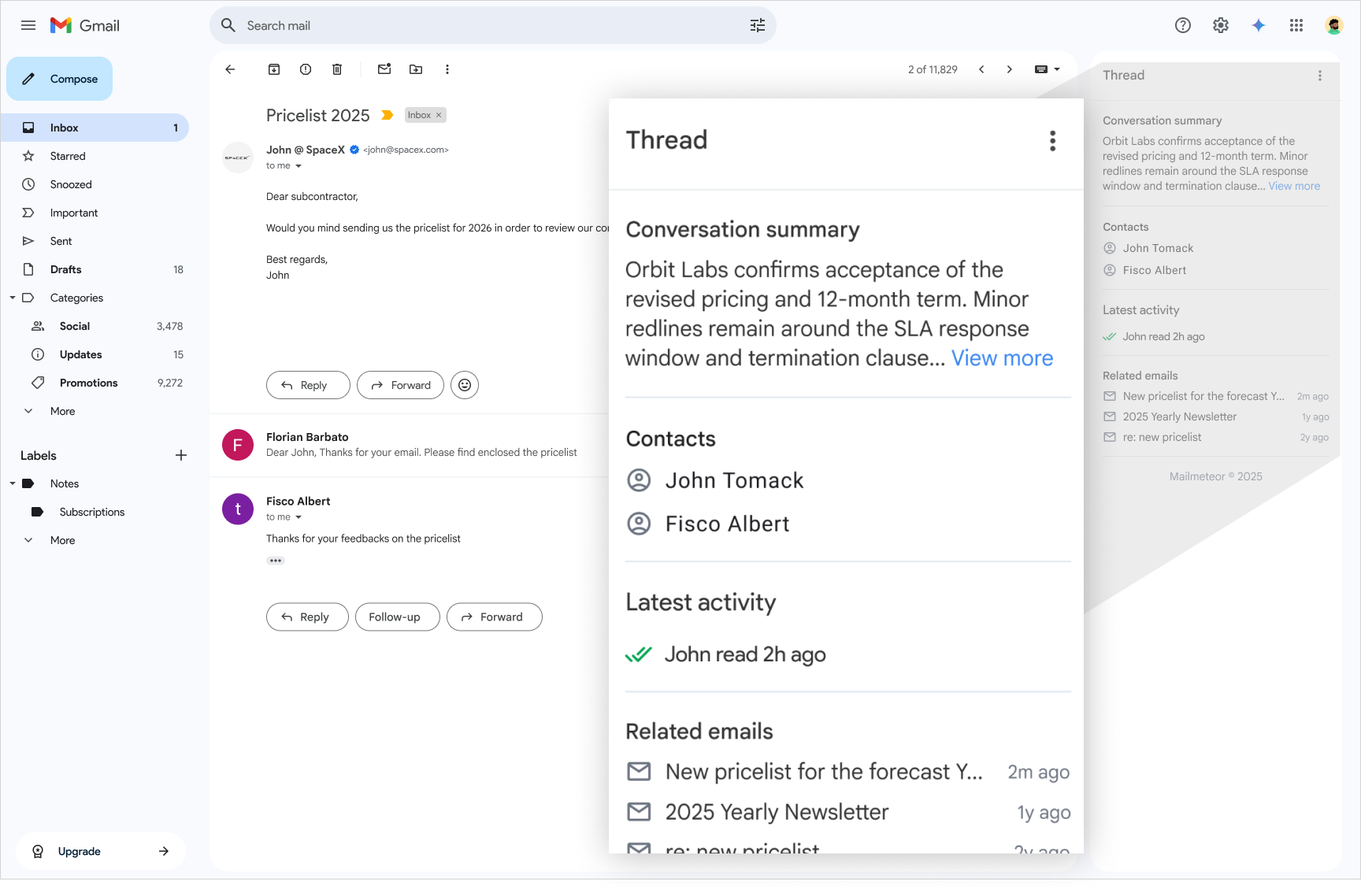
When you open an email in Gmail, Mailmeteor can gives you contextual infoirmation to help you manage your emails, without leaving your inbox.
Context panel displayed alongside a Gmail conversation
## Getting started
To open the context panel:
1. Open any email thread in Gmail.
2. The context panel appears automatically on the right side of the screen.
If it doesn't appear, click the Mailmeteor icon in the side panel.
## Native modules
The context panel includes several built-in modules to help you manage conversations more efficiently.
- **Conversation summary** is an AI-generated summary of the current thread. It captures the context, the last decision made, and any open items.
- **Contacts** presents a list of all participants in the conversation. Each contact links to their full profile in Mailmeteor, where you can view contact details, history, and notes.
- **Recent activity** lets you know when your emails were opened or links were clicked.
- **Attachments** lists all attachments for all emails in the conversation. Click on an attachment to preview it and download it in one click.
- **Related emails** suggests connected emails from your inbox based on sender, subject, or campaign. This is useful for quickly recovering prior context on an exchange.
## Customize the panel
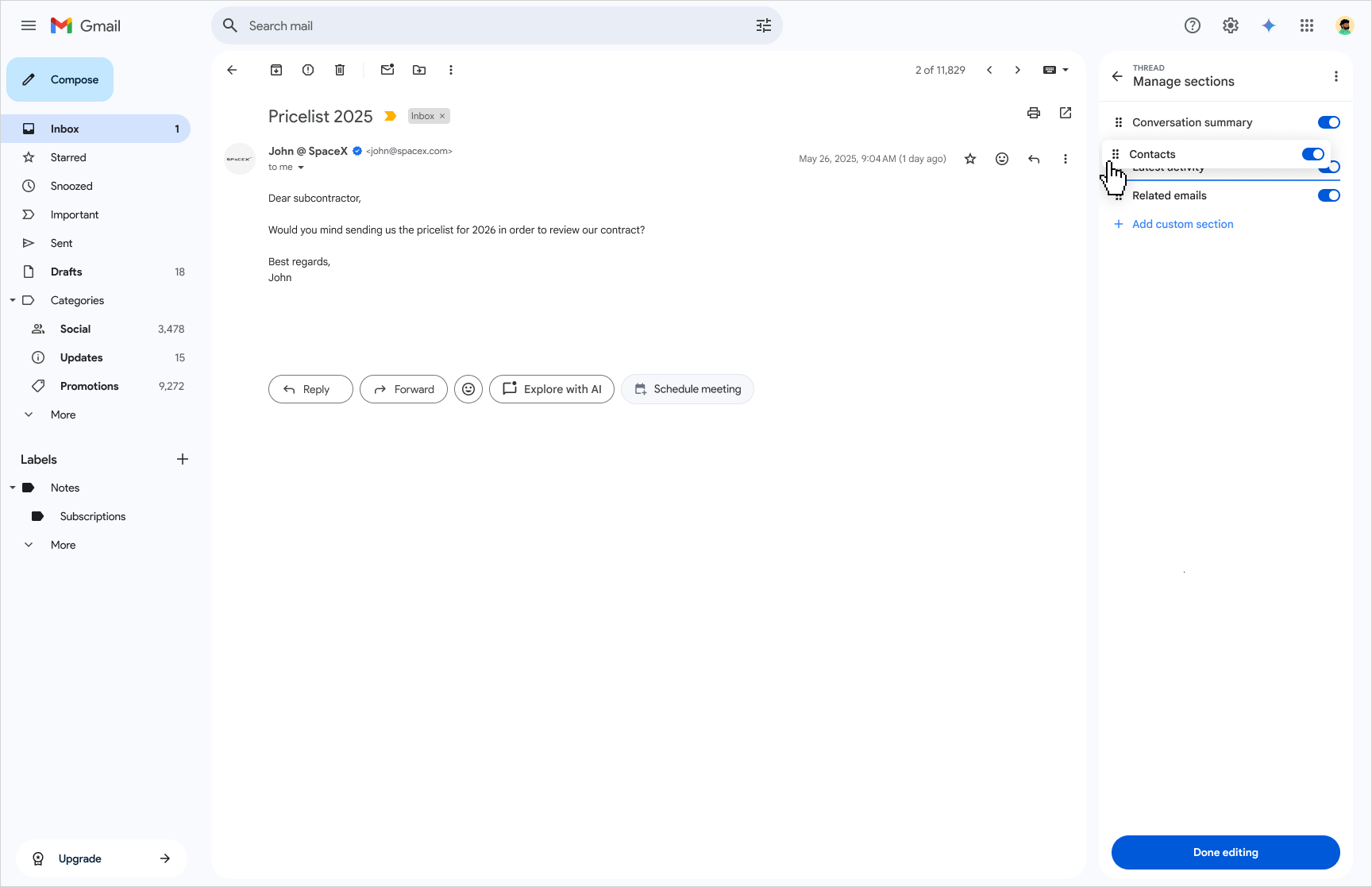
You can rearrange, show, or hide modules to fit your workflow.
1. Open the context panel menu.
2. Click **Manage sections**.
3. Edit the layout to your preference.